
I came home from a Costco run last winter to find half a spaghetti pile glued to the bed of my Ender 3 because the wife had bumped the printer off the corner of the bench and I couldn’t see a thing from the kitchen upstairs. That was the night I went down a webcam rabbit hole and didn’t come up until I’d wired a Pi camera to every printer in the garage, including the cheap Sovol that didn’t deserve one. So when people ask me how to get “Live View” working inside OrcaSlicer, I’m sympathetic, because the answer is messier than anybody on YouTube wants to admit.
Here’s the part nobody says out loud: “Live View in OrcaSlicer” isn’t one feature. It’s three different things stacked on top of each other, and which one you get depends entirely on what brand of printer you’ve got plugged in. I’ll walk through every flavor I’ve actually used, what works, what silently doesn’t, and the handful of settings that fix 80% of “my webcam is black” posts on Reddit.
Table of contents
- What “Live View” actually means inside OrcaSlicer
- The Device tab: Bambu native vs every other brand
- Bambu Lab webcam setup, by model
- Klipper printers, the crowsnest way
- Going H.264 with camera-streamer for low-bandwidth video
- OctoPrint webcam routes, legacy and modern
- PrusaLink and Prusa Connect, the live-view gap
- IP cameras, RTSP, and the go2rtc bridge
- Bandwidth, latency, and storage considerations
- Troubleshooting and security
- Frequently asked questions
What “Live View” actually means inside OrcaSlicer
Before we touch a single setting, you’ve got to internalize this: when somebody says “I want Live View in OrcaSlicer,” they’re really asking for one of three things, and the troubleshooting flow forks immediately based on which one. I’ve watched friends spend two hours fighting the wrong setup because they didn’t realize their printer didn’t support the path they were following.
The first flavor is the Bambu-native Device tab feed. On an X1C, X1E, P1S, A1, or any other Bambu printer, OrcaSlicer’s Device tab talks to Bambu’s own LAN/cloud pipeline and shows a real, decoded video frame. It’s the closest thing to a “just works” experience in this whole space. You sign in, you pick the printer, the feed appears, you move on with your life.
The second flavor is the embedded WebKit panel that loads on basically every non-Bambu printer. When you connect to a Klipper machine running Mainsail or Fluidd, or to an OctoPrint instance, OrcaSlicer doesn’t decode the video itself. It opens a browser window inside the Device tab and points it at the printer’s web UI. Whatever Mainsail or OctoPrint is showing in your browser is what you’ll see in OrcaSlicer. If the printer’s webcam panel works in Chrome, it’ll usually work here. If it doesn’t, OrcaSlicer can’t save you.
The third flavor is the custom HTTP camera URL field where you paste an MJPEG or MP4 stream directly. This is the option people forget exists, and it’s also the one that catches them out most, because the embedded player has hard limits on what codecs it’ll render. OrcaSlicer maintainers have been clear in Discussion #2548 that MJPEG and MP4 over HTTP are the supported formats. If the link opens natively in a normal browser, it usually plays in OrcaSlicer too, because under the hood it’s still a webview.
What absolutely doesn’t work in that field is HLS, RTSP, or WebRTC. Issue #4358 has multiple users confirming that those three codecs simply don’t render inside OrcaSlicer’s Device tab, even when they play fine in Fluidd or VLC in another tab. That’s not a bug you can fix from your side, and chasing it will eat your weekend. Plan around it from the start.
The Device tab: Bambu native vs every other brand
I want to spend a minute on why the Device tab behaves so differently from one printer to the next, because once you grok this, every weird “why is my screen blank” moment makes sense. The tab itself is a chameleon. When it sees a Bambu printer in your network list, it switches into a native renderer that knows how to talk to the X1C’s RTSPS endpoint or the P1S’s custom TCP socket. When it sees a Klipper, OctoPrint, PrusaLink, FlashForge, Repetier, or Obico host, it falls back to embedding the host’s web UI inside a WebKit panel.
That second mode is where most of the rough edges live. WebKit on Windows is fine. WebKit on macOS is fine. WebKit on Linux, especially when OrcaSlicer is running from an AppImage, has a documented rendering bug where the embedded Mainsail or Fluidd UI freezes mid-load. Issue #6043 captured the exact behavior on Fedora 40: Mainsail shows its initializing bar and never finishes, Fluidd renders partial UI and stops. The workaround in that thread is exporting WEBKIT_DISABLE_DMABUF_RENDERER=1 before launching the AppImage. I’ve used it personally on a couple of Linux laptops and it does clear the freeze, but you have to remember to set it every time, or wrap the AppImage in a launcher script.
Here’s the other quirk worth flagging early. When the embedded panel does load Mainsail or Fluidd correctly, the webcam stream you see is whatever the host is configured to show. That means if you fix your crowsnest config or your OctoPi camera stack, it’ll show up in OrcaSlicer too, without touching OrcaSlicer at all. The slicer is a passenger. Don’t waste time digging into OrcaSlicer settings when the real problem is upstream.
For Bambu printers the story is different because the slicer is actively decoding, but you’ve still got a configuration prerequisite. The X1C, X1E, and H2D need their LAN-Only Liveview toggle enabled in the printer’s network settings, otherwise the LAN feed silently refuses connections. The P1S, P1P, A1, and A1 mini have a “Video (enabled)” toggle in similar settings menus depending on firmware. If your Bambu feed shows a black frame in OrcaSlicer, that toggle is the first thing to check.
Bambu Lab webcam setup, by model
The Bambu lineup is where most of the dangerous misinformation lives, because the printers look superficially similar but their cameras work in completely different ways under the hood. I’ll go printer by printer so you don’t end up trying to point a third-party RTSP client at a P1S and wondering why nothing connects.
X1 / X1C / X1E chamber camera
The X1-series chamber camera is the gold standard of stock Bambu cams. It’s a 1920×1080 sensor running at 30 fps with a 110 degree field of view and an F2.6 aperture. On the X1 Carbon and X1E it’s included by default. On the original X1 it was an optional upgrade kit. The camera supports three documented functions out of the box: remote livestream, AI spaghetti detection, and time-lapse capture. If you’re running an X1-series printer, that’s what’s behind your Device tab feed.
For LAN-only access, including pulling the feed into Home Assistant or any third-party viewer, the X1C, X1E, and H2D expose an RTSPS endpoint on port 322. The URL format is rtsps://<ip>:322/streaming/live/1. The username is bblp. The password is the access code you’ll find in the printer’s LAN Mode settings screen. This endpoint requires firmware 01.06 or newer, and you have to enable the LAN-Only Liveview switch in the printer’s network menu. That switch is independent of LAN Mode itself, which trips people up. You don’t have to fully enable LAN Mode to use the LAN-Only Liveview feed.
 orcaslicer.net/orcaslicer-bambu-cloud-lan/.
Klipper printers, the crowsnest way
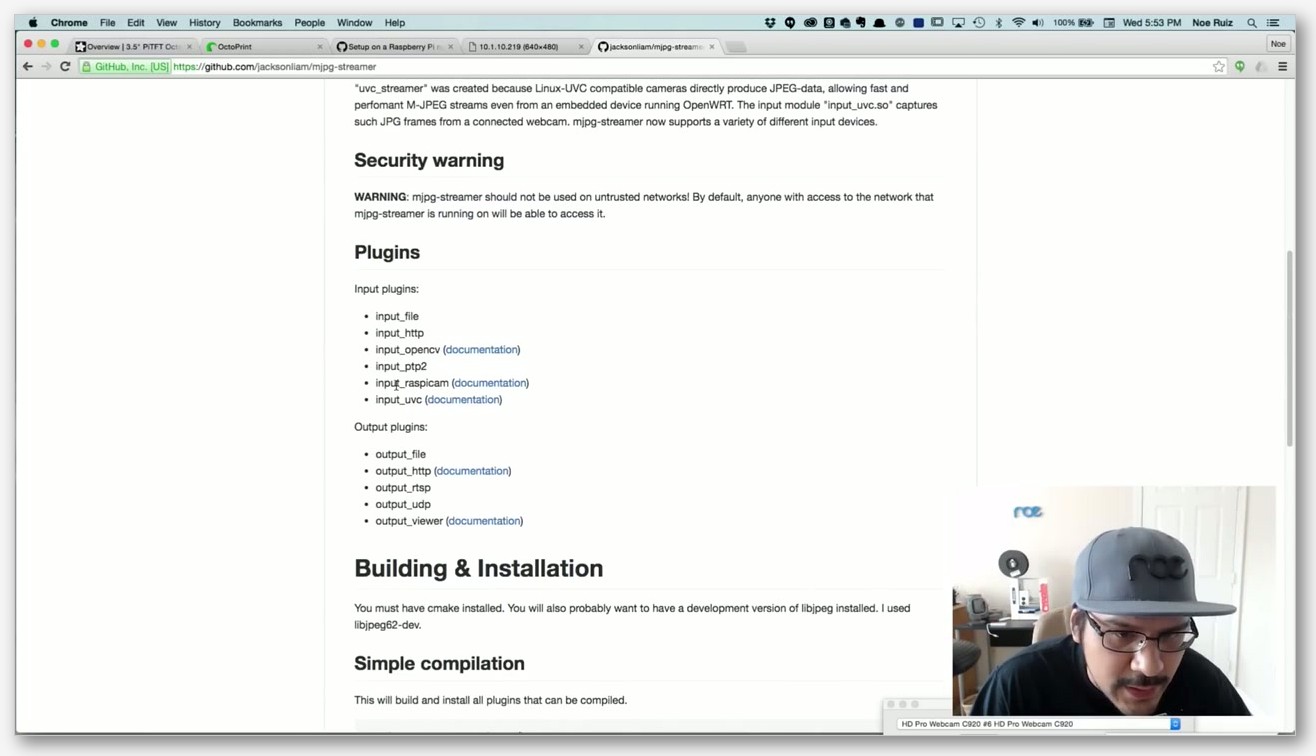
If you’re on Klipper, the camera daemon you almost certainly want is crowsnest. It’s the official webcam wrapper script that ships in MainsailOS by default, written mostly in Python, and it’s a wrapper around the three real streamers underneath: ustreamer, camera-streamer, and the legacy mjpg-streamer. Crowsnest’s job is to read one config file and spin up the right backend with the right flags so you don’t have to remember the syntax for each one.
If you flashed MainsailOS, you already have it. If you rolled your own Pi image and added Klipper plus Moonraker manually, you’ll need to install it. The official installer is a git clone plus a make install, run from the home directory of the user that owns your Klipper config. The commands from docs.mainsail.xyz are:
sudo apt-get update && sudo apt-get install git -y
cd ~
git clone https://github.com/mainsail-crew/crowsnest.git
cd ~/crowsnest
sudo make install
The docs are blunt about it: “Don’t forget to reboot after installation!” I’ve forgotten exactly once, and the systemd service didn’t pick up the new install path, and I spent twenty minutes thinking I had a permission problem. Reboot.
To keep crowsnest updated through Moonraker’s update manager, drop this block into your moonraker.conf:
[update_manager crowsnest]
type: git_repo
path: ~/crowsnest
primary_branch: v5
managed_services: crowsnest
If you’re using KIAUH (the Klipper Installation And Update Helper) to manage your stack instead of MainsailOS, crowsnest is in KIAUH’s menu under the camera section. Older versions of KIAUH used to block plain mjpg-streamer installs, but they’ve kept crowsnest as a first-class option throughout.
Anatomy of crowsnest.conf
The config lives next to your printer.cfg as crowsnest.conf. The default [cam 1] block looks like this verbatim from the upstream defaults:
[cam 1]
mode: ustreamer
port: 8080
device: /dev/video0
resolution: 640x480
max_fps: 15
#custom_flags:
#v4l2ctl:
Walking through each line because they all matter. mode is the backend selector. The two real options are ustreamer, which gives you an MJPG stream that works everywhere, and camera-streamer, which gives you hardware-encoded H.264 and WebRTC but only works on a Raspberry Pi. port is the HTTP port the stream lives on, default 8080, and the docs explicitly note that this setting only affects ustreamer mode. device is the V4L2 device node, default /dev/video0. If you’ve got more than one camera plugged in, the docs recommend using the long-form /dev/v4l/by-id/usb-... path so a reboot doesn’t shuffle which camera is video0 versus video1.
resolution uses the slightly weird heightxwidth format with a lowercase x and no spaces. Default is 640x480. max_fps defaults to 15, which is a reasonable starting point for USB UVC cameras. custom_flags lets you pass extra ustreamer arguments space-separated for tuning that the front-line keys don’t cover. v4l2ctl passes driver-level parameters comma-separated for things like manually setting exposure or white balance on a camera that doesn’t expose them through the HTTP query string. If you’re running camera-streamer mode, two extra keys come into play: enable_rtsp turns on the RTSP server, and rtsp_port sets the port, defaulting to 8554. The RTSP URL format is rtsp://<ip>:<rtsp_port>/stream.h264.
Once crowsnest is running, the feed shows up in Mainsail’s webcam panel automatically. Mainsail discovers the cam through Moonraker and renders it in the dashboard. Inside OrcaSlicer’s Device tab, the Mainsail panel embeds the same view, so if Mainsail is showing your feed, OrcaSlicer will too, assuming the stream type is one the WebKit panel can render. For a fuller walkthrough of getting OrcaSlicer talking to Klipper in general, the companion piece at orcaslicer.net/orcaslicer-klipper-setup/ covers the upstream Moonraker connection setup.
Going H.264 with camera-streamer for low-bandwidth video
I started everyone on ustreamer because it just works, but you’ll hit a wall the moment you try to run two or three 1080p MJPEG streams on a 2.4 GHz Wi-Fi connection. That’s where camera-streamer earns its keep. It’s a separate project by ayufan, and its whole pitch is hardware-accelerated H.264 plus WebRTC for very low latency at much lower bandwidth than MJPEG.
The official README is direct about what it does: “yet another camera-streamer project that is primarly focused on supporting a fully hardware accelerated streaming of MJPEG streams and H264 video streams for minimal latency.” The hardware acceleration is the important word. On a Pi with the right kernel, the streamer offloads encoding to the GPU. On a generic Debian x86 box, you can still run it, but you lose the acceleration benefit.
The requirements are specific. Camera-streamer wants Debian Bookworm with at least kernel 6.1, and the project README puts “Best: Raspberry PI for hardware acceleration” as the recommended platform. If you’re on the older Debian Bullseye, the project tells you to use the v0.3.x release from stable-0.3 branch instead of mainline. I’ve run it on Bullseye for two printers without issue, but newer features land in mainline first.
Output formats are where camera-streamer really opens up. It does MJPEG (so it’s a drop-in replacement for ustreamer at lower bitrate), H.264 wrapped in MP4 or MKV or HLS, WebRTC via libdatachannel for the lowest possible browser latency, and RTSP via live555. That RTSP server is enabled with the --rtsp-port flag and defaults to port 8554, matching crowsnest’s expectation when you flip enable_rtsp on. The default HTTP port stays at 8080 via --http-port=8080, same as ustreamer, so URLs don’t change when you swap backends.
Here’s the gotcha. Even though camera-streamer can spit out WebRTC and HLS and RTSP, none of those three play inside OrcaSlicer’s Device tab via the custom URL field. They work great in Mainsail and Fluidd through a real browser, because those use the proper WebRTC stack. They work great as an embedded Mainsail view in OrcaSlicer too, because the Mainsail webcam panel is doing the decoding. What doesn’t work is pasting the WebRTC or HLS URL into OrcaSlicer’s custom camera URL field and expecting playback. The WebKit panel won’t render it. Issue #4358 lays this out plainly.
The MP4 path is the workaround a lot of camera-streamer users land on for OrcaSlicer. Something like http://<ip>:<port>/video.mp4 will play back in the Device tab’s WebKit panel because that’s just a progressive download MP4. One Discussion #2548 contributor specifically calls this out: “I use Raspberry Pi camera with camera-streamer and the http://ip:port/video.mp4 at least works.” Not WebRTC, not HLS. MP4 over HTTP.
OctoPrint webcam routes, legacy and modern
OctoPrint is the other big camp, and the webcam story split in May 2023 when the OctoPi maintainers retired mjpg-streamer in favor of camera-streamer in modern OctoPi images. Which one you’re running depends on when you flashed your SD card and whether you’ve updated. If you’re on a fresh OctoPi from 2024 or later, you’re on camera-streamer. If you’ve been running the same OctoPi image since 2019 because it’s been working, you’re on the legacy mjpg-streamer stack.
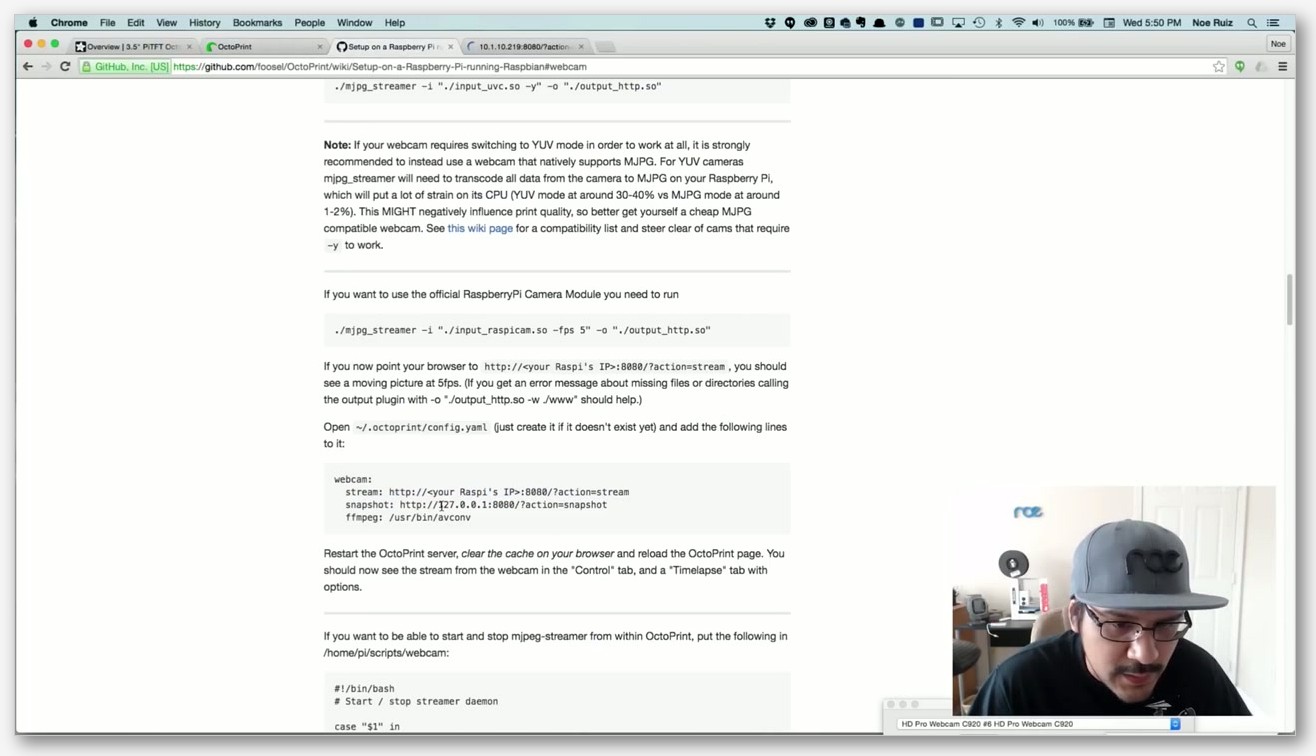
Legacy mjpg-streamer URLs
On classic OctoPi, the webcam URLs follow conventions that have been the same since 2012. The community-confirmed defaults are:
- Stream URL (via OctoPi reverse proxy):
http://octopi.local/webcam/?action=stream - Stream URL (direct local IP and port):
http://<ip>:8080/?action=stream - Snapshot URL (local):
http://127.0.0.1:8080/?action=snapshot - ffmpeg path:
/usr/bin/ffmpeg
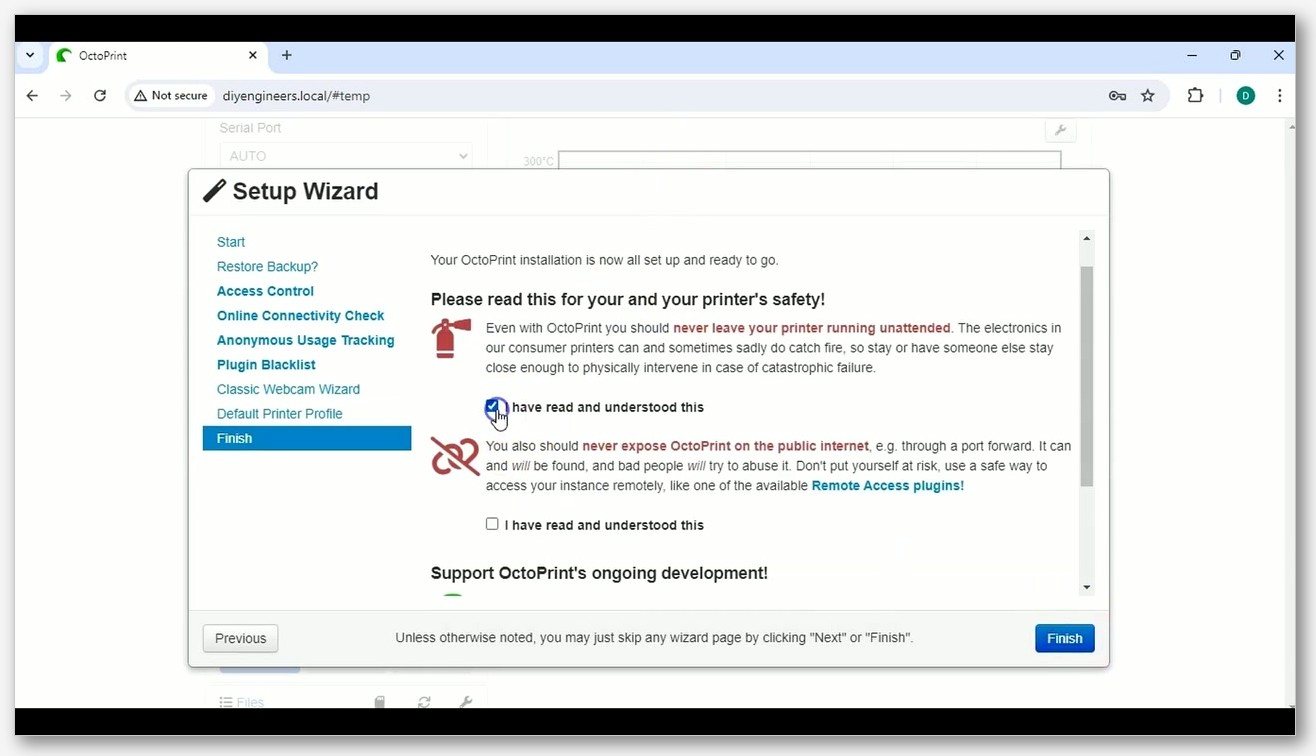
Those four fields go into OctoPrint’s Settings > Webcam & Timelapse page. The relevant tuning knobs (resolution, fps, USB device path) live in /boot/octopi.txt rather than in OctoPrint itself, which catches new users out because they look in the OctoPrint UI for resolution settings that aren’t there.
 orcaslicer.net/orcaslicer-octoprint-setup/. And if your OctoPrint connection itself is flaky before you even get to the camera, orcaslicer.net/orcaslicer-octoprint-troubleshooting/ covers the diagnostic flow for the connection layer.
PrusaLink and Prusa Connect, the live-view gap
This is the section where I lose Prusa MK4 owners’ trust if I’m not honest, so I’m going to be blunt: on a Prusa MK3.9, MK4, or XL, there is no live webcam feed inside OrcaSlicer’s Device tab via PrusaLink. None. Zero. Not because of OrcaSlicer. Because PrusaLink itself doesn’t support cameras on those printers.
The Prusa knowledge base is explicit. Their camera compatibility article spells out that cameras work via PrusaLink “with MK2.5/S or MK3/S/+” only. The very next sentence in the same article is: “PrusaLink itself running on MK3.9, MK4 and XL printers doesn’t support any cameras.” That’s a vendor statement. It’s not a missing feature waiting to land, it’s a deliberate architecture difference. The newer printers have built-in networking and don’t run the Pi-based PrusaLink stack the older MK3/S/+ owners installed on a Raspberry Pi.
The path Prusa wants MK3.9/MK4/XL owners on is Prusa Connect’s Camera API. That’s their cloud service. The API is open: developers can register a camera, upload snapshots, and update camera attributes via standard HTTP calls. But it’s snapshots only, not a live MJPEG or WebRTC feed. The Prusa docs say outright that “API is designed for developers,” meaning you’re either rolling your own snapshot uploader or using a third-party tool that integrates with the API. None of this surfaces inside OrcaSlicer’s Device tab. Even if you’ve got a camera dutifully uploading snapshots to Prusa Connect every five seconds, OrcaSlicer doesn’t show them.
What does work in OrcaSlicer’s Device tab for these printers is the printer’s basic PrusaLink web UI, which embeds and lets you start, pause, stop prints. Just no camera. If a live view matters to you on a MK4, the practical workarounds I’ve seen people use are:
- Run a separate Pi with a USB camera and host an MJPEG stream over the local network. Open that stream in a browser tab next to OrcaSlicer. Not glamorous, totally functional.
- Use OctoEverywhere or Obico’s relay services that integrate with Prusa Connect’s snapshot API and add their own monitoring layer.
- Use an IP camera (Reolink, Tapo, Wyze with the right firmware) pointed at the printer and view it in its own app or web UI.
For older Prusa hardware running PrusaLink on a Raspberry Pi with a Pi Camera or USB webcam, the live feed works in PrusaLink’s web UI and therefore inside OrcaSlicer’s embedded view. That’s the MK2.5/S and MK3/S/+ path. The article isn’t dead for those owners. But anyone walking into a MK4 expecting OrcaSlicer to show them a live print needs to recalibrate immediately.
IP cameras, RTSP, and the go2rtc bridge
You’ve probably got an old Reolink or Tapo cam sitting in a drawer and thought, why not point it at the printer. Reasonable instinct. The problem is those cameras speak RTSP, sometimes H.265, sometimes through proprietary wrappers, and none of those play directly in OrcaSlicer’s Device tab via the custom URL field. RTSP doesn’t work there, full stop, per Issue #4358.
The bridge that actually solves this is go2rtc or its cousin MediaMTX. Both are universal stream proxies. You point them at your IP camera’s RTSP feed, they re-broadcast it as WebRTC, HLS, or MJPEG, and you point your viewer at the proxy instead of the camera directly. Fluidd has WebRTC source types for both go2rtc and MediaMTX in its camera settings. Mainsail can be configured to consume them too, usually via the WebRTC (camera-streamer) source type repurposed for the proxy URL.
Fluidd’s official cameras docs list eight source types and that menu is genuinely useful as a planning tool. The eight are: MJPEG Stream (traditional mjpegstream or ustreamer), MJPEG Adaptive (snapshots at a target FPS instead of continuous stream), UV4L-MJPEG Stream, HLS Stream (needs MediaSource Extensions in the browser), WebRTC via camera-streamer (Pi only), WebRTC via go2rtc, WebRTC via MediaMTX, and IP Camera/HTTP Page. When you’re scoping a setup, picking the right source type up front saves hours of “why is my stream black.”
The practical flow for getting an IP camera into OrcaSlicer’s Device tab via a Klipper printer:
- Install go2rtc on the same Pi running Klipper, or on a separate small Linux box on your LAN.
- Configure go2rtc’s YAML with your IP camera’s RTSP URL as a source. Give it a stream name.
- In Fluidd or Mainsail’s camera settings, add a new camera using the WebRTC (go2rtc) source type and point it at the go2rtc instance.
- Confirm it plays in Fluidd or Mainsail in a regular browser tab.
- Open OrcaSlicer’s Device tab. The embedded Fluidd or Mainsail view will show the same feed.
That works because OrcaSlicer’s WebKit panel is decoding the same WebRTC stream that Fluidd’s browser-side JavaScript decoded, not because OrcaSlicer learned to speak RTSP. The work is happening in the embedded Fluidd page.
The MJPEG-out option in go2rtc and MediaMTX is the other useful trick. If you can convince the proxy to re-encode your RTSP camera into MJPEG on demand, that MJPEG URL plays directly in OrcaSlicer’s custom URL field without needing a Klipper host as a middleman. It’s CPU-heavier on the proxy because you’re transcoding, but for a single camera it’s fine.
Bandwidth, latency, and storage considerations
Once you’ve got two or three webcams running, the bandwidth math matters. I’m going to keep this in ballpark numbers because exact bitrate depends on scene complexity and camera quality, but the orders of magnitude are stable.
MJPEG at 720p with 15 fps is usually in the 1 to 3 Mbps range per stream on a typical USB UVC camera. At 1080p with 30 fps you’re easily into the multi-megabit per stream range, and high-detail scenes with lots of motion push higher. The Raspberry Pi forums have years of threads documenting practical ceilings: 1920×1080 MJPEG on a Pi 2 with mjpg-streamer caps out around 3 to 4 fps before the encoder can’t keep up. 720p on USB UVC at around 12 fps is typical. Push past that on cheap cameras and you start seeing dropped frames, not because the network is congested but because the camera’s onboard encoder can’t sustain it.
H.264 via camera-streamer at the same resolution typically runs five to ten times lower bitrate than MJPEG. So a 720p H.264 stream that ustreamer would be sending at 2 Mbps might come in around 200 to 400 Kbps. That’s the gap that lets you actually run three cameras on a 2.4 GHz network without choking everything else. WebRTC over the same H.264 payload adds minimal overhead.
For latency, MJPEG is generally lowest perceived latency because there’s no inter-frame compression to wait on. WebRTC via camera-streamer is comparable, sometimes lower, because it’s optimized for real-time. HLS is the worst, by far, because the protocol chunks video into segments and a typical HLS player buffers two to three segments before playing. If you’re using a stream for time-sync tasks like watching layer transitions, avoid HLS.
Storage doesn’t usually matter for live view, because nobody’s recording the raw stream long-term. Time-lapse generation through OctoLapse or Mainsail’s timelapse component pulls discrete snapshots and assembles them after the print, which is a much smaller footprint. If you do try to record continuous video locally, plan on 1 to 5 GB per hour at 1080p H.264 depending on quality settings. MJPEG recording at 1080p will eat 10 GB or more per hour. Don’t try this on a microSD card unless you enjoy bricking SD cards.
CPU load on a Pi running multiple streams adds up fast too. A single ustreamer instance at 720p 15 fps is barely visible on a Pi 4. Two of them stay manageable. Three plus an active Klipper print plus Mainsail’s web UI plus Moonraker can put a Pi 3B+ into thermal throttling territory if you don’t have a heatsink. Camera-streamer’s hardware encoding offloads most of the heavy lifting to the GPU on Pi 4 and Pi 5, which is the other reason it’s worth the switch on multi-camera rigs.
Troubleshooting and security
I’ve collected a no-stream checklist over the years that solves most of the “my webcam isn’t working” posts. Run through it in order before you start tearing up your config.
No stream at all
- Open the stream URL directly in a normal browser tab (Chrome, Firefox, whatever). If it doesn’t play there, the problem is on the printer host side and OrcaSlicer is innocent. Fix the upstream first.
- If it plays in a browser but not in OrcaSlicer’s Device tab, check the codec. RTSP, HLS, and WebRTC don’t render in OrcaSlicer’s custom URL field. Use MJPEG or MP4 for that field instead.
- On Linux AppImage installs, if the Mainsail or Fluidd embedded panel freezes mid-load, try launching with
WEBKIT_DISABLE_DMABUF_RENDERER=1in the environment. This is the documented workaround for the Issue #6043 freeze. - For Bambu X1C/X1E/H2D, confirm LAN-Only Liveview is toggled on in the printer’s network settings menu. The LAN feed won’t connect without it.
- For Bambu P1S/A1, confirm “Video (enabled)” is on in the printer settings. Different menu location depending on firmware.
- For crowsnest, run
sudo systemctl status crowsneston the Pi and check that the service is actually running. If it’s failing to start,journalctl -u crowsnest -n 50will tell you why. Usually it’s a wrong device path or a permissions issue on/dev/video0. - For OctoPrint legacy stack, confirm
/boot/octopi.txtmatches your actual camera. Wrong USB ID is the most common cause of a silently failing stream.
Black frame or garbled video
Black frame in OrcaSlicer but working in browser is almost always the WebKit panel issue from the no-stream checklist. Garbled video, with funky colored bars or shifting blocks, is usually a YUV format mismatch. The camera is producing a pixel format that the streamer isn’t decoding correctly. Drop max_fps first, because some cameras downgrade format under load. If that doesn’t fix it, explicitly set the pixel format in the streamer flags. For ustreamer that’s a --format flag in custom_flags. For camera-streamer it’s --camera-format=YUYV or similar.
Lag
If you’ve got more than a couple of seconds of latency between print and view, the fastest fix is switching from MJPEG to H.264/WebRTC via camera-streamer. The actual decode is faster and the per-frame buffer is smaller. If you’re stuck on MJPEG, drop the resolution. 480p MJPEG at 15 fps has noticeably lower latency than 1080p MJPEG at the same frame rate because each frame is smaller and travels faster across the network.
Security
This is the section nobody wants to read and everyone needs to. Never expose your webcam stream port directly to the public internet without TLS and authentication. A raw port 8080 forwarded through your router is searchable in Shodan within an hour of going live, and there are people who do nothing but watch unsecured 3D printer cams for fun. Worse, if your printer’s web UI is exposed alongside, a stranger can hit start/pause/cancel buttons.
The right answers are:
- Tailscale or WireGuard: free, easy, your phone and laptop join a private network with the printer and you access the stream like you’re on the home LAN.
- OctoEverywhere or Obico or SimplyPrint: paid relay services that handle TLS and auth on their cloud, your printer outbounds to them, you log in via their web app. No port forwarding required.
- Cloudflare Tunnel: free for personal use, gives you a TLS-secured public URL backed by Cloudflare’s edge, with optional Access auth on top.
Whatever you do, don’t run a webcam stream through plain HTTP over the public internet. If you must port-forward for some reason, at minimum stick it behind nginx with basic auth and a Let’s Encrypt cert. For broader troubleshooting beyond just the webcam stack, the master troubleshooting reference at orcaslicer.net/orcaslicer-octoprint-troubleshooting/ covers the OctoPrint side in detail.
Frequently asked questions
Does OrcaSlicer record video natively?
Not as a built-in control in the Device tab. The Device tab is a viewer. Recording, time-lapse, and snapshot capture happen upstream on the printer host’s software: OctoLapse on OctoPrint, Mainsail’s timelapse component on Klipper, Bambu Handy’s time-lapse feature on Bambu printers, or cloud services like OctoEverywhere and Obico. If you want a recorded video of your print, set it up at the host level, not in OrcaSlicer.
Can I view the Bambu X1 cam from outside my LAN without using Bambu Cloud?
Yes, but you have to bridge the LAN yourself. The X1C/X1E/H2D RTSPS endpoint at rtsps://<ip>:322/streaming/live/1 is a LAN-only endpoint. To view it remotely without Bambu Cloud, run Tailscale or WireGuard on a device on your home LAN and another on your remote device, then connect to the RTSPS URL across the VPN. VLC handles this fine. Don’t port-forward 322 to the open internet.
Why is my crowsnest stream black?
Three usual suspects, in order of likelihood. One, wrong device path in crowsnest.conf. Multi-camera setups especially benefit from using the long /dev/v4l/by-id/... path. Two, the camera doesn’t support the requested resolution at the requested frame rate. Drop resolution to 640x480 and max_fps to 10 to confirm the camera works at all, then ramp up. Three, the camera-streamer hardware acceleration is failing silently because you’re on the wrong kernel. Check that you’re on Debian Bookworm with kernel 6.1 or newer, otherwise fall back to ustreamer mode.
Does the A1 have spaghetti detection?
No. The A1 and A1 mini do not have on-printer AI spaghetti detection. That feature is X1-series only (X1C, X1E). The A1’s chamber camera is a preview feed, nothing more. If you want failure detection on an A1, you have to layer in a cloud service that ingests the feed and runs the model remotely, like Obico or OctoEverywhere AI. The model isn’t running on the printer.
Can the Device tab show two cameras side by side?
Not natively in the OrcaSlicer Device tab itself. But indirectly, yes, because the embedded Mainsail or Fluidd panel can show multiple cameras at once if you’ve configured them both on the host. In Mainsail’s webcam panel, add a second camera entry pointing at your second crowsnest cam, and both render in the same dashboard view. When OrcaSlicer loads that Mainsail page in the Device tab, you’ll see both cameras in the same embedded view. The trick is that you’re configuring the layout in Mainsail, not in OrcaSlicer.
What’s the easiest “live view” setup for someone who just bought a Bambu A1?
Honestly, leave the defaults alone. Sign into Bambu Handy on your phone, sign into OrcaSlicer on your laptop with the same Bambu account, accept the 1 fps cap as the cost of doing business, and don’t fight it. If 1 fps drives you crazy, look at OctoEverywhere’s full-frame-rate relay service or run a separate USB cam on a Pi pointed at the printer. Don’t chase third-party RTSP scrapers for the A1, because that’s a moving target every firmware release.
Why does my Linux OrcaSlicer freeze when opening Mainsail in the Device tab?
Known WebKit rendering bug, documented in Issue #6043. The workaround is launching OrcaSlicer with the environment variable WEBKIT_DISABLE_DMABUF_RENDERER=1 set. Most reliable way is wrapping the AppImage in a one-line shell script that exports the variable then exec’s the AppImage. Once that’s set, the embedded Mainsail panel renders correctly.
Will RTSP from my Reolink IP cam ever work in OrcaSlicer’s custom URL field?
Not directly, no. The embedded WebKit panel doesn’t decode RTSP. You have to bridge through go2rtc or MediaMTX or camera-streamer to convert the RTSP source into MJPEG (which plays in the custom URL field) or WebRTC (which only plays if it’s loaded inside a Mainsail/Fluidd page that handles the decoding for you).
Closing thoughts
If there’s one mental model I’d lock in before you spend another evening on webcam config, it’s this: OrcaSlicer’s Device tab isn’t a video player. It’s a Bambu video player or a browser pretending to be a printer dashboard. The slicer almost never decodes a stream itself, except on Bambu hardware. Everything else depends on the upstream printer host doing the decoding inside an embedded webview. Once you accept that, the codec restrictions stop feeling arbitrary and start feeling like a constraint to design around. MJPEG and MP4 over HTTP are your friends in the custom URL field. WebRTC and HLS live inside Mainsail and Fluidd pages, where they belong. RTSP belongs in VLC or in a bridge like go2rtc.
If you’re going to build out a multi-printer setup, start on crowsnest with ustreamer for simplicity, then upgrade individual cameras to camera-streamer when bandwidth becomes a problem. Keep your Pi away from the public internet, use Tailscale or WireGuard for remote access, and accept that the Bambu non-X1 printers are going to give you 1 fps natively forever. If you’re downloading OrcaSlicer fresh to get going, grab the latest stable release from the canonical SoftFever GitHub releases page. For getting OrcaSlicer dialed in alongside your Klipper printer end-to-end, the deeper walkthrough at orcaslicer.net/orcaslicer-klipper-setup/ is the next stop after you’ve got the webcam sorted.
Related OrcaSlicer guides
- OrcaSlicer for Beginners: Your First Print in 15 Minutes
- SimplyPrint vs Obico vs OctoEverywhere: OrcaSlicer 2026
- OrcaSlicer Won’t Find My Printer on the Network: Mac and Windows Fixes
- How to Send G-code Wirelessly From OrcaSlicer: Per-Printer Walkthrough
- OrcaSlicer Seam Placement: Hide That Z-Seam (2026 Guide)