
I once spent thirty minutes staring at a “401 Unauthorized” toast in OrcaSlicer before I realized the API key was fine. The actual culprit was an nginx block I’d added six months earlier to put OctoPrint behind a real domain, and it was quietly stripping the X-Api-Key header before the request hit OctoPrint. The browser worked because cookies survive proxies. The slicer didn’t, because it doesn’t speak cookies.
If you’re here, you’ve already done the setup. The Test button is throwing red, the upload stalls, or the file lands but never prints. This is the flowchart, ordered by how often each cause shows up in the OrcaSlicer and OctoPrint trackers. If you haven’t wired things up yet, start at the OrcaSlicer OctoPrint setup guide. On Klipper with Mainsail or Fluidd, hop to the Klipper setup guide. Bambu users belong in the Bambu cloud and LAN guide.
The fast triage: which error are you seeing?
OrcaSlicer surfaces what libcurl tells it plus whatever HTTP status OctoPrint hands back. Match your symptom, jump to the section. Most readers land in A, B, or C.
| What you see | What it means | Jump to |
|---|---|---|
| Connection refused, Error 7 | Nothing listening on that IP/port | A |
| 403 Forbidden | API key wrong, missing, or user lacks upload permission | B and C |
| 401 Unauthorized | Reverse proxy ate the auth header | D |
| 404 Not Found | Path prefix mismatch behind a proxy | D |
| 409 Conflict | Printer not in operational state | A bottom |
| 413 Payload Too Large | Upload bigger than the proxy or OctoPrint will accept | H |
| 500 Internal Server Error | A plugin crashed during the request | G |
| 502/503/504 | Proxy can’t reach OctoPrint, or upstream timed out | D |
| Operation timed out, Error 28 | Wrong IP, firewall, or wifi packet loss | J |
| Empty reply, Error 52 / Send fail, Error 55 | Connection died mid-transfer | J |
| SEC_E_UNTRUSTED_ROOT | libcurl rejected your self-signed cert | F |
One thing to flag before you start clicking. OctoPrint returns 403 Forbidden when the API key is wrong, not 401. This is documented in OctoPrint issue #2706; the docs specify 401, but the server has long behaved this way in practice. Treat 403 as “the key didn’t work” first, “the user can’t upload” second, or you’ll burn an hour in the wrong place.
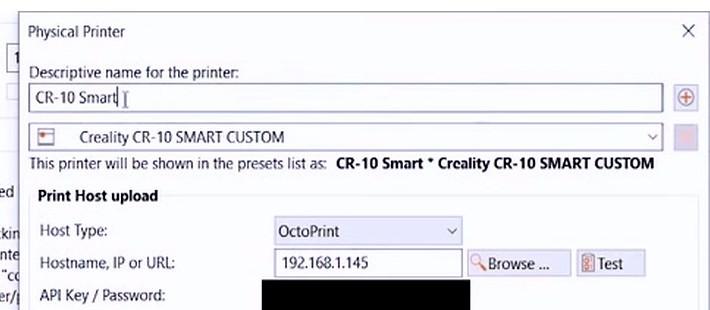
A. “Connection refused” or wrong IP and port
This is the biggest category. Curl Error 7 means the TCP handshake never completed, because nothing accepted on that address and port. Almost never an OctoPrint problem; it’s a “Orca is talking to the wrong place” problem.
Diagnostic:
- From the slicer machine, ping the Pi by IP. If that fails, network issue, not OctoPrint issue.
- Try
octopi.local. If ping resolves to127.0.0.1, you’ve hit OctoPrint #3852, where Bonjour misbehaves on Windows after 1.5.0. Switch to the literal IP. - SSH in, run
sudo systemctl status octoprint. If it’s not running, that’s your answer. - Run
sudo ss -tlnp | grep 5000. On stock OctoPi, HAProxy fronts on port 80 with OctoPrint on 5000. On a manual install, you might be on 5000 only.
Fix is almost always the literal IP in Orca’s host field plus the right port. 192.168.1.145:5000 for a manual install, 192.168.1.145 (port 80) for stock OctoPi. Don’t use octopi.local in production unless you’ve confirmed mDNS works on the slicer machine; Windows in particular drops Bonjour resolution after restarts.
One subtle case: 409 Conflict. Network is fine, OctoPrint is alive, key is right, but the printer isn’t operational. OctoPrint refuses uploads when the printer is mid-print, SD-only, or not connected. Click Connect in the OctoPrint UI first, then retest.
B. “403 Forbidden”: wrong or missing API key (yes, 403 not 401)
If ping works, OctoPrint loads in your browser, and Orca still bounces you, the key is the next suspect. As I said, OctoPrint hands you 403 for a wrong key. That tripped me up the first time, because every other API I’d touched used 401 for auth failures.
Generate a fresh key the modern way:
- OctoPrint Settings, then click the Application Keys entry in OctoPrint’s Settings sidebar.
- Type “OrcaSlicer”, click Generate. Click Allow on the confirmation popup.
- Use the copy icon next to the key. Don’t double-click and Ctrl+C; that frequently grabs a trailing space, and a trailing space fails auth with no helpful error.
- Paste into Orca, hit Test.
I lost two hours to a trailing space once. The strings looked identical when I diffed them. Always use the copy icon.
The legacy global API key under Settings > API is deprecated in favour of Application Keys (see Application Keys documentation). It still works in 1.x but it’s living on borrowed time.
C. “401 Unauthorized”: almost always reverse proxy or nginx
OctoPrint itself rarely returns 401 to Orca, because Orca uses API keys, not session cookies. If you’re seeing 401, something between Orca and OctoPrint is intercepting. Nine times out of ten that’s a reverse proxy with basic auth in front, or a header policy stripping X-Api-Key.
This is the trap I fell into. I’d added basic auth to nginx to keep the OctoPrint UI off the public internet. The browser stored a cookie, so I never saw a prompt. Orca got a flat 401 because it doesn’t speak basic auth, and the original X-Api-Key never reached OctoPrint.
If your OctoPrint is behind nginx, HAProxy, or Caddy and you see 401:
- Check the proxy’s
auth_basicdirective. If it exists, remove it for the API path or add the basic-auth credentials to Orca’s Username and Password fields. - Confirm the proxy doesn’t strip
AuthorizationorX-Api-Keyheaders. - Bypass the proxy as a test by pointing Orca at the Pi’s LAN IP and port 5000. If LAN-direct works and proxied doesn’t, you’ve confirmed the proxy.
Detail: if your API key was issued for a user without FILES_UPLOAD permission, you’ll see 403 on POST /api/files/local while GETs to /api/version pass. That permission split came in with OctoPrint 1.4.0 and broke a lot of slicer integrations (see the 1.4.0 ACL break thread). Fix: put the user in Operators, or grant FILES_UPLOAD and PRINT on your custom group.
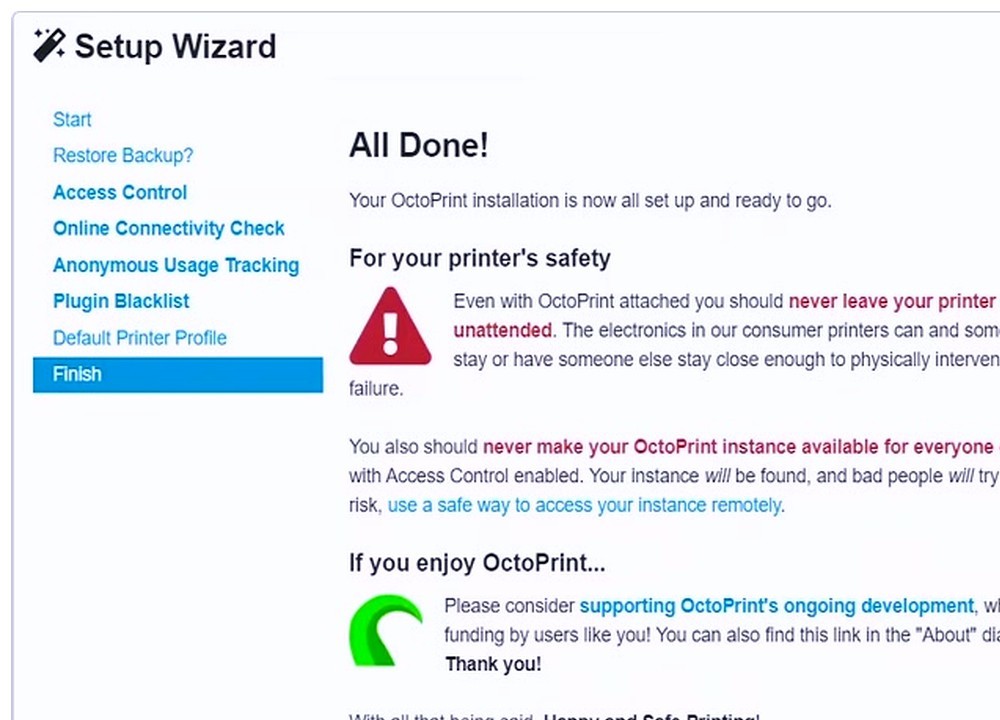
D. Reverse proxy and nginx misconfig
Reverse proxies are the most common production-grade trip-up. The OctoPrint UI works in your browser through your custom domain, the API does not, and you start questioning your sanity. The fix is the canonical proxy block published by foosel in the OctoPrint reverse proxy thread. The headers matter and the body size matters.
Bare-minimum nginx config that won’t fight you:
location / {
    proxy_pass http://127.0.0.1:5000;
    proxy_http_version 1.1;
    proxy_set_header Host $host;
    proxy_set_header X-Real-IP $remote_addr;
    proxy_set_header X-Forwarded-For $proxy_add_x_forwarded_for;
    proxy_set_header X-Scheme $scheme;
    proxy_set_header Upgrade $http_upgrade;
    proxy_set_header Connection $connection_upgrade;
    client_max_body_size 1024M;
    proxy_read_timeout 600s;
}
Note: the $connection_upgrade variable must be defined via a map $http_upgrade $connection_upgrade { default upgrade; '' close; } directive at the http scope of your nginx config, or nginx will refuse to start.
Then in ~/.octoprint/config.yaml:
server:
  reverseProxy:
    trustedProxies:
      - 127.0.0.1
Reload nginx (sudo systemctl reload nginx), restart OctoPrint, retest. Two watch-outs. If the Device tab embeds the OctoPrint UI but the websocket fails, you’re missing the Upgrade and Connection headers (OctoPrint #3193). A 502 from the proxy means OctoPrint isn’t running on 127.0.0.1:5000; restart it. A 504 means the upload took longer than proxy_read_timeout; bump to 600s.
E. Cloudflare Tunnel or Tailscale quirks
Tunnels add a second auth layer that browsers handle invisibly and slicers don’t. If you’ve put your OctoPrint behind a Cloudflare Tunnel with Cloudflare Access in front, opening the URL in a private browser will surface a Cloudflare login page. That’s the wall Orca can’t pass.
Two fixes. The first is to keep Orca on the LAN IP and only use the tunnel for browser remote access. That’s what I do; my slicer machine and my Pi are both on home wifi most of the time, so the tunnel is just for “I’m at a coffee shop and want to check on a print” scenarios. The second is to add a Service Token bypass policy in Cloudflare Access for the tunnel hostname, then put that token’s credentials into a custom header configuration. Most users don’t need that complexity.
Tailscale is simpler. Both the slicer machine and the Pi need to be in the same tailnet. If they are, point Orca at the Pi’s MagicDNS name (octopi.tailnet-name.ts.net) or its 100.x Tailscale IP. Don’t mix LAN IP and Tailscale IP across machines; pick one and stay consistent.
F. SSL self-signed certificate failure
If you flipped on HTTPS in OctoPrint with a self-signed cert, your browser warned you, you clicked through, and OctoPrint loaded fine. Orca won’t click through. libcurl checks the cert chain against the system trust store, and a self-signed cert isn’t there. On Windows you’ll see SEC_E_UNTRUSTED_ROOT or a Schannel error. On Linux and macOS you’ll see “SSL peer certificate or SSH remote key was not OK”. Same root cause as PrusaSlicer #5506; both slicers share the same libcurl behavior.
Three options, in order of effort:
- Easiest: drop HTTPS for the LAN connection in Orca. Use
http://192.168.x.yinstead ofhttps://. Force-HTTPS in OctoPrint can stay on for the browser side; it’s the slicer field where you swap to plain HTTP. - Windows-specific: import the self-signed cert into the Trusted Root Certification Authorities store via
certmgr.msc. libcurl on Windows uses Schannel, which reads from the system store. After import, HTTPS works in Orca. - Best long-term: get a real cert via Let’s Encrypt with DNS-01 challenge, even for a LAN-only Pi, and bind it to a real hostname. HTTPS works for browsers and slicers and you stop fighting trust stores.
G. OctoPrint plugin conflict (safe mode)
Sometimes Test passes but uploads return 500 Internal Server Error, or the upload finishes and the file silently vanishes from the file list. That’s a plugin throwing inside an upload hook. The only sane way to confirm is OctoPrint’s safe mode.
From the OctoPrint UI: System menu, “Restart OctoPrint in safe mode”. From the CLI: stop the service, then run octoprint serve --safe in your terminal. From config.yaml: set server: startOnceInSafeMode: true and restart, which gives you one safe boot before reverting. The safe mode docs have the full list.
If safe mode fixes it, re-enable plugins three at a time, restart, retest. Repeat until you find the offender. Common culprits in the issue tracker history include OctoPrint-Slic3r (intercepts uploads), Bed Visualizer (renders blocking the UI thread), CuraEngine (G-code post-processing hooks), and DisplayLayerProgress (post-processing causes upload timeouts on big files). Disable, don’t uninstall; you can flip them back on selectively.
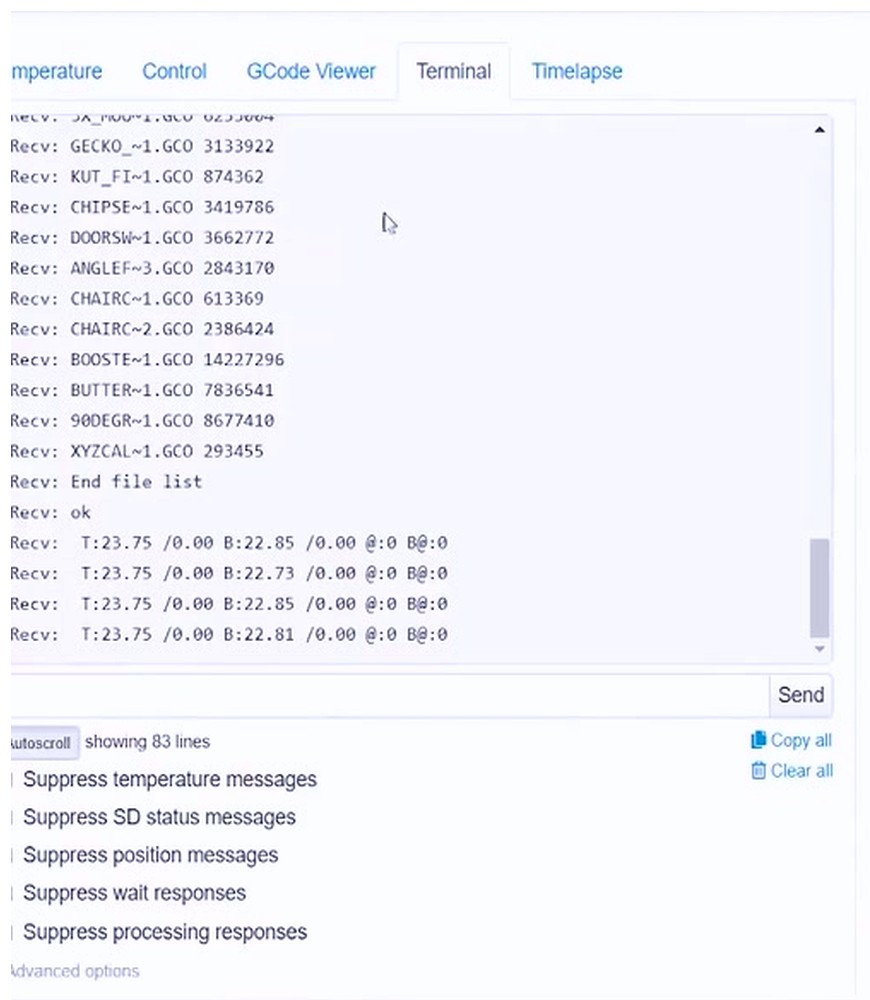
H. 413 Payload Too Large
413 means somebody in the request chain capped the body size below your G-code file. The default uploads.maxSize in OctoPrint is 1 GB, which is fine for almost anyone. The default nginx client_max_body_size is 1 MB, which is not. Add a couple of supports for a multi-color print and you’re past 1 MB easily.
Fix in two places, because both have to agree:
- nginx server block:
client_max_body_size 1024M; - OctoPrint
~/.octoprint/config.yamlunderserver:: setuploads.maxSize: 1073741824(that’s 1 GB in bytes). The config.yaml reference documents the structure. - HAProxy: bump
tune.bufsizeif you’re on a stock OctoPi that fronts with HAProxy. - Cloudflare: free plans cap body uploads at 100 MB. Bypass the proxy for the upload subdomain or upgrade.
Reload nginx and restart OctoPrint after editing config.yaml. Edit config.yaml only when OctoPrint is stopped, because OctoPrint rewrites it on shutdown and will overwrite your changes if it’s running. The full thread is OctoPrint #2159.
I. Pi running out of disk
This one is sneaky. Upload reports success, the file list shows the file with size 0 bytes, or the upload silently fails with a useless log entry. Then you SSH in, run df -h, and the root filesystem is at 99 percent. OctoPrint logs grow, old uploads pile up, and the SD card was never expanded after first boot.
Quick cleanup pass:
df -hto confirm the issue. Look at/and/home/pi/.octoprint/uploads.du -sh ~/.octoprint/logsif you suspect log bloat.sudo journalctl --vacuum-time=2dto drop old systemd logs.sudo truncate -s 0 ~/.octoprint/logs/octoprint.logfor a quick win, but only if you’re not actively debugging.- Delete old G-code from the OctoPrint File Manager UI, or
rm ~/.octoprint/uploads/old_print*.gcodedirectly. - If you never expanded the filesystem on first boot, run
sudo raspi-config> Advanced > Expand Filesystem, reboot.
I have a calendar reminder once a month to SSH in and check disk on every Pi I own. It’s a nuisance fix, but it’s a hard fix once it bites mid-print.
J. Network drops or DHCP changed your IP
Wifi failure modes are weird. Small uploads work, big ones fail halfway. The browser feels laggy. Pings drop one packet in twenty. Curl errors 52 (“empty reply”) and 55 (“send failure”) are the telltale signs that the connection died mid-transfer.
Diagnostics:
- On the Pi:
iwconfig wlan0 | grep -E "Link Quality|Signal level". If Link Quality is below 50/70, your signal isn’t strong enough for sustained transfers. - On the slicer machine:
ping -t 192.168.x.y(Windows) orping 192.168.x.y(macOS/Linux) during an upload. If you see “Request timed out” or 5 percent loss, that’s your problem. - Check your router’s DHCP table. If the Pi’s IP changed because of a lease expiry, your hardcoded address in Orca is talking to nobody. Set a DHCP reservation for the Pi’s MAC.
The right fix is ethernet. If ethernet is genuinely impossible, raise sending_interval in OrcaSlicer.conf from 5 to 100, which gives the slow link more breathing room (this trick comes from OrcaSlicer Discussion #5852). The conf file lives at %APPDATA%/OrcaSlicer/OrcaSlicer.conf on Windows, ~/Library/Application Support/OrcaSlicer/OrcaSlicer.conf on macOS, ~/.config/OrcaSlicer/OrcaSlicer.conf on Linux. Drop it back to default once you’ve fixed the wifi or moved to ethernet.
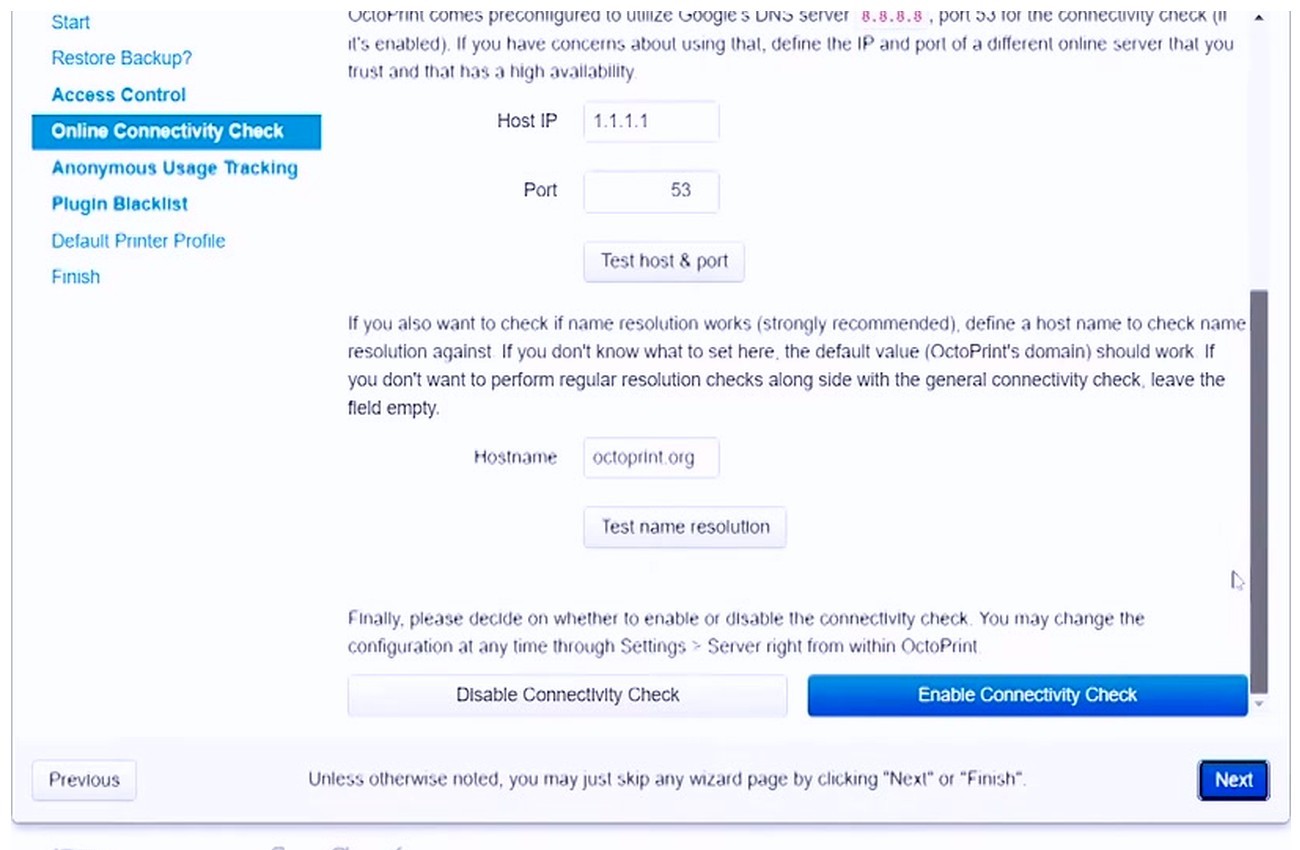
When to use Mainsail, Fluidd, or PrusaLink instead
OctoPrint isn’t always the right host stack, and OrcaSlicer’s “Octo/Klipper” host type doesn’t paper over the difference. A few quick calls.
Voron with Klipper and Moonraker: Voron docs recommend Mainsail or Fluidd, both built on Moonraker, not OctoPrint. Moonraker’s REST surface is similar but not identical, and several upload paths differ. If you’re seeing weird upload errors and you know the box runs Moonraker, you’re in the wrong host type. The Klipper setup guide covers Moonraker properly.
Prusa MK4, MK4S, XL: PrusaLink is the only first-party path. Don’t try to put OctoPrint on a Pi between you and these printers; you’ll lose features and gain bugs. Use the PrusaLink host type in Orca.
Prusa MK3 and MK3S+: these straddle the line. PrusaLink ships on newer Einsy firmware, and you might also have OctoPrint on a Pi. Pick one. Don’t run both fighting for the same USB serial line.
Creality Sonic Pad and K1: Klipper, not OctoPrint. The Sonic Pad’s REST endpoints don’t match OctoPrint’s, and the Device tab in Orca won’t recognize it. Use the Klipper or Moonraker config in Orca instead.
Multi-instance OctoPrint: if you run several printers off one Pi, each instance has its own port (5000, 5001, 5002) and its own Application Keys. The number-one mistake here is mixing keys between instances. Name each Physical Printer in Orca with the port suffix in the title so you can tell them apart at a glance.
What success actually looks like
When everything works, the slicer’s status bar tells you. You hit “Print”, Orca slices, and the bar reads “Scheduling upload to 192.168.1.145” or whatever your Pi address is. That’s the moment Orca has handed off to OctoPrint without a 401, 403, or curl error. Then OctoPrint takes over, and the file appears in its file list a few seconds later.
If you’ve worked through A through J twice and you’re still stuck, the most likely cause is SD card corruption on the Pi. OctoPi images don’t fail loudly; they fail subtly, with weird errors that look like every other category in this guide. Re-flash the SD card with a fresh OctoPi image, restore your config.yaml from backup (you do back up ~/.octoprint/config.yaml, right?), and rewire from scratch. The OctoPrint setup guide covers the rebuild end to end.
Frequently asked questions
Why can’t OrcaSlicer connect to OctoPrint?
The top three causes are wrong IP/port (use the literal Pi address with :5000 or :80 depending on your install), a wrong or trailing-whitespace API key (use the copy icon, not double-click), or a reverse proxy stripping the X-Api-Key header. Walk sections A, B, and D in that order.
How do I find my OctoPrint API key for OrcaSlicer?
Open OctoPrint, go to Settings, click the Application Keys entry in OctoPrint’s Settings sidebar. Type “OrcaSlicer” in the application field, click Generate, and confirm via the popup. Copy the key with the icon next to it. The legacy global key under Settings > API still works in OctoPrint 1.x, but it’s deprecated in favour of Application Keys, so use Application Keys.
What does “Could not connect to OctoPrint Error 7” mean?
Curl Error 7 is “connection refused”, meaning nothing is accepting connections on the address and port you gave. Either the OctoPrint daemon is dead, you have the wrong IP, or you have the wrong port. SSH into the Pi, run sudo systemctl status octoprint and sudo ss -tlnp | grep 5000 to confirm what’s listening.
Why is OctoPrint giving a 403 forbidden in OrcaSlicer?
OctoPrint returns 403 for missing or wrong keys in practice; the docs specify 401, but the server has long behaved this way per issue #2706. Treat 403 as “key didn’t work” first. If the key is definitely correct, check whether the user the key was issued for has FILES_UPLOAD permission in Settings > Access Control.
Does OrcaSlicer work with octopi.local?
Sometimes. mDNS resolution depends on the slicer machine having Bonjour or Avahi working. Windows in particular drops octopi.local resolution unpredictably (see OctoPrint #3852). For reliability, set a DHCP reservation on your router for the Pi and put the literal IP in Orca.
How do I increase the OctoPrint upload size limit?
Two places: nginx client_max_body_size and OctoPrint’s uploads.maxSize in ~/.octoprint/config.yaml. Both have to agree. Set the nginx value to 1024M and the config.yaml value to 1073741824 bytes. Reload nginx and restart OctoPrint after editing.
Can OrcaSlicer connect to Klipper without OctoPrint?
Yes. Use Moonraker’s REST API directly via the same Octo/Klipper host type, pointing at the Moonraker port (typically 7125 or fronted on 80 by Mainsail/Fluidd). The Klipper setup guide walks through it.
Why does my OctoPrint connection work in the browser but not OrcaSlicer?
Browsers store auth cookies and tolerate self-signed certs after one click; slicers don’t. The two most common causes are a reverse proxy with basic auth (browser has the cookie, Orca doesn’t) and a self-signed HTTPS cert (browser was warned and proceeded, libcurl refuses). Sections C, D, and F cover both.
How do I run OctoPrint in safe mode?
Three ways. From the UI: System menu, “Restart OctoPrint in safe mode”. From the CLI: stop the service and run octoprint serve --safe. From config: set server: startOnceInSafeMode: true in config.yaml for a one-shot safe boot. Safe mode disables all third-party plugins and is the right tool when uploads return 500 or vanish silently.
Why is OrcaSlicer uploading to OctoPrint slowly?
Two common causes. First, weak wifi between the slicer machine and the Pi; check link quality with iwconfig wlan0 on the Pi. Second, a slow SD card on the Pi; high-quality A1 cards make a real difference. If neither helps, raise sending_interval in OrcaSlicer.conf from 5 to 100 to slow the slicer’s send pace down to what your link can handle.
If you’ve worked through every section here and the connection still won’t come up, you’ve probably got a layered issue (proxy plus cert plus ACL) rather than a single broken thing. Step back to the OrcaSlicer troubleshooting hub and walk the broader stack from network up. If you’re rebuilding from scratch, grab a fresh copy from the OrcaSlicer download page, re-flash OctoPi, and start with the setup guide. Most of the time, the second pass through a clean build resolves the ghost issues a corrupted config has been hiding for months.
Related OrcaSlicer guides
- OrcaSlicer Troubleshooting: Master Index of Every Common Fix
- OrcaSlicer Bed Adhesion Problems: Glue Strategies & Real Fixes (2026)
- OrcaSlicer Print Stops Mid-Print: Causes and Recovery Guide
- OrcaSlicer Print Time Estimate Wrong: Why and How to Fix
- OrcaSlicer Input Shaper Calibration for Klipper (2026 Guide)