
Last March I had a print fail seven times in a row. Bambu A1, fresh PLA, simple model. The first three failures looked like classic stringing, the fourth like under-extrusion, the fifth like the print head was crashing into earlier objects. By the seventh I was ready to throw the printer out of a window. The actual problem turned out to be a Local Network privacy bug in macOS 14.5 that was making OrcaSlicer randomly drop the connection to the printer mid-print, sending it into emergency stop. Twenty seconds in System Settings fixed it.
That’s the pattern with OrcaSlicer troubleshooting. The symptoms are obvious. The actual causes are often two layers deeper than where you’d think to look. This guide is the index I wish I’d had: every common OrcaSlicer failure I’ve seen on Reddit, in GitHub issues, on forums, organised by what you’d actually search for at 11pm when nothing’s working. Plus the fix sequence, the real root cause, and the GitHub issue numbers if you want to verify the bug isn’t just you.
It’s organised in three categories: software issues (slicer crashes, won’t open, settings won’t save), print quality issues the slicer can fix (stringing, warping, elephant foot, layer shift), and connectivity issues (Klipper, OctoPrint, Bambu Cloud, macOS specifically). At the end there’s a decision tree that maps “what you see” to “where to start”. Skim the categories, find your symptom, click through. Written against OrcaSlicer v2.3.2, current stable.
The decision tree (where to start)
Match your situation to the symptom and skip to the matching section.
- OrcaSlicer won’t launch at all → A2 Won’t Open
- OrcaSlicer crashes mid-slice on a complex model → A1 E-core crash
- OrcaSlicer slices fine, but settings I save vanish next session → A3 Settings not saving
- Slice button stays disabled with “object outside print volume” → A7
- “Spiral mode wall loops” toast → A4
- Print time estimate is wildly wrong → A6
- Slicing a 100MB+ STL takes 10+ minutes → A5
- Print fails with strings between every feature → B1 Stringing
- Corners lift off the bed → B2 Warping
- Bottom layers wider than the rest → B3 Elephant foot
- Print suddenly offsets at a specific height → B4 Layer shift
- Echo / wave pattern after corners → B5 Ringing
- First layer doesn’t stick or nozzle is scraping → B6
- Walls have gaps and pinholes → B7 Under-extrusion
- Walls look bumpy with corner blobs → B8 Over-extrusion
- Top surfaces have small holes → B10 Top gaps
- Can’t connect to Klipper / Mainsail / Fluidd → C1
- Can’t connect to OctoPrint → C2
- Can’t connect to Bambu Cloud → C3
- Mac specifically: printer doesn’t appear in the Device tab → C4
- Printer just won’t show up at all → C5
Category A: Software issues
A1. OrcaSlicer crashes while slicing complex models (the E-core bug)
Symptom: the app vanishes mid-slice on Intel 12th, 13th, or newer-gen CPUs. Windows Event Viewer logs ExceptionCode c0000005 with FaultingOffset in OrcaSlicer.dll. Triggers reliably on models above 500K triangles. Some users see kernel-mode BSOD.
Root cause: thread synchronisation issues across heterogeneous P-cores and E-cores. OrcaSlicer’s slicing scheduler doesn’t gracefully handle the asymmetric core architecture introduced by Intel’s hybrid CPUs. Memory pressure is a secondary cause. This is GitHub issue #8227, closed-not-planned.
Fix sequence:
- Right-click
OrcaSlicer.exe→ Properties → Compatibility, then set CPU affinity to P-cores only. Process Lasso ($40 for permanent affinity) is the cleanest path. Free option: Task Manager → Details → right-click OrcaSlicer.exe → Set affinity, uncheck E-cores. - Reduce the model’s triangle count in Blender or MeshLab. Decimate modifier targeting -50% almost always saves the slice.
- Increase Windows page file to 32GB minimum. Close browser tabs.
- Try Windows 8 compatibility mode on the OrcaSlicer shortcut. Slower slicing but stable.
- Last resort: disable E-cores in BIOS. Costs general-purpose performance but eliminates the bug.
Workaround at the slicing-settings level: increase perimeters to 4 or layer height to 0.2mm, both reduce per-layer compute load.
A2. OrcaSlicer won’t open or won’t launch
Symptom on Windows: splash flashes, then nothing. Or “OpenGL version too low” toast.
Symptom on macOS: “OrcaSlicer quit unexpectedly” dialog after a macOS 14.5 or 15 update.
Symptom on Linux: terminal output version GLIBC_2.38 not found (required by OrcaSlicer.AppImage).
Root causes (in priority order):
- GPU drivers missing OpenGL 4.5 support (pre-2014 Intel iGPUs and older AMD APUs all fail this)
- Corrupted user config in AppData / Application Support
- Linux distro libc older than 2.38 (issue #10990, breaks Ubuntu 22.04, Debian 12, Mint 21)
- macOS sandbox or Local Network permission denied
- Antivirus quarantine (Defender SmartScreen, McAfee)
Fix sequence:
- Update GPU drivers from the vendor (NVIDIA Game Ready / AMD Adrenalin / Intel Arc Control). Verify with GPU-Z (Windows) or
glxinfo | grep "OpenGL version"(Linux). - Delete user config:
%AppData%\OrcaSlicer\on Windows,~/Library/Application Support/OrcaSlicer/on macOS,~/.config/OrcaSlicer/on Linux. - Run as Administrator on Windows.
- Whitelist OrcaSlicer in Defender / your AV.
- On Linux, download the nightly with the “Ubuntu” suffix (built against Ubuntu 20.04, libc 2.31 compatible) or downgrade to v2.3.0.
- Last resort on Windows: copy
opengl32.dllfrom a PrusaSlicer install folder into the OrcaSlicer install folder. Forces software fallback rendering.
For the GLIBC issue specifically, the Flatpak install path is the safest. Flatpak ships its own libc and works on every modern distro.
A3. Settings not saving (the profile reset bug)
Symptom: a custom filament or process profile saves during the session but vanishes after closing OrcaSlicer. Or all custom presets revert to factory defaults after an update.
Root causes:
- Stale data from a prior major version conflicting with the new schema
- Write permission issue on the AppData folder
- Running stable and nightly side-by-side, both writing to the same config
Fix sequence:
- Close OrcaSlicer fully. Navigate to
%AppData%\OrcaSlicer\(or equivalent) and back up theusersubfolder. - Delete any
*.bakfiles andOrcaSlicer.conf. Relaunch. - If still failing, clean uninstall, delete the entire OrcaSlicer AppData folder, reinstall the latest stable.
- Save your custom profile under a unique name. Avoid overwriting “Default” presets.
- After saving, verify the JSON file actually exists at
%AppData%\OrcaSlicer\user\<num>\filament\<name>.json.
Evidence: GitHub issues #1182, #1435, #3152, #5759, #6545, #980, Discussion #1395, #13482.
A4. “Spiral mode wall loops” error
Symptom: toast that says “Spiral vase mode requires only one wall loop” (wording varies). Slice button disabled.
Root cause: Spiral mode requires a specific configuration. Wall loops = 1, Top shells = 0, Sparse infill = 0%, only one object on the plate.
Fix sequence:
- Process → Strength → Wall loops = 1
- Process → Strength → Top shell layers = 0
- Process → Strength → Sparse infill density = 0%
- Make sure only one object is on the plate
- If error persists despite correct settings, the config is corrupted. Edit
%AppData%\Roaming\OrcaSlicer\user\<id>\process\<name>.json, change"spiral_mode": 1to0, save, then re-enable spiral mode through the UI.
A5. Slow slicing on large models
Symptom: slicing a 100MB+ STL takes 10 or more minutes. UI freezes during preview generation.
Root causes:
- Arachne perimeter generator on high-poly meshes (much heavier compute than Classic)
- Adaptive layer height enabled
- Tree supports enabled
- Insufficient RAM (under 16GB)
Fix sequence:
- Process → Quality → Wall generator: change Arachne to Classic
- Disable adaptive layer height
- Switch tree supports to Normal supports
- Decimate the mesh in Blender, target under 500K triangles
- Close browser, Discord, anything not essential. 16GB RAM minimum.
A6. Print time estimate wildly wrong
Symptom: slicer says 7h 30min, actual print is 2h 10min. Or vice versa. Klipper users routinely see ±25-30% drift. AnkerMake users report catastrophic 50× errors after the 2.3.0 release.
Root causes:
- Acceleration values in OrcaSlicer don’t match firmware (Klipper
SET_VELOCITY_LIMITvs the slicer setting) - Firmware retraction makes OrcaSlicer see 0 mm/s travel moves
- AnkerMake host overrides estimate (regression in OrcaSlicer 2.3.0, issue #9054)
Fix sequence:
- Printer Settings → Motion ability: match
max_accelandmax_velocityexactly to your Klipper printer.cfg - Enable Pressure Advance / Input Shaping accel adjustment in the slicer to match firmware
- Disable firmware retraction (use slicer-driven retraction)
- AnkerMake users: stay on OrcaSlicer 2.2.0 until #9054 resolves
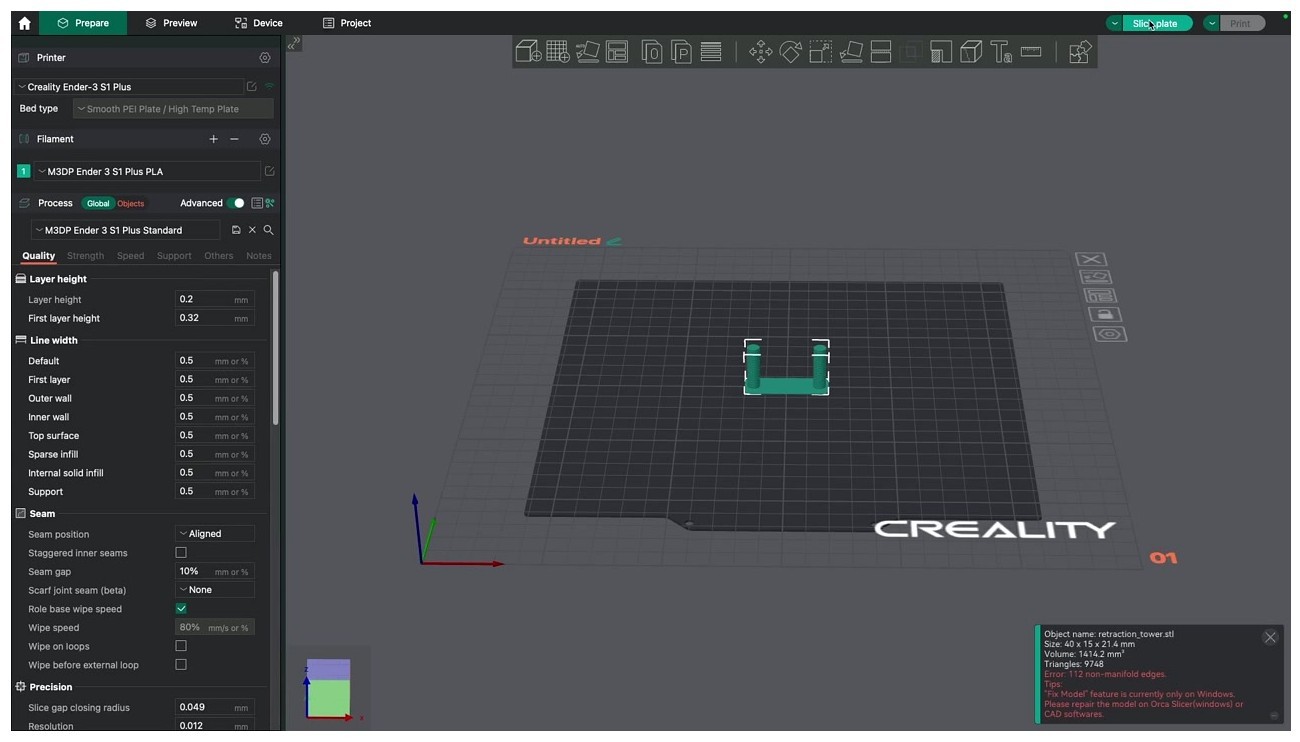
A7. “Object detected outside print volume”
Symptom: red error toast, slice button disabled.
Root causes:
- Auxiliary support, prime tower, brim, or wipe tower extends past bed edge
- Bed shape misconfigured in the printer profile
- Object sunk below Z=0 (negative Z position)
Fix sequence:
- Right-click the object → Center on plate
- Check brim width. Reduce if the model sits near the edge
- Drag the wipe tower (the green tower) to a position that fits
- Process → Others → Skirt loops = 0 if the skirt extends past bed
- Verify Printer Settings → Bed shape matches your actual printer build volume
Category B: Print quality issues the slicer can fix
B1. Stringing (PLA and PETG)
Symptom: hair-like filament strands between separated features. Worst on PETG, common on PLA.
Root cause: insufficient retraction, nozzle too hot, wet filament, slow travel moves.
Fix sequence (in this order, do not skip):
- Dry the filament. PLA 50°C × 6h, PETG 65°C × 8h. Wet filament fakes every other test.
- Run Calibration → Retraction Test (start 0mm, end 2mm, step 0.1 for direct drive)
- Direct drive PLA: 0.4-0.8mm at 30 mm/s. Bowden PLA: 4-6mm.
- Direct drive PETG: 0.8-1.5mm at 25 mm/s. Bowden PETG: 4-6mm.
- Drop nozzle temp by 5°C increments (run a temp tower if you haven’t)
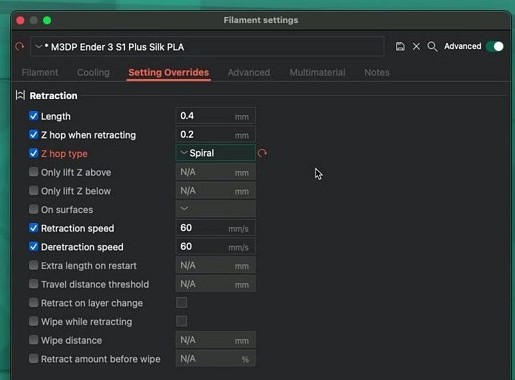
- Enable Filament → Setting Overrides → Wipe on retract
- Increase Travel speed to at least 150 mm/s
Evidence: issues #4062 and #3150, both referencing the “tried everything but still stringing” pattern. In 90% of those threads the actual cause was wet filament that the user had assumed was dry.
B2. Warping (corners lifting)
Symptom: corners curl off the bed. Print detaches mid-print on bigger objects.
Root cause: bed temp too low, no enclosure, fan too aggressive on layers 1-10, ABS/ASA without chamber heat.
Fix sequence:
- Set bed temp correctly: PLA 60, PETG 80, ABS/ASA 100-110
- Process → Others → Brim type = Outer brim, width 5-8mm
- Or use “Mouse ears” via Object → Modifier → Brim ear (better than full brim for some geometries)
- Filament → Cooling → Fan speed for first 3 layers = 0%
- ABS/ASA: enclose the printer, preheat the chamber 15 minutes before printing
- Glue stick or Magigoo on the bed
B3. Elephant foot
Symptom: bottom 2-3 layers bulge outward. Squished look at the base of every print.
Root cause: Z-offset too low, bed too hot, or weight squashing soft layers as the print rises.
Fix sequence:
- Process → Quality → Precision → Elephant foot compensation = 0.15mm to start. Increase by 0.05 if it persists.
- Set “Elephant foot compensation layers” to 1-2
- Calibrate Z-offset higher by 0.02-0.04mm
- Drop bed temp 5°C after the first layer (Filament → Filament start G-code)
Evidence: issue #5284, Discussion #557. The OrcaSlicer-specific variables are elefant_foot_compensation and elefant_foot_compensation_layers (note the spelling: a one-l “elefant”, a quirk inherited from PrusaSlicer).
B4. Layer shift
Symptom: print suddenly offsets horizontally at a specific height. Rest of the print continues from the new origin.
Root cause: mostly printer-side. Belt slip, motor skipping, nozzle hitting an object during travel, acceleration too high. The slicer can mitigate but not fix.
Slicer-side fixes:
- Process → Speed → Outer wall acceleration: 1500 mm/s² (slower than default)
- Enable Z-hop (0.4mm) on retract
- Process → Travel → Avoid crossing walls
Printer-side fixes (the usual culprits):
- Tighten belts. Pluck test: belt should hum like a guitar string, not flap.
- Check pulley grub screws on the motor shafts
- Lower stepper current if motors are hot to touch (skipping from thermal protection is common)
B5. Ringing / ghosting
Symptom: echo or wave pattern after sharp corners. Visible on text, fine features, vertical surfaces.
Root cause: frame and gantry resonance, lack of input shaping, acceleration too high.
Fix sequence:
- Calibration → Input Shaping (Klipper or Marlin 2.x). Print the ringing tower; pick the best frequency band 15-110 Hz; pick damping 0.1-0.2.
- Update your Klipper
[input_shaper]section withshaper_freq_xandshaper_freq_y - Reduce Process → Speed → Outer wall accel
- Tighten frame screws, check Z-axis V-wheels
B6. First-layer adhesion / nozzle scraping
Symptom: nozzle clicks across the bed and skips, or filament curls and doesn’t stick to the surface.
Root cause: Z-offset wrong, dirty bed, bed not level, first layer flow off.
Fix sequence:
- Wipe bed with IPA 90%+. No detergent, no kitchen wipes (silicone residue kills adhesion)
- Run the printer’s auto bed leveling / bed mesh routine
- Calibration → Flow Rate (YOLO method)
- First-layer Z-offset live-tune during the first layer: -0.02 to -0.05 if the gap looks too high, +0.02 if scraping
- Process → Quality → Initial layer height = 0.24mm (more forgiving than 0.20)
- Process → Speed → Initial layer speed = 20 mm/s
B7. Under-extrusion
Symptom: gaps between perimeters, top surface pinholes, weak walls.
Root cause: flow ratio too low, partial clog, retraction so high it grinds the filament, cold pull needed.
Fix sequence:
- Calibration → Flow Rate (YOLO or Pass 1 + Pass 2)
- Cold pull, or change the nozzle if you suspect a clog
- Reduce retraction length 0.2mm at a time, retest
- Process → Strength → Top surface flow ratio = 1.05
B8. Over-extrusion
Symptom: bumps on outer walls, blobs at corners, dimensions oversized.
Fix sequence:
- Calibration → Flow Rate (correct downward)
- Calibration → Pressure Advance (line method for a quick check)
- Process → Quality → Precision → X-Y hole compensation if holes print too small
B9. Z-banding / Z-wobble
Symptom: horizontal ripples at a consistent vertical interval.
Root cause: bent lead screw, loose coupler (printer-side); inconsistent flow per layer (slicer-side).
Slicer-side fixes:
- Process → Quality → Layer height: avoid awkward values. Use 0.16mm not 0.13mm.
- Disable adaptive layer height for tall models
- Calibrate flow ratio precisely (run YOLO)
Printer-side fixes:
- Lubricate the Z lead screw
- Roll the lead screw on a flat surface, replace if bent
- Tighten Z coupler grub screws
B10. Top-surface gaps
Symptom: pinholes on the top layer; a top surface that’s faintly translucent in spots.
Fix sequence:
- Process → Strength → Top shell layers = 5 (from default 4)
- Process → Strength → Sparse infill density at least 15%
- Process → Quality → Ironing → Type = Top surfaces
- Process → Strength → Top surface flow ratio = 1.05
- Process → Quality → Walls and surfaces → “Top surface gap fill” enabled
Category C: Connectivity issues
C1. Won’t connect to Klipper / Moonraker
Symptom: Device tab spinner forever. “Connecting to Moonraker” loop.
Root causes:
- Wrong protocol prefix (no
http://in the URL) - CORS not allowed in Moonraker for the OrcaSlicer origin
- Hostname not resolved (mDNS / Bonjour issue)
- Wrong port (Moonraker is 7125, Mainsail UI is 80, easy to confuse)
Fix sequence:
- Use the IP address, not the hostname (
192.168.1.50, notmainsailos.local) - Prepend
http://if OrcaSlicer asks for the full URL - Test in a browser:
http://<IP>:7125/printer/info. JSON response means Moonraker is alive. - SSH to the Pi:
sudo systemctl status moonraker. Confirm it’s running. - Add to
~/printer_data/config/moonraker.conf:[authorization]section withcors_domains: *.local, *://*andtrusted_clients: 192.168.0.0/16, 10.0.0.0/8 - Restart Moonraker:
sudo systemctl restart moonraker - In OrcaSlicer, force-refresh the Device tab
Evidence: Discussion #7306, #9790, issues #890, #791.
C2. Won’t connect to OctoPrint
Symptom: “Could not connect to OctoPrint: Connection timed out” or “curl: Couldn’t connect to server”.
Root causes:
- Wrong API key
- OctoPrint not on the same LAN as your computer
- OctoPrint version below 1.1.0
- Plugin firewall blocking the connection
- HTTPS without a valid cert
Fix sequence:
- OctoPrint UI → Settings → Application Keys (or User → API key). Copy a fresh key.
- Paste in OrcaSlicer Printer Settings → “API Key / Password”
- Verify same subnet (
ipconfigon PC,ip aon Pi) - OctoPrint version must be ≥ 1.1.0
- Mac users: System Settings → Privacy & Security → Local Network → toggle OrcaSlicer off then on
- Test by pasting
http://<octopi-IP>in your browser first. Should load the OctoPrint UI.
Evidence: issues #10696, #5389, Discussion #7355.
C3. Won’t connect to Bambu Cloud
Symptom: login Safari opens, returns to OrcaSlicer, infinite spinner. Or HTTP 403. Or “Download failed: unknown file format” on profile sync.
Root causes:
- Bambu auth token expired
- Account region mismatch (China vs Global)
- Multi-factor authentication enabled on the Bambu account
- Bambu Cloud outage
Note: after the January 2025 firmware lockdown, OrcaSlicer’s Bambu Cloud connection works only intermittently and many features (live camera, AMS RFID, remote print) are no longer supported. The maintained path for Bambu hardware is LAN Mode plus Developer Mode on the printer. See the OrcaSlicer vs Bambu Studio comparison for the full lockdown context.
Fix sequence:
- Top-right avatar → Logout
- Restart OrcaSlicer
- Log in again. If Safari hangs, switch the default browser to Chrome.
- Check status.bambulab.com for outages
- Account Settings → confirm region matches the printer’s bound region
- P2S, A1, A1 Mini users: try LAN-only mode if cloud persistently fails
C4. macOS Local Network privacy bug
Symptom: Bambu or Klipper printer doesn’t appear in the Device tab on Mac, even though the printer is on the same network. Or a Local Network privacy popup appears repeatedly.
Root cause: macOS 14.5+ tightened the Local Network entitlement. OrcaSlicer needs explicit permission to enumerate Bonjour, SSDP, and mDNS. macOS 15.0 had a regression where launchd-spawned printer enumeration triggered the popup loop; resolved in 15.1.
Fix sequence:
- System Settings → Privacy & Security → Local Network → toggle OrcaSlicer ON. If OrcaSlicer is missing from the list, run a discovery action in OrcaSlicer first to trigger the entitlement request.
- Toggle OFF, then ON again
- Restart OrcaSlicer
- Update macOS to 15.1+ (fixes the 15.0 daemon regression)
- If still failing on macOS 14.5 specifically (issue #6559), downgrade OrcaSlicer to 2.0.0 or wait for a newer build
- Manually add the printer by IP rather than relying on discovery
C5. “OrcaSlicer won’t find my printer at all”
Symptom: Device tab is empty, “no printer found”.
Root causes:
- Hostname instead of IP
- Different VLAN or subnet
- Bambu printer in cloud-only mode (LAN mode disabled)
- Windows 11 SSDP Discovery service disabled
- Sleep / wake interrupted discovery
Fix sequence:
- Add manually: Printer Settings → “Add” → Manual setup → IP address
- Disable VPN if active
- Bambu printers: confirm LAN mode is enabled on the printer screen, copy the access code
- Windows 11:
services.msc→ SSDP Discovery → set to Automatic and start - Restart OrcaSlicer after laptop wake
- Same Wi-Fi 2.4 GHz vs 5 GHz can sometimes block mDNS. Try the same band as the printer
Top 5 most-reported issues (real GitHub data)
- #8227 (E-core crash): closed-not-planned, 30+ comments. Workaround is CPU affinity. Most-cited reference on Reddit and forums.
- #12684 (2.3.2 regressions tracking): 52+ comments as of March 2026. Umbrella for misaligned filament G-code legend, modal windows that won’t close on Esc, randomly halved G-code section heights.
- #10990 (GLIBC_2.38): AppImage built against newer libc breaks Ubuntu 22.04, Debian 12, Mint 21. Workaround: Flatpak, AUR build, or downgrade to v2.3.0.
- #7576 / #9054 (print time estimate): long-standing, multiple stale duplicates. Klipper drift 25-30%, AnkerMake catastrophic 50× errors after 2.3.0.
- #6559 (macOS 14.5 incompatible): fixed in later builds for most. M1 Sonoma users still report sporadic startup crashes (issue #5604).
OS-specific gotchas worth knowing
Windows
- The E-core scheduler bug is the biggest desktop issue. Process Lasso or manual affinity fixes it.
- SSDP Discovery service must be running for Bambu printer enumeration on Win 11.
- Defender / SmartScreen quarantines AppImages or unsigned builds. Whitelist the install folder.
- Windows 8 compatibility mode is a documented workaround for slicing crashes (community-confirmed).
- Config path:
%AppData%\Roaming\OrcaSlicer\. Delete this folder for a full reset.
macOS
- Local Network entitlement (14.5+): printers won’t appear without explicit permission grant.
- macOS 14.5 has known immediate incompatibility with OrcaSlicer 2.1.1 (issue #6559).
- Login redirect via Safari sometimes hangs. Switch default browser to Chrome.
- Post-processing scripts permission denied (issue #8010):
chmod +xthe script, thenxattr -d com.apple.quarantine <path>. - Config path:
~/Library/Application Support/OrcaSlicer/ - Apple Silicon users should use the dedicated arm64 build, not Rosetta x86_64. Performance penalty otherwise.
Linux
- GLIBC_2.38 requirement in 2.3.1+ AppImage breaks Ubuntu 22.04, Debian 12, Mint 21, MX Linux.
- Flatpak is the safer install path. v2.3.2 fixed Flatpak locale and app-ID migration.
- Wayland blank 3D preview was fixed in v2.3.2 (EGL/GLX mismatch).
- Arch / AUR package
orca-slicer-gitbuilds from source and avoids GLIBC issues. - Klipper crash on Flatpak Device tab (issue #10804).
- Config path:
~/.config/OrcaSlicer/
AMD GPU specifically
Issue #9640 documented Prepare-tab crashes on Windows with AMD CPU + GPU combos. The fix that worked for most users: roll back to a previous WHQL Adrenalin driver. Also a known crash when toggling between dark and light theme on AMD; avoid theme-switching during a session if you’ve got an AMD GPU.
FAQ
OrcaSlicer keeps crashing on slice. Is my computer too slow?
Probably not. The crash is almost always either the E-core scheduling bug on Intel 12th-gen+ CPUs (issue #8227, fix is CPU affinity) or insufficient RAM (need 16GB minimum for complex slicing). Memory pressure is the second-most-common cause. Run the affinity fix first; if it persists, decimate the model.
My settings keep resetting after every update. Why?
Stale data in your AppData folder conflicting with the new schema. Close OrcaSlicer, back up your user subfolder, delete the *.bak files plus OrcaSlicer.conf, then relaunch. If still failing, full uninstall plus delete entire AppData folder, then reinstall.
Why doesn’t OrcaSlicer find my Bambu printer on Mac?
macOS Local Network entitlement. System Settings → Privacy & Security → Local Network → toggle OrcaSlicer ON. If OrcaSlicer doesn’t appear in the list, trigger a printer discovery in OrcaSlicer first to make macOS request the permission.
Print time estimate is wrong by 30%. Bug or my fault?
Acceleration values in OrcaSlicer don’t match your firmware. Match max_accel and max_velocity in Printer Settings → Motion ability to your Klipper printer.cfg exactly. AnkerMake users on 2.3.0 are seeing a known regression (issue #9054); stay on 2.2.0 until fixed.
Stringing won’t go away no matter what retraction I use.
The filament is wet. Dry it. Specifically: PETG 65°C × 8 hours, PLA 50°C × 6 hours. Retest. Wet filament fakes every retraction calibration result.
Can I use OrcaSlicer with my Bambu printer after the firmware update?
Yes, via LAN Mode plus Developer Mode on the printer touchscreen. Cloud printing through OrcaSlicer is no longer supported on stock firmware. AMS RFID auto-detect doesn’t work either; assign filament types manually. Full context in the OrcaSlicer vs Bambu Studio comparison.
Why does my Linux build refuse to launch with a GLIBC error?
Issue #10990. The 2.3.1+ AppImage requires GLIBC 2.38, which Ubuntu 22.04, Debian 12, and Mint 21 don’t ship. Three workarounds: install via Flatpak (recommended), use the AUR orca-slicer-git on Arch, or downgrade to v2.3.0 (built against an older libc).
OrcaSlicer says my model has non-manifold edges. What now?
The model has small geometry errors that the slicer can’t repair on Linux or Mac. On Windows, OrcaSlicer’s “Fix Model” feature can repair most of these in-place. On other platforms, run the model through Blender’s “Mesh → Clean Up → Make Manifold” or use Tinkercad’s Group/Ungroup workflow.
Things that aren’t actually OrcaSlicer’s fault
A solid third of the troubleshooting questions that get filed as OrcaSlicer bugs turn out to be:
- Wet filament: covered above; the cause of most stringing, popping, and rough surfaces. Dry it before you suspect anything else.
- Wrong nozzle hardness: brass nozzles wear within 500g of CF or GF filament. Symptoms look like under-extrusion, but the real cause is a worn nozzle bore. Inspect with a magnifier; if the orifice looks oval or chipped, swap it.
- Outdated firmware: Klipper, Marlin, and Bambu firmware all have bug fix windows. If you’re on Klipper from 2023 trying to use OrcaSlicer 2.3.2’s input shaper test, the test pre-fills modern shaper types your firmware doesn’t recognise. Update Klipper first.
- USB bandwidth: rare, but real on USB 2.0 hubs with too many devices. Symptoms look like random connection drops on USB-connected printers (not network printers).
- Loose belts and worn pulleys: the printer-side cause behind layer shifts, ringing, and Z-banding. Tighten before changing slicer settings.
- Bed not actually level: auto-bed-level meshes go stale. Re-run the mesh routine if first-layer adhesion suddenly fails after weeks of working.
The general pattern: when you see a weird symptom, mentally rank the candidates as wet filament → printer mechanical → firmware → slicer. The order is roughly the order of likelihood.
Wrap-up
Most OrcaSlicer problems aren’t OrcaSlicer’s fault. They’re firmware mismatches, wet filament, GPU drivers two years out of date, or macOS Local Network privacy that nobody tells you about. The slicer surfaces these as confusing toasts and crashes that look like slicer bugs.
Bookmark this page. Next time something breaks, find the symptom on the decision tree at the top, work through the fix sequence, check the GitHub issue if mentioned, and most fixes take 5-15 minutes. If you’re new to OrcaSlicer, the beginners guide covers setup. If you’re trying to fix print quality specifically, the calibration guide walks the nine-test suite. Or grab the latest stable from the download page if you’re still on an older build that’s giving you the bugs above.