
My X1C said 4 hours and 12 minutes. I came back six hours and forty minutes later to a print that still had two top layers to go. That kind of miss isn’t a rounding error, it’s the difference between starting a print before bed and waking up to a half-finished benchy stuck on the plate.
I’ve been chasing this same problem on three different printers (a Vyper running stock Marlin, a Voron 2.4 on Klipper, and the X1C), and I’ve read every relevant GitHub thread on the OrcaSlicer tracker since late 2023. The honest answer is that “OrcaSlicer’s print time estimate is wrong” is actually four different problems wearing the same shirt, and you can’t fix any of them until you figure out which one is yours. So this guide walks you through the diagnosis first, then the fix per printer family, then the one nuclear option that gets Klipper users within a minute or two for a 12-hour print. If you’ve got a Bambu, I’ll be straight with you about what the slicer can and can’t do for the on-printer ETA.
Why your OrcaSlicer print time is wrong (the 30 second answer)
If you only have thirty seconds, here’s the version. The estimate you see in OrcaSlicer’s Preview tab is a kinematic prediction. It assumes your printer accelerates exactly to the values in Motion Ability, decelerates symmetrically, hits cruise speed cleanly, and never gets bottlenecked by the hotend. In reality, three things knock that prediction sideways.
The first is slicer math drift. Your Motion Ability values don’t match what the firmware actually does. A user on an Anycubic Vyper documented this beautifully in Issue #7576 back in November 2024: their print took 2 hours and 10 minutes, but Orca predicted 7 hours and 30 minutes. That’s roughly three to four times over. They noted the same file in OctoPrint matched actual print time within a few minutes, so the G-code was fine, the slicer’s prediction wasn’t.
The second is runtime throttling. The slicer thinks you can extrude at the Max Volumetric Speed you set, but the hotend can’t keep up, so the printer’s motion planner slows the extruder. This is the inverse failure mode, where a Klipper user in Issue #1612 reports prints running 20 to 30 percent longer than the slicer estimate. Two opposite symptoms, two opposite causes, one shared root: the slicer’s math assumed something the printer can’t deliver, or refused to do, at runtime.
The third is firmware side ETA. On Bambu and AnkerMake, the number on the printer’s screen isn’t the same number Orca calculated. The printer recalculates its own ETA based on its own kinematic profile, sensor feedback, and (on Bambu) firmware-side tuning that overrides slicer choices. The most extreme example I’ve seen is Issue #9457: a 50 minute print sliced in OrcaSlicer 2.3.0 displayed as somewhere between 58 and 73 hours on an AnkerMake M5C’s screen. The slicer was right, the firmware’s parser broke. Three buckets, three different fixes.
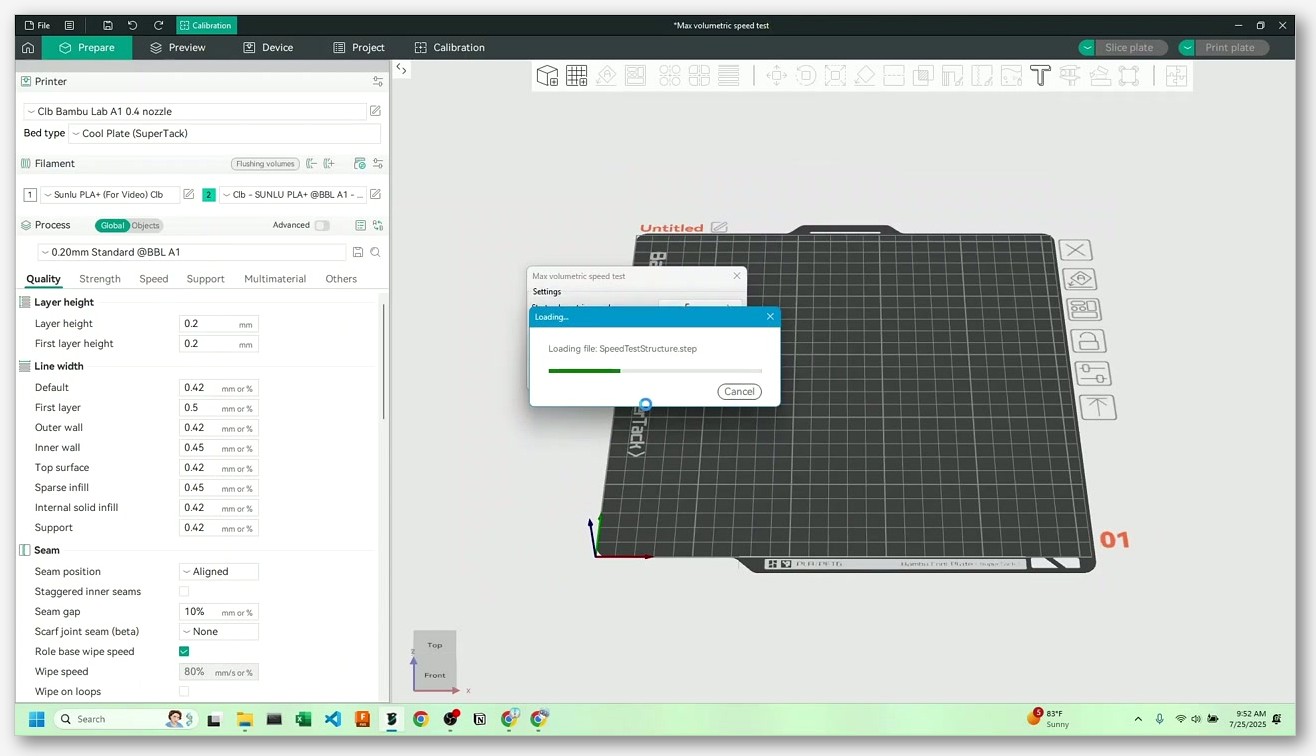
If you’re already overwhelmed, just remember this: the diagnostic flow is “is the slicer’s number wrong, is the printer’s runtime wrong, or is the printer’s display wrong?” Each of those three has a different fix path, and mixing them up wastes hours. The rest of this article is the long version. If you want the full troubleshooting context, the OrcaSlicer troubleshooting master guide covers the wider class of issues this one belongs to.
How OrcaSlicer actually calculates print time
Before you can fix the wrong number, you’ve got to understand what the slicer is actually doing when it generates that number. I see a lot of confusion online where people assume Orca runs some kind of machine-learning estimator or “smart ETA” that gets better with each print. It doesn’t. The estimate is a deterministic kinematic calculation that runs once when the slice finishes, and it never updates again.
The kinematic model in plain English
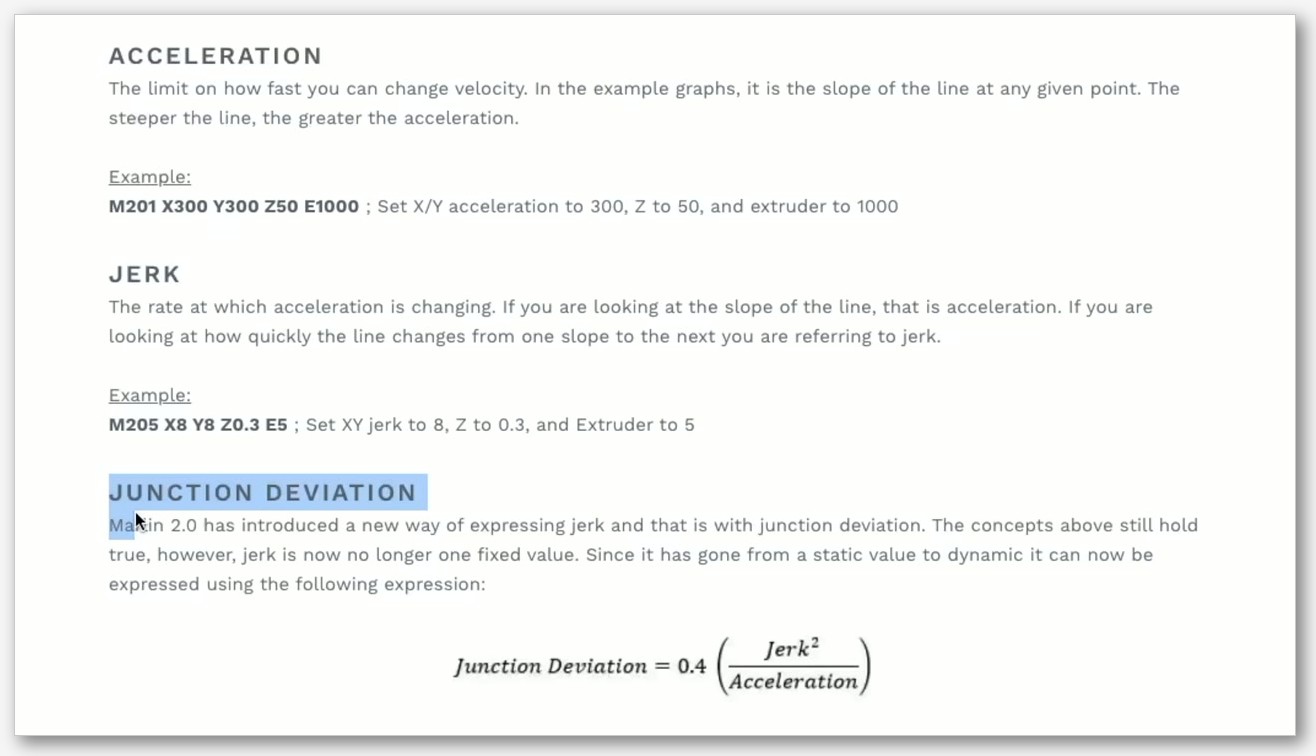
For every move in the G-code, OrcaSlicer asks: how long would this segment take if the toolhead accelerates from its entry speed up to the cruise feedrate, holds that feedrate for as long as the segment is long enough, then decelerates to its exit speed? The acceleration value comes from your Motion Ability settings. The cornering behaviour comes from either jerk (Marlin classic mode) or junction deviation (Marlin 2 with JD enabled, or by analogy with Klipper’s square corner velocity). The cruise feedrate is whatever the speed setting for that feature is, capped by the per-axis max feedrate.
Then it sums every segment’s duration. That’s the number you see in the Preview tab. The model is simple, well understood, and accurate, as long as the inputs match what the printer actually does.
What it consumes from Motion Ability
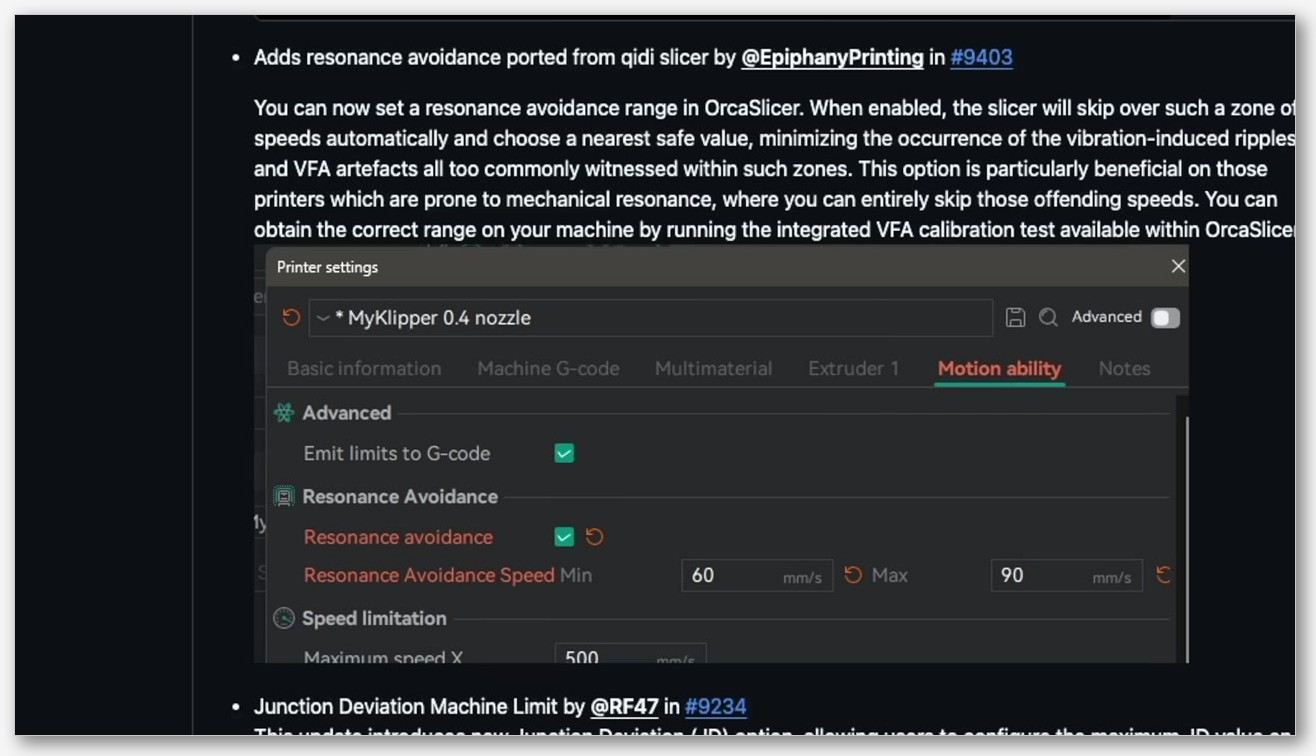
The Motion Ability section of Printer Settings is where you tell Orca what your machine can physically do. Per the OrcaSlicer Motion Ability wiki, the verbatim setting names you’ll find here are machine_max_acceleration_extruding, machine_max_acceleration_retracting, machine_max_acceleration_travel (the travel one only shows in Advanced mode), the per axis caps machine_max_acceleration_x, _y, _z, _e, the per axis jerks machine_max_jerk_x, _y, _z, _e, and (in Advanced mode) machine_max_junction_deviation.
The wiki promises that these “safeguard maximum accelerations for all axes” and that this “will cap the acceleration set by the process if it exceeds these values.” That’s the design intent. The jerk and junction deviation entries are documented as M205 commands: jerk is “M205 X, Y, Z, E, only apply if JD = 0 for Marlin 2 Firmware,” and junction deviation is “M205 J, only apply if JD > 0 for Marlin Firmware. If your Marlin 2 printer uses Classic Jerk set this value to 0.” Translation: pick one cornering model and stick with it. If you mix jerk and junction deviation, the slicer’s estimate is going to drift from reality.
 The five reasons the estimate is wrong (diagnostic flowchart)
I’m going to walk through these in the order I’d actually check them on a printer, not in the order they sound dramatic. Each section ends with a “if this is your problem, here’s the fix” pointer.
Reason 1: Motion Ability values don’t match firmware
This is the number one cause. The Motion Ability values in your printer profile are whatever the profile shipped with, and the firmware on your printer has whatever values it shipped with, or whatever you (or a previous owner) flashed in. They don’t have to agree, and most of the time they don’t. The slicer calculates the estimate using its values; the printer runs using its values. If the printer’s actual max acceleration is 1500 mm/s² and Orca’s profile says 5000, your print will take much longer than the estimate. If it’s the other way around, the print finishes faster than predicted.
The Vyper user in Issue #7576 expected the estimate to land within “+/- 5 to 10% of the actual print time” and got something three to four times worse. That’s almost certainly a Motion Ability mismatch on a stock profile that hadn’t been touched to match firmware. Fix path: the next H2 walks you through capturing your firmware’s real values and mirroring them.
Reason 2: Max Volumetric Speed is set higher than the hotend can sustain
Volumetric Speed Limitation (the field is filament_max_volumetric_speed) tells the slicer the maximum mm³ per second your hotend can melt. If you set it to 24 mm³/s and your hotend can only actually deliver 15, two things happen. The slicer assumes you’ll print at the speeds it requires to hit 24 mm³/s, and the firmware (or Klipper’s planner) will throttle you back to whatever the extruder can actually push. The result is the slicer’s estimate runs short, often by exactly the ratio of your set MVS to your real sustainable MVS.
I’ll cover the calibration in detail in the dedicated MVS section below. For numerical reference values per filament family, see the OrcaSlicer Max Volumetric Speed guide. I’m deliberately not duplicating those numbers here because the values shift with hotend, nozzle diameter, and even ambient temperature.
Reason 3: You’re using firmware retraction
If you’ve enabled firmware retraction (G10/G11) in your printer profile, you’ve probably noticed that OrcaSlicer’s preview shows weird, slow speeds for a while after each retract. Issue #7519 on the tracker, opened against OrcaSlicer 2.2.0 and closed as not planned, documents that after a firmware retraction the preview’s per move speed display collapses to “5mm/s or slower” until the next explicit speed change in the G-code. Critically, the actual print speed on the machine is normal. The preview is wrong, but the print isn’t.
The catch is that the time estimate is calculated from the same internal model that drives the preview. So if your preview is showing a long stretch at 5 mm/s where reality runs at 200, your estimate is way over for that stretch. There’s no clean fix from inside Orca; the workaround is to switch back to slicer-driven retraction (G1 E moves) for any model where you care about the estimate. If you really need firmware retraction for your hardware reasons, accept that the time estimate is unreliable and use a separate tool (klipper_estimator if you’re on Klipper) for the real number.
Reason 4: You have many filament changes
Per Issue #9180 above, multi material prints with hundreds of filament changes appear to over-estimate by a fixed per-change padding. If your print has 365 swaps and roughly 90 seconds is being padded per swap, that’s almost six hours of phantom time. I’ve seen the same pattern on a Voron with a Quad Color Mouse: the estimate shows 14 hours, the print finishes in 9. There’s no setting to fix this; the fix is awareness. If you’re running heavy multi material, mentally discount the estimate by something like 15 to 30 percent and don’t trust it for sleep timing.
Reason 5: Klipper accel_to_decel / minimum_cruise_ratio
This one’s the kicker for Klipper users, and it’s the cleanest single explanation for the “20 to 30 percent under” pattern in Issue #1612. The OP wrote that “if I halve all my acceleration values and set jerk to sqrt(2) * square corner velocity I get a pretty accurate estimate.” That’s a workaround, not a fix. The reason is that Klipper has a planner setting called minimum_cruise_ratio (formerly max_accel_to_decel) which, per the Klipper config reference, “reduces the top speed of these moves to ensure there is always a minimum distance traveled at a cruising speed.” In plain English: on short moves, Klipper won’t let the toolhead reach the configured max acceleration because doing so would mean the toolhead never actually cruises. The real acceleration on short moves is therefore much lower than the configured max.
The OrcaSlicer estimate doesn’t model this. It assumes every move accelerates to max_accel and then decelerates symmetrically, which is true for long moves but a fantasy for the thousands of tiny moves that make up perimeters and curved surfaces. On detail-heavy prints, this is exactly why your Voron finishes 20 to 30 percent late. The OP of Issue #1612 even spelled out the requested fix: “Make the time estimate math inside the slicer take accel_to_decel into account, for example by multiplying acceleration by the accel_to_decel percentage (it’s not exactly accurate but better than nothing).” The issue is closed but the fix isn’t in current Orca, so until it lands, klipper_estimator is your escape hatch.
Per printer tuning matrix
I get asked this question on Discord constantly: “I have a [printer], what should I do?” Here’s the matrix in scannable form. Each row tells you what firmware family you’re dealing with, what to set in OrcaSlicer’s Motion Ability, and where the source of truth lives.
Marlin printers (Ender, Vyper, Sidewinder, most Creality)
Your firmware reads its motion limits from EEPROM. The relevant Marlin commands per the RepRap G-code reference are M201 to set max acceleration per axis, M203 to set maximum feedrate, M204 to set default acceleration, and M205 to set advanced settings including jerk (X/Y/Z/E) and junction deviation (J). To capture your current EEPROM values, send M501 over serial (or via OctoPrint, Mainsail, or whatever console you use). To save changes you’ve made via M201/M203/M204/M205, send M500. Then mirror those numbers into Printer Settings → Motion Ability inside OrcaSlicer. The Vyper specifically is the printer in Issue #7576, and a stock Anycubic Vyper firmware has very different acceleration values from what an Orca Vyper profile probably ships with, which is exactly why that print came in at one third of the estimate.
Klipper printers (Voron, K1, RatRig, Sonic Pad, basically anything with a Pi)
Open printer.cfg in Mainsail, Fluidd, or your editor of choice. Find the [printer] section. Mirror max_accel into machine_max_acceleration_extruding in OrcaSlicer’s Motion Ability. Take square_corner_velocity and either set machine_max_jerk_x and _y to sqrt(2) * square_corner_velocity (per the Issue #1612 workaround), or use junction deviation if you’ve enabled it. If you’re not sure what your real square corner velocity should be, run OrcaSlicer’s built-in SCV calibration tool, which shipped via PR #10962 per the OrcaSlicer Issue #4220 thread. The cornering article at orcaslicer.net/orcaslicer-cornering-calibration/ walks through the SCV test if you’ve never run it.
If you’ve also got minimum_cruise_ratio set in your Klipper config, accept that no amount of slicer tuning will perfectly reflect what the planner does on short moves. For a near-exact number, install klipper_estimator and run it as a post-processor (covered in its own section below).
Bambu Lab (X1C, P1S, A1, A1 Mini)
This is where I have to be honest with you. The slicer’s estimate is anchored to whatever Bambu motion profile you’ve selected. The printer’s runtime ETA is computed by firmware, refined as it prints, and is influenced by Bambu-side decisions you can’t see from the slicer. Community reports across the Bambu Lab forum describe prints typically running in the neighborhood of 15 to 20 percent longer than the slicer estimate, with some H2 series reports also in the 20 percent over range. None of those are official Bambu staff statements, just community pattern observation.
What you can’t do: fully fix the on-printer ETA from inside the slicer. What you can do: tune Motion Ability to match what your specific printer actually does (the X1C profile shipped with Orca is reasonable but not identical to firmware), tune MVS to match your real hotend throughput, and accept the 15 to 20 percent margin. For X1C and P1S specific tuning, see the Bambu X1C and P1S guide.
AnkerMake (M5, M5C)
There’s a known regression here that you need to know about. Issue #9054 on the OrcaSlicer tracker, titled “All AnkerMake Printer Models no longer display accurate time estimates since using OrcaSlicer 2.3.0 Stable,” was closed as not planned. The OP describes the problem as absent in 2.2.0 and present in 2.3.0 across both M5 and M5C. The companion Issue #9457 documents the most extreme symptom: a 50 minute print displayed as somewhere between 58 and 73 hours on the printer console, while the slicer preview itself showed 50 minutes correctly. PR #9990 was linked as the resolution, but that PR fixed the AnkerMake-format time comment in the G-code header (a parser-side fix), not the underlying estimate algorithm. The lesson for AnkerMake users: trust OrcaSlicer’s Preview number, not the printer screen, until you’re sure your firmware is parsing the post-2.3.0 time format correctly.
Step by step: align Motion Ability with your firmware
This is the single highest-leverage thing most users can do. I’d estimate it solves maybe 60 percent of “estimate is way off” complaints on its own. Here’s the actual procedure for the two main firmware families.
For Marlin: capture EEPROM, mirror into Orca
Open a serial console to your printer. If you’re using OctoPrint, the Terminal tab works. If you’re using a USB serial connection direct from your computer, Pronterface or any G-code sender will do. Send M501 to load EEPROM into RAM and have the printer report it back. You’ll see lines like echo: M201 X1500 Y1500 Z100 E5000 and echo: M203 X300 Y300 Z5 E25 and similar for M204 and M205. Write these down or screenshot them. These are your firmware’s real motion limits.
Now in OrcaSlicer, go to Printer Settings, find Motion Ability, and put those numbers into the matching fields. The X axis max accel from M201 goes into machine_max_acceleration_x. The Y goes into machine_max_acceleration_y. The default acceleration from M204 goes into machine_max_acceleration_extruding. The jerk values from M205 go into the per axis jerk fields. If your firmware uses junction deviation (M205 J), put that into machine_max_junction_deviation and zero out the jerk fields per the wiki guidance. Save the printer profile.
For Klipper: read printer.cfg, mirror into Orca
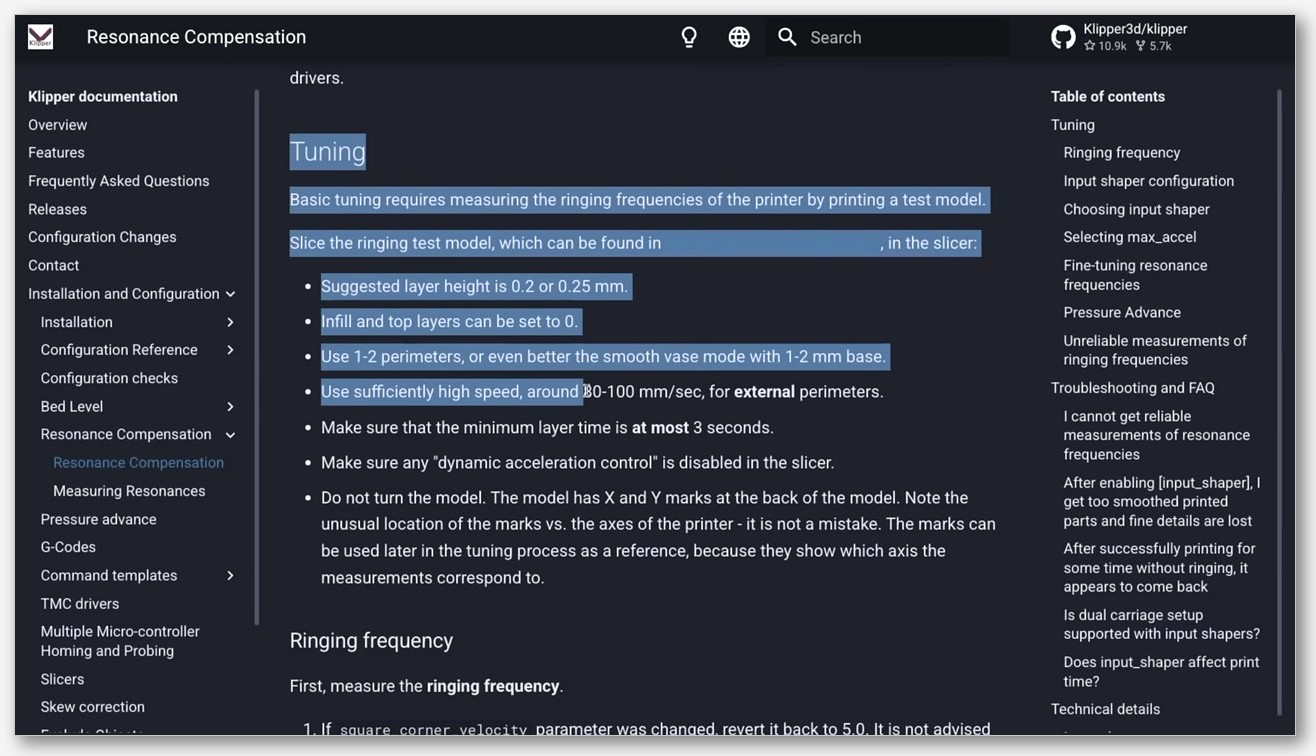
Open printer.cfg. Find the [printer] stanza. You’re looking for max_velocity, max_accel, max_z_velocity, max_z_accel, and square_corner_velocity. Per the Klipper config reference, max_accel is documented as “Maximum acceleration (in mm/s^2) of the toolhead (relative to the print). Although this parameter is described as a ‘maximum’ acceleration, in practice most moves that accelerate or decelerate will do so at the rate specified here.” That’s the value you mirror into machine_max_acceleration_extruding.
For square_corner_velocity, the docs describe it as “The maximum velocity (in mm/s) that the toolhead may travel a 90 degree corner at. A non-zero value can reduce changes in extruder flow rates by enabling instantaneous velocity changes of the toolhead during cornering.” Klipper’s kinematics page adds that “junction speeds are configured by specifying the desired speed that a 90° corner should have (the ‘square corner velocity’)” and that Klipper’s “look-ahead mechanism queues multiple incoming moves and analyzes the angles between moves to determine a reasonable speed.” Translation: SCV is the cornering authority on Klipper, and OrcaSlicer’s jerk approximation works only as a stand-in.
If you’ve raised your max_accel recently because of an input shaper calibration, that’s great for real print speed but it’ll widen the slicer-to-real gap further if you don’t update Motion Ability to match. The OrcaSlicer input shaper guide covers the calibration side; this article covers the “now your estimate is even more wrong, here’s why” side.
Verify the generated G-code respects your caps
Now for the gotcha: even after you set Motion Ability correctly, the slicer might not actually emit the right limits. Issue #12244 on the OrcaSlicer tracker, opened against OrcaSlicer 2.3.1 on a Snapmaker U1, documents that the printer’s Motion Ability accel cap was 8700, the print profile asked for 10000, and OrcaSlicer emitted SET_VELOCITY_LIMIT ACCEL=10000 instead of capping to 8700. The wiki explicitly says these settings should “cap the acceleration set by the process if it exceeds these values,” but in this configuration they didn’t.
To check, slice a small test model, open the G-code in any text editor, and search for SET_VELOCITY_LIMIT (Klipper) or M204 (Marlin). The values you see should never exceed your Motion Ability caps. If they do, you’ve hit the bug. The workaround is to lower the print side accel values in Print Settings → Speed until the emitted G-code stops exceeding your physical caps. It’s annoying, but it works until the issue is fixed.
Tune Max Volumetric Speed so the slicer isn’t lying about throughput
If you’ve fixed Motion Ability and the estimate is still short, MVS is the next suspect. The slicer assumes the hotend can sustain whatever you’ve put in filament_max_volumetric_speed. The printer’s planner will refuse to drive the extruder past what it can actually melt. If those two numbers disagree, the print runs slower than the estimate.
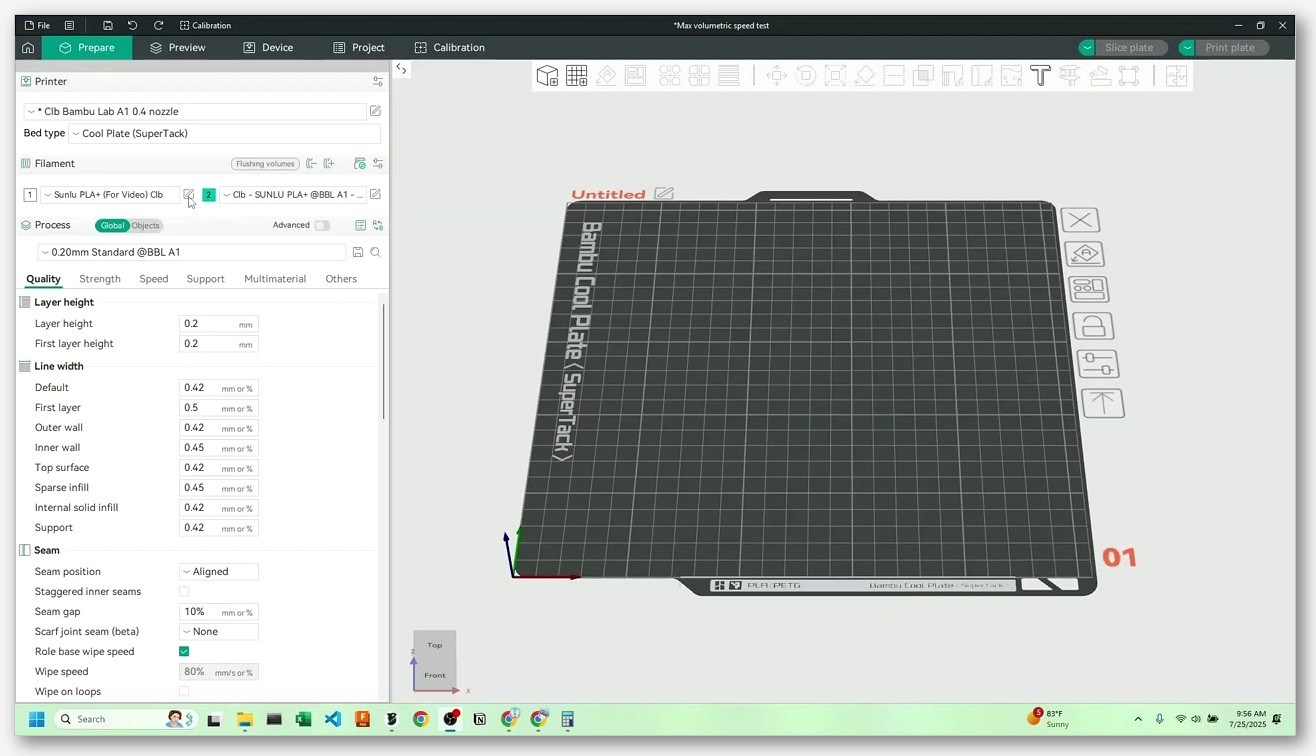
Run the OrcaSlicer Volumetric Speed test
OrcaSlicer ships a Volumetric Speed calibration test in the Calibration menu. Per the OrcaSlicer volumetric speed calibration wiki, the defaults are start at 5 mm³/s, end at 20 mm³/s, with a step of 0.5. The test prints a tower that gradually increases extrusion rate, and you visually inspect for the height at which extrusion starts to fail (under-extrusion, gaps, surface defects).
The wiki notes that “Max Volumetric Speed value varies depending on your material, machine, nozzle diameter, and even your extruder setup, so it’s important to calibrate it for your specific printer and each filament you use.” That’s a polite way of saying don’t trust the default. PLA on a stock 0.4 mm Ender 3 hotend is in a completely different universe from PLA on a CHT/CHC nozzle on an X1C. You have to test.
Sustainable MVS reference values
I’m deliberately not listing per-filament MVS numbers here because the variability is so high that a generic table would mislead more than help. The dedicated MVS guide on this site already covers reference ranges for PLA, PETG, ABS, and TPU across stock and high-flow hotends; rather than duplicate them and risk drift, see orcaslicer-max-volumetric-speed for the numbers and how to derive them.
Why too-high MVS makes the estimate run short
Imagine your hotend can sustain 11 mm³/s on standard PLA, but you’ve left MVS at 24 mm³/s because that’s what the filament spool’s manufacturer claimed. The slicer plans your perimeters at the speeds required to hit 24 mm³/s. It calculates the time using those speeds. The printer starts the print, the firmware sees the extruder commanded to push way more filament than it can melt, and the planner clamps everything down to whatever 11 mm³/s allows. Real print speed is roughly 11/24 of the planned speed, so the print takes roughly 24/11 (about 2.2 times) as long as the estimate.
This is the textbook “estimate runs short” failure mode. The fix isn’t to inflate the estimate, it’s to tell the slicer the truth about your hotend so it plans realistic speeds in the first place. After you set MVS correctly, the visible print speeds in the Preview tab will drop, the estimated time will rise, and (this is the key part) the actual print will finish closer to that new estimate.
Use klipper_estimator for sub minute accuracy (Klipper users only)
If you’re on Klipper and you’ve done all of the above and you still want a near-exact number, this is the tool. klipper_estimator by Annex Engineering describes itself as “a tool for determining the time a print will take using the Klipper firmware.” It runs Klipper’s actual planner code over your G-code file and produces a time estimate that, per the project’s own README, considers it a bug “If the timing is far off (e.g. more than a minute over a >12 hour print).” That’s roughly 0.14 percent. For a 12 hour print, that’s “within a minute.” That’s astonishing precision compared to anything Orca’s built-in estimate can do for Klipper printers.
Three caveats up front. First, it only works with Klipper. There’s no Marlin port, no Bambu equivalent, no AnkerMake equivalent, so if you’re not on Klipper, skip this section entirely. Second, the README notes it “may in some cases be slightly off due to rounding modes” and that the calculation is “minimal time,” which means heat-up, homing, and macro time count as zero seconds unless you explicitly add markers. Third, there’s an open Discussion #2009 on the OrcaSlicer repo requesting that klipper_estimator be embedded inside Orca natively. It’s in the Ideas category, not implemented. Until it is, you wire klipper_estimator in as a post-processing script.
 Why the printer’s display ETA may still disagree
You’ve fixed Motion Ability, you’ve calibrated MVS, you’ve maybe even installed klipper_estimator. The Preview number is rock solid. And the printer’s screen still says something different. What gives?
Bambu’s runtime estimate refines as it prints
On Bambu printers, the on-printer ETA is computed by the firmware itself. It starts from the slicer’s number (which was sent in the print job), then refines based on actual completed layers, observed speed, and any firmware-side throttling decisions the printer makes. So even if your slicer estimate is exactly right, the printer’s display will start by showing one number and update to a different one over time. That’s not a bug, it’s how Bambu’s printer firmware computes ETAs. Treat the printer display as a “best current guess” and the slicer estimate as a “pre-print plan.”
AnkerMake 2.3.0 regression
For AnkerMake M5 and M5C users, the Issue #9457 / #9054 saga is the big landmine. The slicer’s estimate is correct in the G-code header. The printer’s parser misreads it. PR #9990 was a parser-side fix (it corrected the AnkerMake-format time comment that OrcaSlicer writes), not a fix to the estimate math itself. If you’re on a 2.3.x build and your printer screen is showing wildly wrong times, the slicer is fine; either update your printer firmware to one that handles the post-2.3.0 time comment format, or roll Orca back to 2.2.0 and accept the older behaviour.
Marlin’s M73 progress reporting depends on the slicer writing M73 lines
For Marlin printers with progress reporting enabled in firmware, the slicer needs to embed M73 commands in the G-code at intervals so the printer’s “remaining time” display can update. OrcaSlicer’s preferences let you configure how often M73 lines are emitted. If you’ve got an SKR board with Marlin and your remaining-time display never moves, check the M73 setting in your printer profile. The display showing “00:00 remaining” for the entire print isn’t an estimate problem, it’s an M73 omission problem.
When to stop tuning
This is the part nobody writes. There’s a point of diminishing returns, and chasing the last 2 percent of estimate accuracy is rarely worth the time you’ll spend on it. The Vyper user in Issue #7576 set their target at “+/- 5 to 10% of the actual print time,” and I think that’s the right ballpark for most users. If your estimate is within 10 percent of real time, you’re done. Print the model. Go to bed.
Here’s my honest recommendation order. First, fix Motion Ability to match your firmware. This alone gets most users from “estimate is wildly wrong” to “estimate is in the right neighborhood.” Second, calibrate MVS for the specific filament you’re printing. This closes most of the remaining gap on flow-limited prints. Third, if you’re on Klipper and you genuinely need sub-minute accuracy (because you’re scheduling print farms, or charging clients by predicted print time), install klipper_estimator. If you’re on Bambu, accept the 15 to 20 percent margin and move on. If you’re on Marlin, fix M73 emission for live progress, and use the corrected slicer estimate as your planning number.
Beyond those three, you’re chasing edge cases. Filament-change overhead in multi material prints is unfixable from the slicer side right now. Firmware retraction will keep the preview unreliable. The Motion Ability cap bug from Issue #12244 will hit some configurations until it’s fixed upstream. None of those are problems you can engineer around with a setting; they’re problems you have to know about and work around at the workflow level.
FAQ
Why is my OrcaSlicer estimate way longer than the actual print?
Almost certainly Motion Ability mismatch. Your printer’s real acceleration is much higher than what’s set in your Orca printer profile, so the slicer is calculating times based on a slow virtual printer while your real printer is fast. The Vyper user in Issue #7576 had this exact symptom, with Orca predicting 7 hours and 30 minutes for a print that finished in 2 hours and 10 minutes. Capture your firmware’s real M201/M204 values via M501 and mirror them into Motion Ability.
Why is my OrcaSlicer estimate way shorter than the actual print?
Two main causes. If you’re on Klipper, it’s likely the minimum_cruise_ratio (formerly accel_to_decel) effect on short moves, exactly as Issue #1612 describes (20 to 30 percent over). If you’re on Marlin or Klipper either way, MVS set higher than your hotend can sustain causes the planner to throttle the extruder, slowing the whole print versus the slicer’s prediction.
Why is the printer’s screen showing 73 hours for a 50 minute print?
That’s the AnkerMake regression in Issue #9457: a 50 minute print sliced in OrcaSlicer 2.3.0 displayed as somewhere between 58 and 73 hours on an M5C’s screen. The slicer’s preview was correct (50 minutes); the printer’s parser couldn’t read the post-2.3.0 time comment format. PR #9990 fixed the parser side. If you’re still seeing this, check your AnkerMake firmware version and update it.
Does flow rate or pressure advance affect the time estimate?
Not directly. Flow rate is a multiplier applied to extrusion at runtime; it doesn’t change the slicer’s a-priori time math. Pressure advance affects how the extruder behaves around speed changes, but again it doesn’t change the slicer’s estimate. Indirectly, pressure advance can sometimes force you to lower MVS because the extruder can’t handle the rapid pressure shifts at high flow, and lowering MVS does change the estimate. But there’s no direct “PA value goes up, estimated time changes” relationship.
Will updating to a newer OrcaSlicer fix this?
I can’t promise that. None of the changelogs surfaced during research describe an estimate-algorithm rework, and the underlying kinematic model in GCodeProcessor has been stable across recent releases. The bugs that affect specific printers (the AnkerMake parser fix in PR #9990, the Snapmaker accel-cap issue in Issue #12244) get fixed as they get reported, but the core “slicer math doesn’t model Klipper’s minimum_cruise_ratio” issue is still open.
Does klipper_estimator work for Bambu?
No. klipper_estimator is Klipper-only. It runs Klipper’s actual planner code against your G-code, and Bambu printers don’t run Klipper. There’s no equivalent tool for Bambu firmware that I’m aware of. Same answer for Marlin: klipper_estimator won’t help.
Is there a built-in “calibrate time estimate” tool in OrcaSlicer?
No. The Calibration menu has tools for flow ratio, pressure advance, MVS, temperature, retraction, cornering, and input shaping, but there’s no “tune the time estimate” calibration. The closest you can get is calibrating SCV (per Issue #4220, implemented via PR #10962) and MVS, then mirroring your firmware values into Motion Ability. There’s a feature request floating around in Discussion #2009 asking for klipper_estimator integration, but it’s not implemented.
Why does multi material take longer than the estimate predicts to print?
Per Issue #9180, there’s user-observed evidence that the slicer adds roughly 90 seconds of padding per filament change event, and on prints with hundreds of changes that adds up to hours of phantom time. This is a user calculation, not a confirmed maintainer constant, but the over-estimate pattern on heavy multi-material is real. Mentally discount your estimate by 15 to 30 percent on prints with more than 50 filament changes.
Can I just trust the printer’s display ETA instead?
It depends on your printer. On Bambu, the runtime ETA refines as it prints and is generally more accurate than the slicer estimate by mid-print. On Marlin with M73 progress reporting, the display reflects whatever the slicer wrote into the M73 lines, so it’s only as accurate as the slicer’s estimate. On AnkerMake post-2.3.0, the display might be flat-out wrong due to the parser bug. So the answer is: on Bambu, yes by mid-print; on Marlin, only if your slicer estimate is correct; on AnkerMake, verify firmware before trusting.
If you’ve worked through all of the above and you’ve still got a print that drifts wildly from prediction, it’s worth checking the broader troubleshooting cluster on this site, since “estimate is wrong” can sometimes be downstream of a different problem (a misconfigured profile, a stale firmware EEPROM, a hidden Klipper override) that surfaces in multiple ways. The OrcaSlicer troubleshooting master guide is the right next step. If you’re already there and you’ve been through the matrix above, you’ve probably done the work; the remaining gap is the cost of doing FFF on real hardware with imperfect models, and a 5 to 10 percent margin is honestly fine for almost every use case I can think of.
Related OrcaSlicer guides
- OrcaSlicer Troubleshooting: Master Index of Every Common Fix
- OrcaSlicer Can’t Connect to OctoPrint: Every Fix That Works
- OrcaSlicer Warping & Lifting Corners: Fixes That Actually Work (2026)
- OrcaSlicer Layer Shifts: Causes, Diagnostics, Fixes (2026)
- OrcaSlicer PA Line vs PA Pattern vs PA Tower: Which Pressure Advance Test (2026)