
Last February my P1S stopped accepting OrcaSlicer prints in the middle of a perfectly normal Tuesday. I’d just let the printer pull down firmware 1.7.x the night before, hit Print on a sliced plate the next morning, and watched OrcaSlicer’s Device tab spit back an authorization error I hadn’t seen before. Ten minutes of re-logging into Bambu Cloud, restarting the slicer, and re-binding the printer got me nowhere. Then I flipped LAN-Only Mode on, toggled Developer Mode underneath it, pasted in the access code, and the print started immediately. That’s the moment I stopped fighting cloud auth on this machine.
If you’ve landed here, you’re probably staring at the same wall. The honest 2026 answer is that LAN-Only with Developer Mode is the only fully reliable OrcaSlicer-to-Bambu path on stock firmware right now, and cloud printing through OrcaSlicer either bounces you through Bambu Connect or only works if you’ve stayed on pre-auth firmware. This guide walks both paths end to end, with the per-printer landmines and the actual error codes you’ll see when something breaks.
The 2026 reality of OrcaSlicer plus Bambu
Here’s the short version of what changed. On January 16, 2025, Bambu shipped firmware called Authorization Control. The X1 series got it first at version 01.08.03, and the P1 and A1 lines picked it up over the rest of 2025. The wrapper sits in front of every privileged action: starting a print, jogging the toolhead, binding a printer, pushing AMS commands, firmware upgrades, remote video. Anything that touches motion or media now needs a Bambu-signed software signature.
OrcaSlicer doesn’t have that signature, and that’s not an oversight. Bambu opened PR #8103 to wire in a Bambu Connect handoff. SoftFever marked it draft within three days, and on January 26, 2025, the public position landed: OrcaSlicer would not ship Bambu Connect support. A few weeks later Pawel Jarczak’s OrcaSlicer-BambuLab fork got hit with a cease-and-desist and went dark. By early February 2025, Noisyfox’s PR #8256 had merged native LAN support that didn’t depend on Bambu’s network plugin at all. That’s the lineage running today’s LAN-Only path.
So when you read “OrcaSlicer works with Bambu,” it means one of three things now. LAN-Only plus Developer Mode on stock firmware (what most people run). Cloud printing on a printer still on pre-auth firmware (rare, and you can’t roll back once you upgrade). Or X1Plus on an X1C, which voids warranty. Each is a different deal with the device.
Cloud vs LAN-Only at a glance
Before the walkthrough, this table is the thing I wish someone had handed me before I started. It’s the actual capability matrix on stock 2026 firmware, not the marketing version.
| Capability | Bambu Cloud | LAN-Only Mode |
|---|---|---|
| Send print directly from OrcaSlicer | Hands off through Bambu Connect on FW 01.08.03+ | Works directly with Developer Mode on |
| Bambu Handy mobile app | Yes | No, Handy is cloud-only |
| MakerWorld auto-sync | Yes | Manual download to .3mf, slice locally |
| Live camera in OrcaSlicer | Removed for third parties on auth-control FW | Yes if “LAN Only Liveview” is on |
| Lidar first-layer scan (X1C/X1E/H2D) | Yes | Yes, lidar is local hardware |
| Remote print from outside your LAN | Yes via Bambu Cloud | No, unless you VPN or run Obico |
| AMS slot mapping in OrcaSlicer | Yes | Yes, AMS data syncs over MQTT in both modes |
| Print history across devices | Cloud-stored | Local only, lost on reinstall |
| Files stay on your network | No, routed through Bambu’s cloud | Yes |
| Works with no internet | No | Yes |
| Works on locked-down school or office networks | Often blocked | Works without WAN |
| Voids warranty | No | No (LAN-Only is sanctioned, X1Plus is the warranty-killer, not LAN-Only) |
The decision usually shakes out by what you actually need. If you live in Bambu Handy, ride MakerWorld every weekend, and your printer’s in a friendly home network, cloud is fine and the Bambu Connect detour is one extra confirmation click. If you’re in a workshop with patchy internet, on a school or hospital network where IT blocks outbound MQTT, or you read the August 2023 cloud-outage story and it stuck with you, LAN-Only is the obvious move.
Why Bambu locked things down
The backstory matters because it tells you why Developer Mode exists at all. On August 15, 2023, Bambu’s cloud had a partial outage. During recovery, a cloud-side issue caused some idle printers to start queued jobs without anyone hitting Print. Most ran into already-printed parts and made a mess. A few people came home to molten plastic on top of finished prints. The Bambu blog post afterward was honest about the failure mode, and the public reaction was the first real spike in LAN-Only adoption.
The story moved from “concerned hobbyists” to “policy” when third-party slicers started shipping deeper integrations. By late 2024, OrcaSlicer was driving Bambu hardware almost as fluidly as Bambu Studio itself, which made any future cloud incident a bigger surface. Authorization Control was the response. The community immediately filed OrcaSlicer issue #8063 (“FW 1.08.03.00 from Bambu WILL BREAK ORCASLICER for X, P and A series”).
Developer Mode is the part of the policy a lot of coverage skipped. Bambu’s own wiki documents it as the carve-out: if you’re on LAN-Only and you toggle Developer Mode on, the printer keeps the MQTT and FTPS channels open without auth wrapping. That’s not a leak, it’s the design. Your printer, your local network, your control. The trade-off is that you have to stay local.
Developer Mode and what it unlocks
The thing nobody tells you on day one is that LAN-Only by itself isn’t enough on auth-control firmware. You also need Developer Mode toggled on. Without it, OrcaSlicer can see the printer, pull MQTT status, even browse the FTPS share, but the moment you click Print, the auth wrapper rejects the unsigned command and you watch a spinner until it times out.
With Developer Mode on, print initiation works because the printer stops requiring the signed-software check on the LAN side. Camera streaming is a separate toggle called “LAN Only Liveview” in the same Settings group. Turn it on if you want live view in OrcaSlicer’s Device tab. If you skip it, the camera tile stays blank but everything else works.
Worth saying out loud: Developer Mode doesn’t mean “developer-only.” Bambu’s wiki labels it that way because it was originally for power users running scripts, but in 2026 it’s just the standard switch every LAN-Only OrcaSlicer user flips. No warranty implication, no firmware modification.
LAN-Only setup on the printer side
This part is the same on every modern Bambu (A1, A1 Mini, P1S, P1P, X1C, X1E, with H2D being its own situation we’ll cover later). The menu wording shifts slightly between firmware revisions, but the path is consistent.
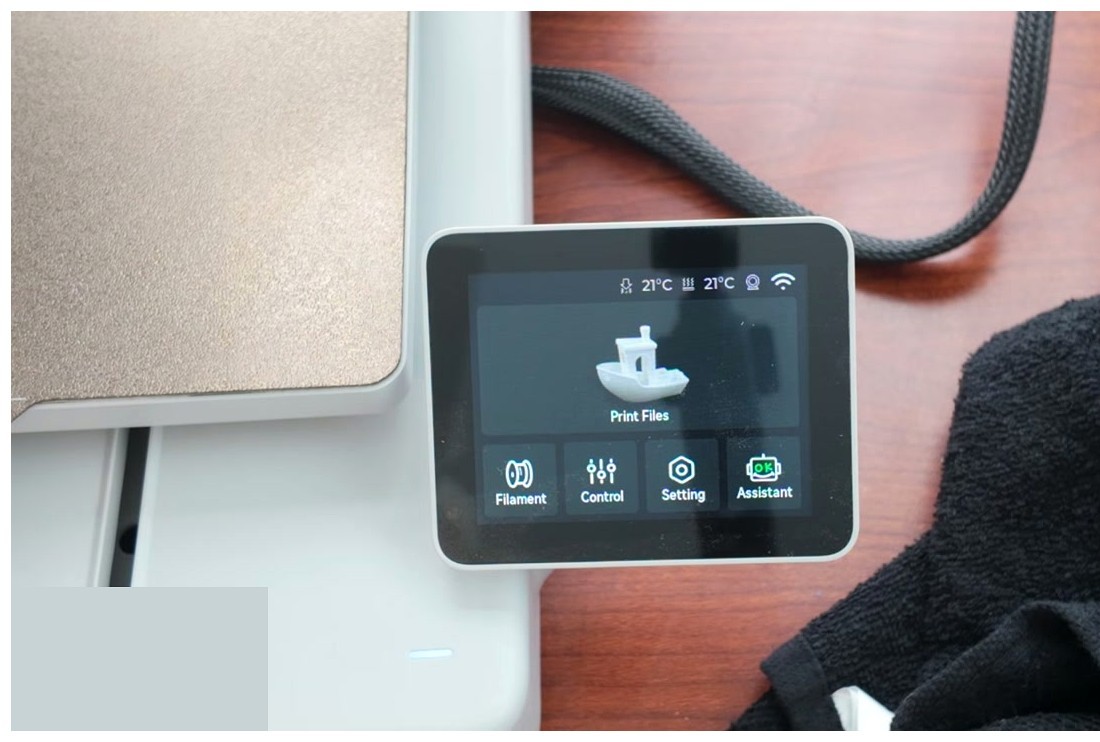
From the home screen, tap the Setting tile. On X1 hardware the same thing lives behind the gear icon at the bottom right. You’ll land on a multi-page settings screen that splits into Account, WLAN, SD Card, Device, and a few others.
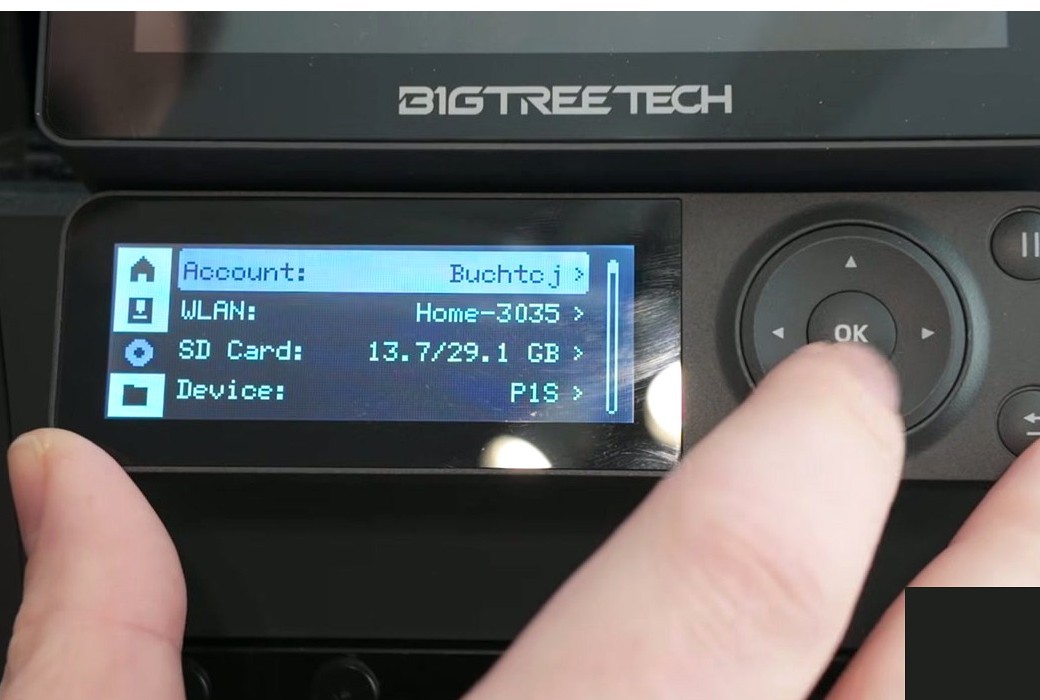
Find the LAN Only Mode toggle. On P1/A1 it’s under General. On X1 it’s on the third Settings page. Flip it on. The printer will warn you that turning this on disables Bambu Studio and Bambu Handy connectivity, which is exactly what you want.
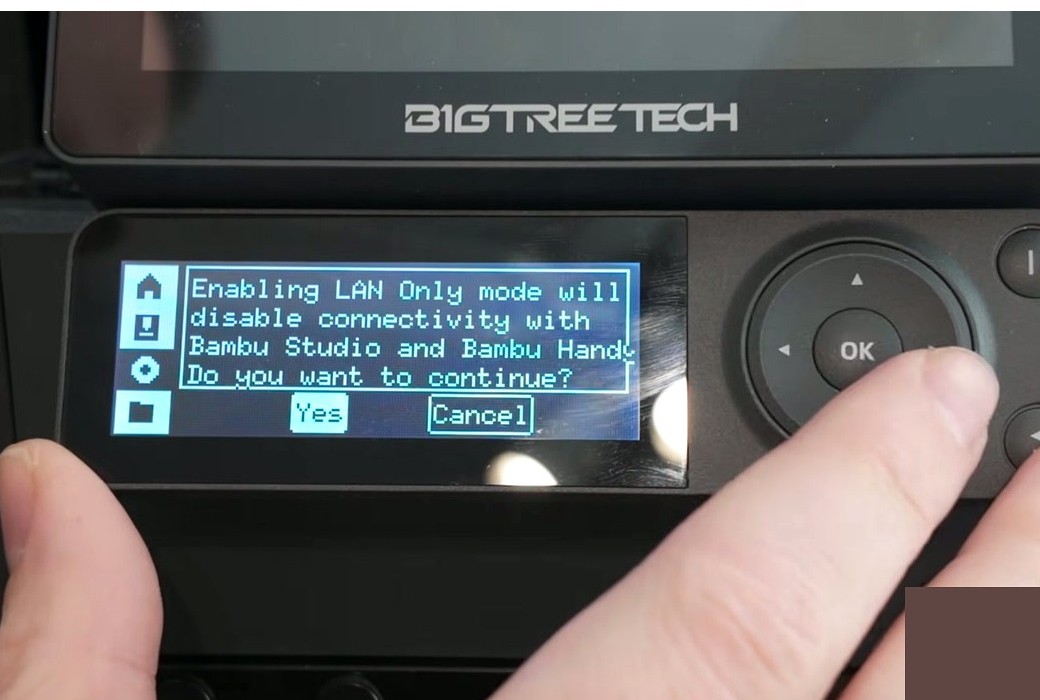
Tap Yes. The printer reboots. After it comes back up, you’ll see a small lock icon in the top status bar next to the printer name, which is your visual confirmation that LAN-Only is active.
Now go back into Settings and look for Developer Mode in the same group where LAN-Only lives. Toggle it on. This is the step the official Bambu Studio walkthrough doesn’t emphasize because Bambu Studio doesn’t need it (Bambu Studio has the signed-software credential), but every third-party slicer including OrcaSlicer does. If you skip Developer Mode, your prints will fail to start.
Last printer-side step is collecting three pieces of information. From Settings > WLAN, write down the IP address (something like 192.168.1.137). From Settings > General or the LAN Only screen itself, copy the 8-character access code, which is regenerated every time you toggle LAN-Only off and back on. From Settings > Device or Device Info, copy the 16-character serial number (something like 01P00A123456ABCD). The marketing model name on the box is not the serial.
If you’d rather see the printer-specific menus walked through in detail for the X1C and P1S, the OrcaSlicer setup guide for X1C and P1S covers each touchscreen path.
LAN-Only setup on the OrcaSlicer side
Open OrcaSlicer. If this is the first run, the Configuration Wizard will pop up and ask you to pick your Bambu model. Choose the right one (X1C, P1S, A1, A1 Mini, P1P, X1E). H2D users won’t see it in stock OrcaSlicer; we’ll cover that case in the per-printer section.
Click the Device tab in the top tab bar (the row that includes Prepare, Preview, Device, Project, and Calibration). On a fresh install this tab will say “No Printer.” Click it, then click Bind with Access Code.
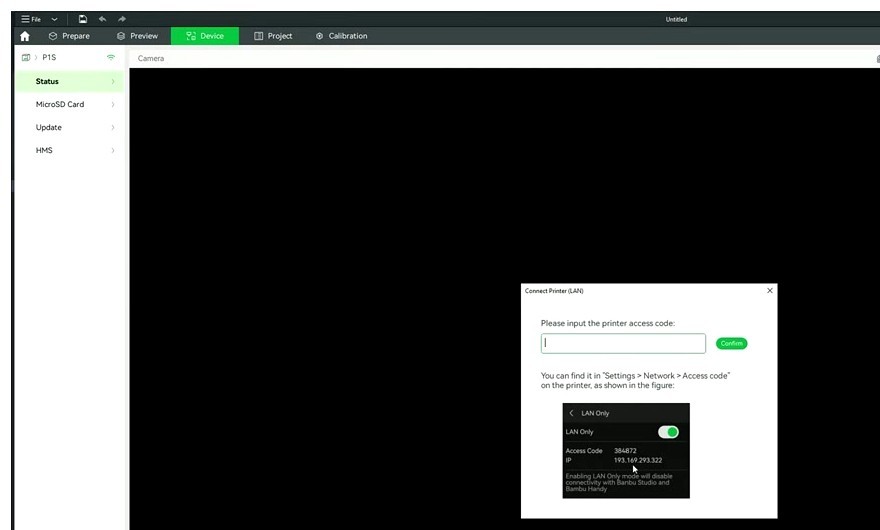
OrcaSlicer will try to auto-discover the printer using SSDP on UDP 1900. If the printer pops up in the list, click it and paste the access code. If it doesn’t (and on P1 series it almost never does on macOS, occasionally also on Windows), click Manual Setup and enter the IP, access code, and serial yourself. P1 series automatic discovery is the single most reliably broken thing in this whole flow. Don’t waste twenty minutes on it; just go straight to Manual Setup.
On success, the printer name appears in the Device tab with a small lock icon. The tab fills in with bed temp, nozzle temp, AMS slot list, and (if you turned on LAN Only Liveview) the camera tile. From here, head to the Prepare tab, load a model, slice it, and click Print. The Send to Printer dialog opens with AMS slot mapping. Verify each slot maps to the correct filament. AMS slot selection has a known bug when empty slots are mixed in (tracked in OrcaSlicer issue #6795), so if a slot looks wrong, fix it manually before sending.
The .3mf uploads to the printer over FTPS, then the print starts. From your chair, it should feel exactly like cloud printing did, minus the Bambu Connect popup.
If something goes sideways at any point, the OrcaSlicer troubleshooting master guide indexes the common failure modes by symptom. We’ll hit the most common LAN-specific ones in the Errors section below.
Cloud printing through OrcaSlicer in 2026
Cloud is still possible. It’s just not what it used to be.
On X1 firmware older than 01.08.03, or on P1/A1 hardware somehow still on pre-auth firmware (uncommon now), cloud printing through OrcaSlicer works the way you remember. Log in, bound printers appear, click Print, job goes. No Connect handoff.
On firmware 01.08.03 and later, the Device tab still shows your bound printers when you’re cloud-logged-in, but the moment you click Print, OrcaSlicer hands off to a separate Bambu Connect window. Connect runs the auth-signed upload and kicks the print. From your seat it’s one extra confirmation. Bambu Connect has to be installed separately, and the first time it runs it’ll prompt you to log into your Bambu account again.
A few cloud-mode gotchas. After any firmware update, Bambu rotates session tokens, so plan on re-logging in. SSO via Google or Apple has a long history of crashing OrcaSlicer (issue #4176); if you use SSO, log into Bambu Studio once first to confirm the account, then use email/password in OrcaSlicer. China-region and global-region accounts are separate, so “user not found” usually means you picked the wrong region.
One structural thing: cloud through OrcaSlicer in 2026 is best understood as a bridge to Bambu Connect, not native cloud control. If you want native cloud without the Connect detour, the slicer Bambu has put genuine engineering effort into for that workflow is Bambu Studio. The full contrast is in our OrcaSlicer vs Bambu Studio comparison.
Per-printer notes
Each Bambu model has its own quirks under LAN-Only. None of these are dealbreakers, but knowing them up front saves an hour of guessing.
A1 and A1 Mini
Open-frame Bowden, AMS Lite on top. Both support LAN-Only and cloud cleanly. The A1 Mini in particular shows up in school programs because of the price plus LAN-Only privacy story. The known issue: if you also run the Home Assistant Bambulab integration, you’ll hit error -6010 because Bambu’s MQTT broker on the printer rejects a second active client. Either disconnect Home Assistant when you want to print from OrcaSlicer, or run an MQTT proxy. The ha-bambulab issue tracker has a long thread on this. For a deeper walkthrough, the A1 Mini setup guide covers it.
P1S and P1P
CoreXY, AMS-compatible. P1S has the chamber camera, P1P doesn’t. The most common P1-series issue is automatic discovery failing in OrcaSlicer’s Bind with Access Code dialog. It’s a platform-specific issue with how P1 SSDP responses get parsed. Don’t fight it: click Manual Setup, type the IP, access code, and serial, done. The other P1 failure is error -4020 on the first send after a long idle. Power-cycle, retry, it usually clears.
X1C and X1E
Enclosed CoreXY with lidar first-layer plus flow calibration and dual cameras. The X1E adds wired Ethernet and enterprise CA certificate support, which makes it the easiest Bambu to get reliable LAN-Only on (Ethernet beats Wi-Fi for FTPS uploads under contention). If you want third-party freedom without auth-control at all, X1Plus community firmware is the option, but it voids warranty and only works on X1C, not X1E.
H2D
Bambu’s flagship dual-extruder, released late 2025 into early 2026. Stock OrcaSlicer is partial-only; the in-progress H2D pull requests against SoftFever/OrcaSlicer are the official path being worked on. The Helio Additive maintained fork has working H2D profiles today and is what most early H2D owners are running with OrcaSlicer. LAN-Only with Developer Mode is the only working setup right now because Bambu Connect itself doesn’t fully support H2D yet either.
X1Plus
X1Plus is X1C-only, voids warranty, and requires installing a rootable firmware version (01.06.06.55 to 01.06.99.99 range) before flashing. Once on X1Plus, OrcaSlicer drives the printer with no Bambu Connect or Authorization Control involvement. Cloud is fully bypassed. The cost: no MakerWorld auto-sync, no Bambu Handy, no first-party firmware updates. For a small minority that’s a great trade. For most it’s not.
Common errors and the firewall fix
Three error codes show up over and over in LAN-Only setups. Knowing what they actually mean shortcuts most of the troubleshooting.
| Code | What it means | What to do |
|---|---|---|
| -4020 | FTPS upload failed during print send | Power-cycle the printer first. If it persists, check Windows firewall for an inbound rule on UDP 1900 and 2021. On Mac, make sure Little Snitch or Lulu isn’t blocking OrcaSlicer’s outbound FTPS. |
| -6010 | Connection failed because another MQTT client is already bound to the printer | Bambu printers allow one active MQTT consumer. Disconnect Home Assistant, Bambuddy, or any other integration. Or run a fan-out proxy. Tracked in the ha-bambulab issue tracker. |
| “Network plugin not installed” | OrcaSlicer didn’t pull down the legacy Bambu network plugin on first launch | OrcaSlicer Preferences > General > Install Network Plugin. Note: the plugin is mostly relevant for cloud paths now. Native LAN per Noisyfox PR #8256 doesn’t depend on it. |
The firewall fix deserves its own paragraph because it’s the unlock for half of all “OrcaSlicer can’t see my printer” threads. OrcaSlicer’s discovery uses SSDP (Simple Service Discovery Protocol) on UDP 1900, and the FTPS upload goes through TCP 21/990 with a control hint on UDP 2021. On Windows, the default firewall rules on a Private network are usually fine, but if you’re on a Public network profile (which Windows sometimes silently switches to after a Wi-Fi reconnect), inbound UDP 1900 and 2021 will be blocked. Add inbound rules for UDP 1900 and 2021 explicitly tied to the OrcaSlicer executable, and discovery comes back.
The other LAN-side gotcha is DHCP. If your router reboots and hands the printer a new IP, OrcaSlicer’s bound IP is now stale and the connection silently breaks. The right fix is a DHCP reservation in your router that pins the printer’s MAC to the same IP forever. Every router has it under a slightly different menu (Address Reservation, Static Lease, DHCP Binding), but every modern router has it.
Bambu Studio vs OrcaSlicer for Bambu owners
I’ll be straight here. If you bought a Bambu printer specifically for the cloud workflow, the AMS automation, the lidar-driven first-layer calibration on X1, and the Bambu Handy ecosystem, Bambu Studio is genuinely tightly integrated with all of that. It’s the slicer Bambu writes for the hardware they ship. Cloud printing is native, the Bambu Connect handoff doesn’t exist there, and firmware and slicer updates land in lockstep. Calling Bambu Studio inferior is just wrong.
OrcaSlicer’s edge is somewhere else. The freedom to drive the printer over LAN with no auth wrapper, the calibration suite (flow ratio, pressure advance, temperature towers, retraction tests) that’s frankly more complete than Bambu Studio’s, the broader profile library covering non-Bambu printers, and the open development pace of the community fork. Single Bambu plus mostly MakerWorld filaments? Bambu Studio is lower-friction. Multiple printers including non-Bambu hardware, serious calibration work, or LAN-Only as your default? OrcaSlicer fits better. Pick the one that matches how you actually use the printer.
If you want a remote layer over LAN-Only without sliding back into Bambu Cloud, two siblings worth mentioning. OctoPrint setup with OrcaSlicer and Klipper setup with OrcaSlicer cover those paths, but neither directly drives a Bambu, which is the honest answer most guides skip. For a remote dashboard that works with Bambu over LAN, Obico is the third-party option people actually run.
After connection works, what to calibrate
Once you’ve got OrcaSlicer talking to the printer over LAN, the natural next move is calibration. This is where OrcaSlicer earns its reputation and where Bambu Studio’s tight cloud integration matters less. Run a flow ratio test, a pressure advance test, and a temperature tower for each filament you actually use. The differences between a stock Bambu profile and a calibrated one are larger than most people expect, especially for non-Bambu filaments where the stock profile is a generic starting point.
If you’re on X1C, X1E, or H2D, the lidar-driven first-layer scan and flow calibration still work in LAN-Only mode because lidar is local hardware. You don’t lose any of that going LAN. The only thing you lose on the calibration side is cloud-stored history of past calibration runs, which is a fair trade for most people. The full walkthrough lives in the OrcaSlicer calibration guide.
Frequently asked questions
Can OrcaSlicer connect to Bambu Lab printers without a Bambu account?
Yes, in LAN-Only Mode with Developer Mode on, you don’t need a Bambu account at all. The printer authenticates the slicer via the 8-character access code over LAN. You only need a Bambu account if you want cloud printing, MakerWorld sync, or Bambu Handy.
Does Bambu Connect work with OrcaSlicer?
Indirectly. On firmware 01.08.03 and later, when you cloud-print from OrcaSlicer, the print job hands off to Bambu Connect to complete the authorized upload. SoftFever declined to ship a native Bambu Connect integration in OrcaSlicer (PR #8103, marked draft), so the handoff is via the system’s Bambu Connect installation rather than baked into OrcaSlicer’s UI.
Will Bambu’s firmware update break OrcaSlicer?
If you mean the January 2025 Authorization Control rollout, it broke direct cloud printing and forced the Bambu Connect handoff. It did not break LAN-Only Mode, which still works with Developer Mode toggled on. That’s the practical reason most OrcaSlicer users moved to LAN-Only after early 2025.
How do I find my Bambu printer’s IP address?
On the printer touchscreen, Settings > WLAN. The IP shows next to the connected SSID. On X1, it’s on the same screen but laid out slightly differently. Save yourself a future headache by setting a DHCP reservation in your router so the IP doesn’t change after a reboot.
Can I still use MakerWorld in LAN-Only Mode?
Yes, just not auto-sync. Download the .3mf from MakerWorld through your browser, open it in OrcaSlicer, slice locally, and send over LAN. Anything that needs cloud sync (one-click “Print on My Printer” from the MakerWorld web UI) requires cloud mode.
Why does my OrcaSlicer LAN connection drop after I restart my router?
Almost always DHCP. Your router handed the printer a new IP, and OrcaSlicer’s bound IP is now stale. Either re-enter the new IP in the Bind dialog, or fix it permanently with a DHCP reservation tied to the printer’s MAC address.
What ports do I need to open for OrcaSlicer to find my Bambu printer?
Inbound UDP 1900 (SSDP discovery), inbound UDP 2021 (FTPS control hint), and outbound TCP 21 and 990 (FTPS data and control). On Windows, the firewall rule should be tied to the OrcaSlicer executable, not opened globally.
Is X1Plus safe to install on my X1C?
X1Plus is open-source community firmware that’s been actively maintained and widely used since 2024. The risk isn’t that it bricks the printer (in practice it’s quite stable), it’s that you void your Bambu warranty and lose first-party firmware updates, MakerWorld, and Bambu Handy. For a power user who wants no auth wrapping at all, that trade can be worth it. For most people it’s not.
Can I use OrcaSlicer with the Bambu H2D?
Partially. Stock OrcaSlicer’s H2D support is in progress via the open H2D pull requests on SoftFever/OrcaSlicer as of May 2026. The Helio Additive maintained fork has more complete H2D profiles today and is what most early H2D users are running. LAN-Only with Developer Mode is the only working OrcaSlicer path on H2D right now because Bambu Connect itself doesn’t fully support H2D yet.
Does LAN-Only Mode disable the Bambu Handy app?
Yes. Bambu Handy is cloud-only, so when you toggle LAN-Only on, the printer disconnects from the cloud and Handy can’t see it anymore. That’s the trade-off the confirmation dialog is warning you about. If you need Handy and LAN-Only at the same time, your only option is X1Plus on an X1C, which voids warranty.
Wrap-up
The 2026 reality with OrcaSlicer and Bambu printers is messier than it was in 2024 but it’s not actually hard. LAN-Only plus Developer Mode is the working path on stock firmware, it takes about ten minutes to set up the first time, and once it’s running it’s more reliable than the cloud route ever was on this hardware. Cloud is still there if you want Handy or MakerWorld auto-sync, with the Bambu Connect detour. Both are legitimate setups for legitimate workflows. If you don’t already have OrcaSlicer installed, grab it from the OrcaSlicer download page and walk through the LAN-Only steps above. The first print after the lock icon shows up is the moment you stop fighting auth and get back to fighting first-layer adhesion, which is where you wanted to be all along.
Related OrcaSlicer guides
- OrcaSlicer for Bambu Lab X1C, X1E and P1S: Setup, Profiles & Calibration
- OrcaSlicer for Bambu Lab H2D: Setup, IDEX Modes and AMS
- OrcaSlicer for Bambu Lab P1S / P1P – Complete Setup Guide (2026)
- OrcaSlicer for Bambu Lab A1 & A1 Mini: Setup, AMS Lite, Calibration
- OrcaSlicer Modifier Meshes: Different Settings on One Model