
After three hours of clicking Scan on a Friday night and watching a blank Device tab stare back at me, I finally drank some coffee, opened a terminal, and admitted the problem wasn’t OrcaSlicer’s button. I’d just moved my Bambu P1S onto an IoT VLAN that morning, and the slicer on my Mac was happily sitting on the main LAN, asking the network politely if any printers wanted to say hi. None did. The printer was fine. The slicer was fine. The plumbing between them was the thing in pieces.
If you’re staring at the same blank Device tab right now, or a spinner that never resolves, or a Discover button that returns nothing, I’ve been there at least a dozen times across Bambu, Klipper, OctoPrint, and PrusaLink hosts. The good news: there are only really four root causes, and once you know which one bit you, the fix is usually five minutes. This guide walks through the diagnostic, then breaks fixes out by printer type and by operating system, with a by-IP fallback that works for every host so you can keep printing while you debug the proper fix.
Table of Contents
- Why OrcaSlicer Can’t Find Your Printer (the 4 Root Causes)
- The 30-Second Diagnostic Flowchart
- Bambu Lab Fixes: LAN Mode, Access Code, Bambu Connect
- Klipper, Mainsail, and Fluidd Fixes via Moonraker
- OctoPrint Fixes: API Key, Port 5000, Discovery Plugin
- PrusaLink Fixes: Port 80 and HTTP Digest
- The Connect-by-IP Fallback That Works for Everything
- Windows Fixes: Defender Firewall, Bonjour, Network Profile
- macOS Fixes: Firewall, Stealth Mode, Bonjour
- Linux Fixes: Avahi, UFW, NetworkManager
- Router and VLAN Fixes: AP Isolation, IoT VLAN, mDNS Reflector
- FAQ
Why OrcaSlicer Can’t Find Your Printer (the 4 Root Causes)
I’ll save you the suspense. Every Device-tab failure I’ve helped someone debug falls into one of these four buckets, and they’re worth memorizing because the rest of this article is basically “which bucket are you in, here’s the fix.”
One: authentication mismatch. The printer is reachable, the protocol is right, but the credential is wrong, stale, or got wiped. For Bambu this means the 8-character Access Code, for OctoPrint an API key, for PrusaLink an HTTP Digest username and password, for Klipper either a Moonraker API key or an entry in its trusted-clients list. I’ve seen this look exactly like a network problem when it’s just a typo.
Two: wrong protocol or port. OrcaSlicer talks to different hosts on different ports. Bambu LAN mode opens MQTT over TLS on 8883 and FTPS on 990, OctoPrint defaults to 5000, Moonraker to 7125, PrusaLink to 80. Point the Device tab at the wrong port and you’ll get a perpetual spinner, even though the printer is on the LAN and pingable.
Three: mDNS or Bonjour is broken. .local hostname resolution depends on multicast DNS, which uses UDP port 5353 on the multicast group 224.0.0.251. If that traffic is blocked by your firewall, missing on your operating system, or filtered by your router, then printer.local simply will not resolve, and OrcaSlicer’s discovery scan returns nothing. The fix is almost always either a firewall rule, an Avahi or Bonjour install, or skipping the hostname and using a raw IP.
Four: subnet or VLAN isolation. mDNS multicast doesn’t cross subnets by default. A lot of consumer routers also have AP Isolation enabled on a guest SSID, or split 2.4 GHz and 5 GHz onto separate subnets. If your printer is on an IoT VLAN and your laptop is on the main LAN, you cannot ping each other, never mind discover each other, until you add either a static route or an mDNS reflector.
That’s it. Four. Work through the diagnostic below and you’ll know which bucket within about thirty seconds.
The 30-Second Diagnostic Flowchart
Open a terminal (PowerShell on Windows, Terminal on macOS, your shell of choice on Linux) on the same computer running OrcaSlicer. Don’t skip this step. I’ve watched people spend an hour reinstalling OrcaSlicer when the problem was that their printer had silently lost Wi-Fi.
Check 1: can you ping the printer’s IP? Grab the IP from your router’s DHCP client list or the printer’s own touchscreen. Then run ping 192.168.1.45 (substituting your printer’s address). If you get replies, the printer is on the network and reachable from this exact machine. If you get “Destination host unreachable” or “Request timed out”, you have a layer-3 routing problem, and no slicer setting is going to fix it. Most likely culprits: VLAN isolation, AP isolation on the SSID, or the printer is actually offline.
Check 2: can you open the printer’s web UI in a browser? If you can ping the IP, try http://192.168.1.45 in your browser (for OctoPrint try http://192.168.1.45:5000, for Moonraker http://192.168.1.45:7125). If the web UI loads, your TCP path is clear and the problem is almost certainly inside OrcaSlicer (wrong host type, wrong credential, stale cached IP). If the web UI doesn’t load but ping works, you have a firewall blocking that specific port, or the host service isn’t running.
Check 3: does the .local hostname resolve? Run ping printer.local or ping octopi.local (whatever your printer announces). If it resolves to an IP, mDNS is working on your machine. If it returns “cannot resolve host” or “Ping request could not find host”, you have an mDNS problem. On Windows that usually means a firewall rule for the wrong network profile, on macOS it’s usually stealth mode or a third-party firewall, on Linux it’s Avahi not running.
That’s the diagnostic. Three commands, maybe ninety seconds. You now know which of the four root causes you’re in, and you can jump to the right section below.
A note on what OrcaSlicer’s Discover button actually does: it scans the local subnet using a mix of mDNS queries (for OctoPrint, Klipper, PrusaLink) and SSDP multicast on UDP 2021 with multicast group 239.255.255.250 (for Bambu Lab printers in LAN mode). If your computer can’t send or receive multicast on the printer’s subnet, Discover returns nothing, even if you can ping the printer just fine. That’s a really common source of confusion.
Bambu Lab Fixes: LAN Mode, Access Code, Bambu Connect
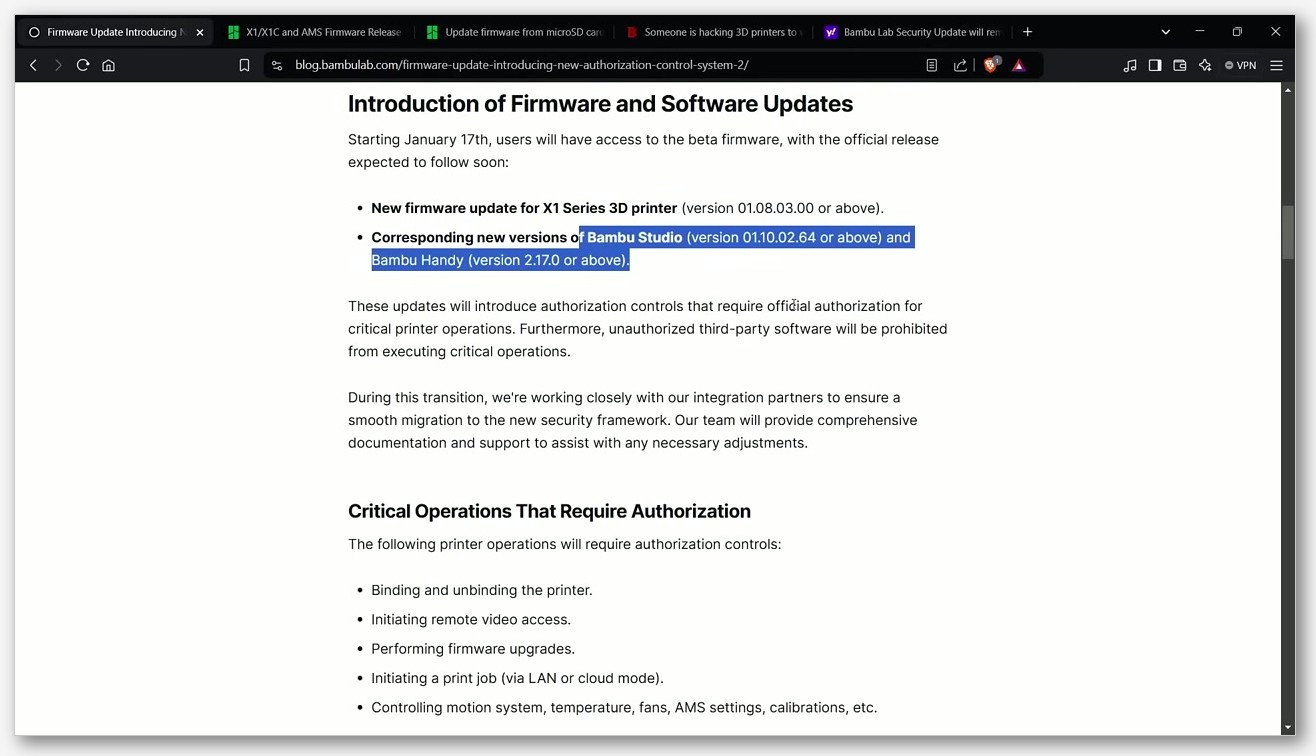
Bambu owners are the biggest cohort I see with this problem, and the picture got more complicated in January 2025 when Bambu shipped firmware 01.08.03.00 with a new authorization system. I’ll walk through the whole binding sequence and then the post-firmware caveats.
First, enable LAN-Only mode on the printer itself. On a P1S or A1, go to Settings → WLAN → LAN Only Mode on the touchscreen, toggle it on, and the screen will display an 8-character alphanumeric Access Code. Per the Bambu Lab Wiki, this code is formatted as eight characters in any combination of letters and numbers, and it’s specifically for LAN-Only authentication (different from the original cloud-bound Access Code). Write it down. You’ll need it in OrcaSlicer in a moment.
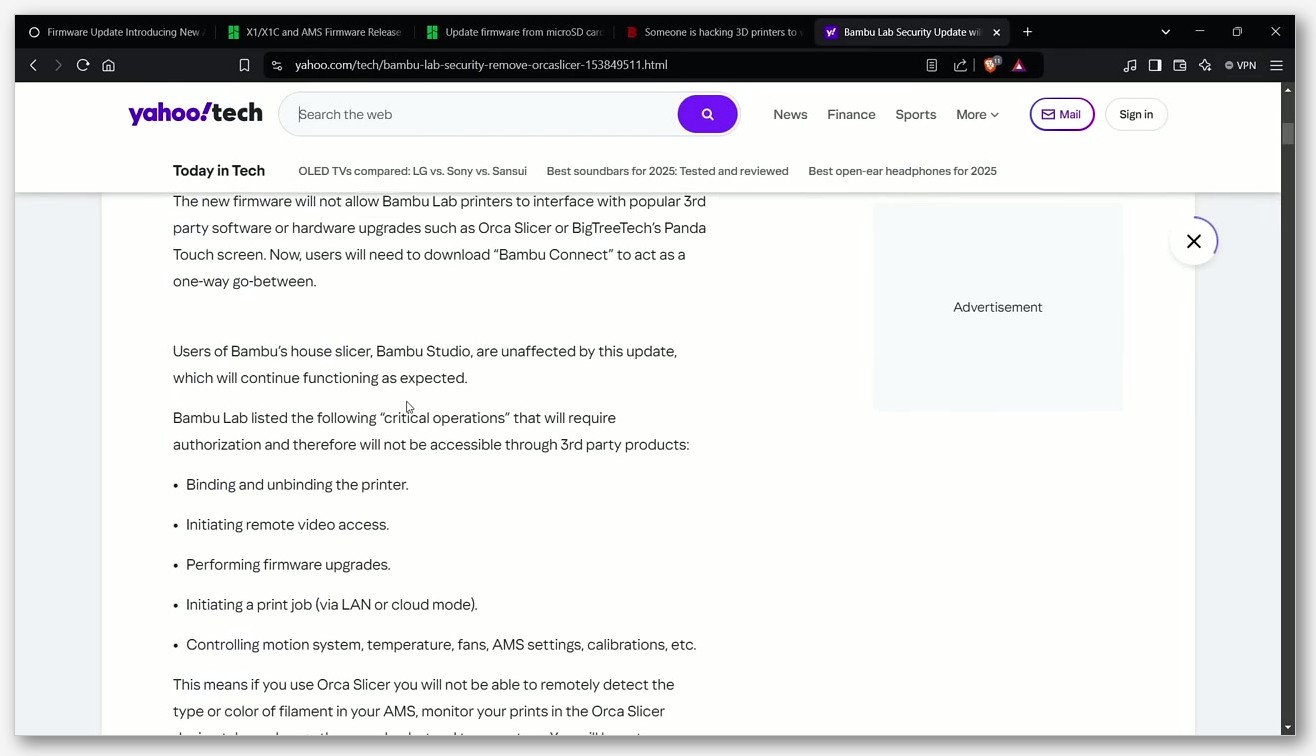 Bambu blog post, the controlled operations include binding and unbinding printers, remote video access, firmware upgrades, print job initiation (both LAN and cloud), and motion, temperature, fan, AMS, and calibration controls. Third-party slicers like OrcaSlicer “can no longer use Studio’s network plugin API for authorization control” and need to go through Bambu Connect as a bridge. OrcaSlicer retains read-only status monitoring but loses binding, printing, axis control, and calibrations unless Bambu Connect is in the loop. Bambu’s blog also notes that “even when the printer is in LAN mode, the network environment may still be connected to the public network”, meaning LAN mode alone doesn’t bypass the authorization layer.
What this means in practice: if you’re on firmware 01.08.03.00 or later, and OrcaSlicer can monitor your printer but can’t actually start prints, you’re hitting the new authorization wall. Install Bambu Connect, complete the authorization flow once, then OrcaSlicer can use it as a bridge. GitHub issue #8099 “Add the ability to connect Bambu Lab printers in LAN Only Mode” (closed via PR #8148) tracks the OrcaSlicer side of supporting the 8-character LAN-Only Access Code in this new flow.
There’s another regression to know about. Issue #6169 “Orcaslicer forgets access code for X1C in LAN mode constantly” (closed via PR #8256) reported that OrcaSlicer 2.1.1 was wiping the Access Code every time the printer disconnected or went to sleep. The reporter noted it worked fine before 2.1.1 and continued working in Bambu Studio. If you’re on an older OrcaSlicer and your Access Code keeps disappearing, upgrade to a recent build. And there’s issue #12932 “2.3.2 Need to log out and log back into for Device to detect my printer”, opened 24 March 2026 against a Bambu A1 on Windows 11, which is still open as of writing: 2.3.2 users are reporting they need to log out of their Bambu account and back in on every launch to get the Device tab to find the printer. If that’s you, follow that issue.
One last Bambu thing. Issue #1205 “BBL X1C LAN Only mode not found if in different Subnet” makes the subnet-isolation problem explicit: if your slicer PC and your Bambu printer are on different subnets, OrcaSlicer cannot discover the printer because the discovery multicast doesn’t cross the router. Either move them to the same subnet, or set up an SSDP reflector (covered in the router section below).
Klipper, Mainsail, and Fluidd Fixes via Moonraker
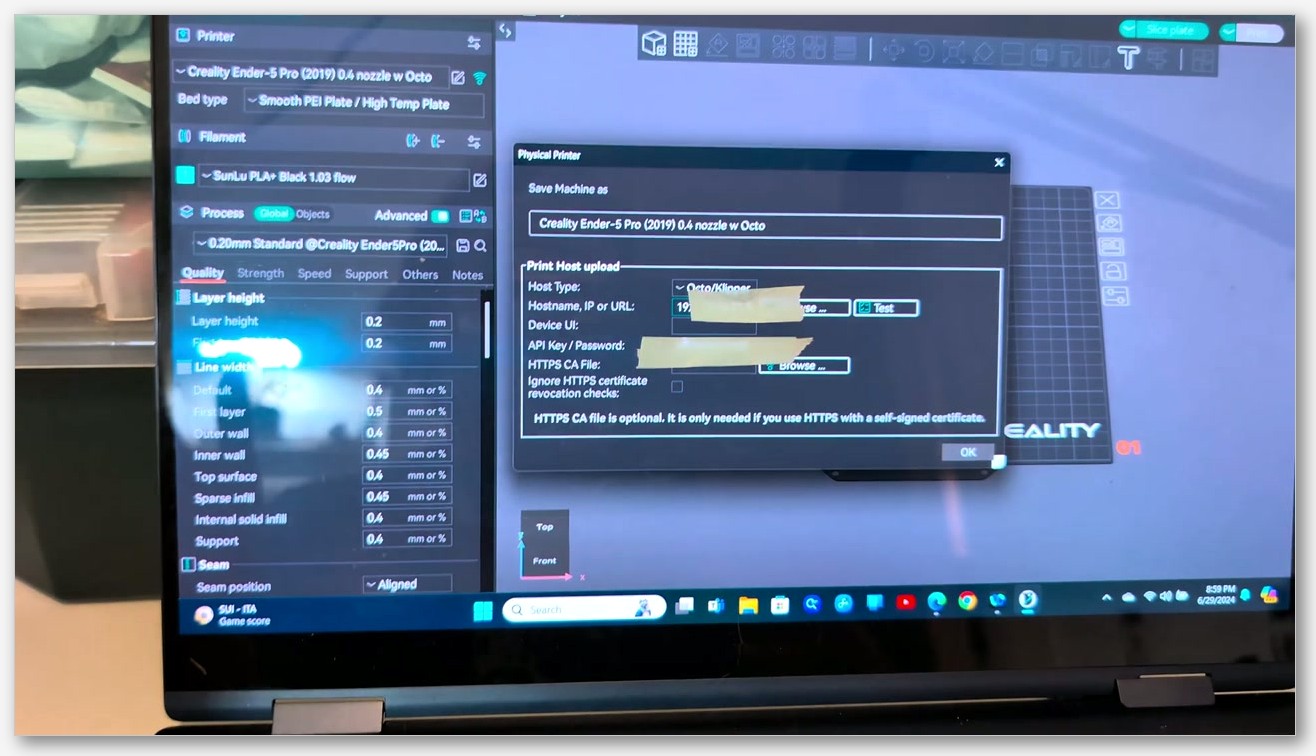
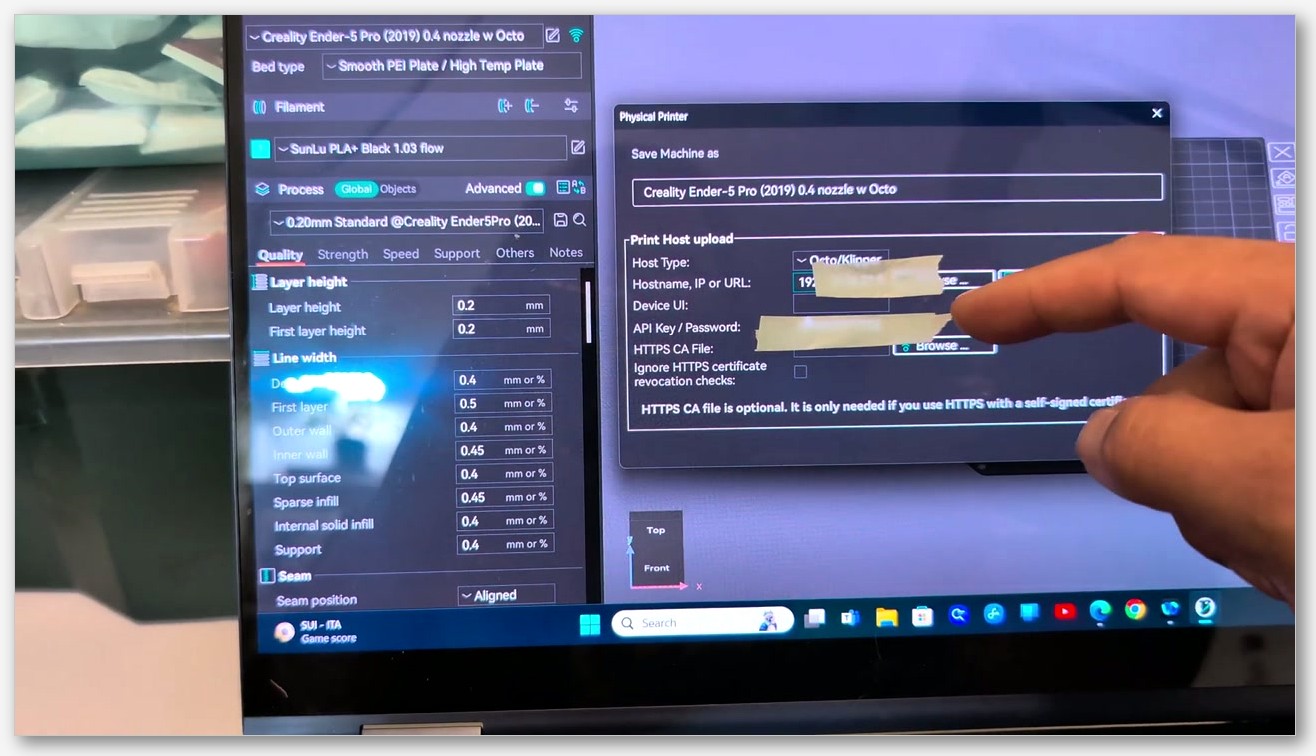
If you’re running Klipper, OrcaSlicer doesn’t actually talk to Klipper directly. It talks to Moonraker, the HTTP API server that sits on top of Klipper and serves the Mainsail or Fluidd front-end. The OrcaSlicer host type for this is Octo/Klipper (the name suggests it’s shared with OctoPrint, which is right historically but it actually works for Moonraker too).
Moonraker’s default HTTP port is 7125. Per the Moonraker configuration reference, “The port the HTTP server will listen on. Default is 7125”. So your hostname field in OrcaSlicer’s Physical Printer setup should look like http://192.168.1.45:7125 or, if mDNS is working, http://mainsailos.local:7125. The http:// prefix matters. I’ve seen people leave it off and get a permanent connection error.
For the API key, SSH into your Klipper host (Pi or similar) and look at ~/printer_data/config/moonraker.conf. In the [authorization] block, Moonraker supports several authentication paths: API key authentication (the default, “Enables API Key authentication. The default is True.”), login credentials with a configurable session timeout, IP-based trust lists for both IPv4 and IPv6, CORS domain configuration, LDAP, and an optional forced-login mode. The simplest path is to grab the API key from Mainsail under Settings → API Keys and paste it into OrcaSlicer’s API Key / Password field. If you’d rather skip the key entirely, add your slicer PC’s IP to the trusted_clients list in moonraker.conf and restart Moonraker. I do this on my home network because nothing untrusted is on the LAN anyway.
Moonraker also publishes itself via mDNS through a [zeroconf] configuration block, which uses Avahi on Linux. That’s what lets OrcaSlicer’s Discover scan see it without you typing an IP. If the Discover button doesn’t surface your Klipper host, either Avahi isn’t running on the Pi (systemctl status avahi-daemon should show active), or the mDNS multicast isn’t reaching your computer (check your computer’s firewall, or the VLAN section below).
For multi-instance Moonraker setups, the community convention is to step ports up by one: 7125 for printer 1, 7126 for printer 2, 7127 for printer 3, and so on. That’s a convention, not a hard standard, but most multi-printer Klipper docs follow it. Each instance gets its own OrcaSlicer Physical Printer entry pointing at the matching port.
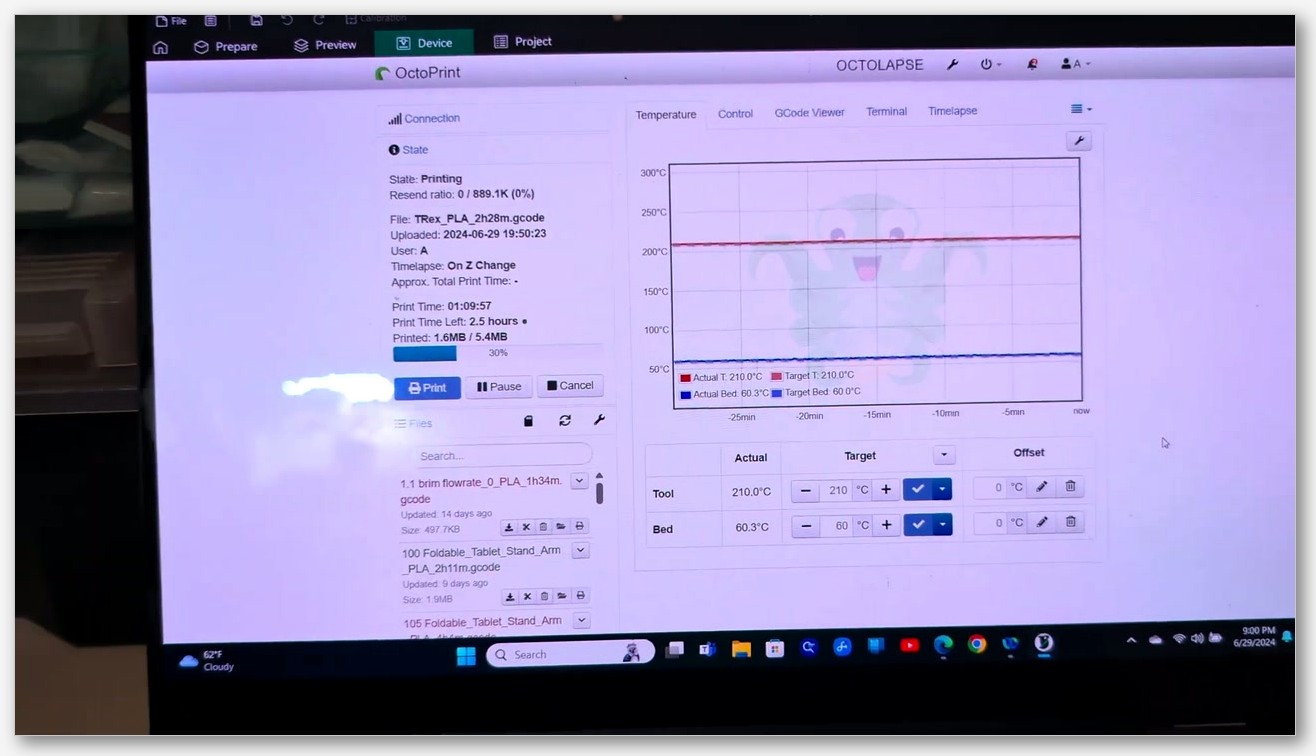
Now the failure modes. If OrcaSlicer connects, the test-connection button returns success, but the Device tab loads a blank white page, you’re hitting one of a small cluster of issues. The most common is the AppImage variant of OrcaSlicer on Linux failing to render the embedded web view, reported in several issues including blank Mainsail and Fluidd panels. The fix that worked for most reporters is using the .deb or .rpm OrcaSlicer build (or the Flatpak), not the AppImage. On Windows and macOS the blank-Device-tab pattern often traces back to OrcaSlicer caching a stale URL, an outdated WebView2 runtime on Windows, or the Mainsail/Moonraker host serving from a different external port than the one OrcaSlicer cached. Clear the Physical Printer entry, re-add it with the current IP and port, and most of those clear up.
One real-world gotcha: if you’re behind an HAProxy or Nginx reverse proxy that maps port 80 or 443 to Moonraker internally, you need to point OrcaSlicer at the external port the proxy listens on, not 7125. So if your reverse proxy exposes Mainsail on http://mainsail.local (port 80), use that, not :7125.
OctoPrint Fixes: API Key, Port 5000, Discovery Plugin
OctoPrint is the easiest of the four host types to set up, in my experience, because its API has been stable for years and OrcaSlicer’s Octo/Klipper host type was originally designed around it. But there are still a handful of things that bite people.
Start with the API key. In OctoPrint’s web UI, go to Settings → Application Keys, generate a key for OrcaSlicer, and copy it. Then in OrcaSlicer, add a Physical Printer, set Host Type to Octo/Klipper, set Hostname to something like http://octopi.local:5000 or http://192.168.1.45:5000, and paste the key into the API Key field. OctoPrint authenticates API calls via the X-Api-Key HTTP header, which OrcaSlicer sets automatically once you’ve entered the key.
The default OctoPrint port is 5000 (it binds to all interfaces on 5000 unless you’ve changed it). Don’t omit the port unless you’ve put OctoPrint behind a reverse proxy on port 80 or 443. If you have HAProxy in front of OctoPrint (the default OctoPi image ships with HAProxy serving on port 80 and forwarding to OctoPrint on 5000), then you can drop the port and just use http://octopi.local, but you can also use :5000 directly to bypass the proxy.
For discovery, OctoPrint’s Discovery Plugin announces itself via two ZeroConf services according to the OctoPrint Discovery docs: _http._tcp (standard HTTP record) and _octoprint._tcp (OctoPrint-specific metadata including version, API level, model, and vendor). It also publishes via SSDP and UPnP, which is why OctoPrint instances show up in Windows under Networks → Other Devices in File Explorer. Per the OctoPrint docs, “If no public port is configured, the port OctoPrint itself was started under will be used”, and “Linux users should install Avahi and can then use one of the various Avahi browsers (e.g. avahi-browse for the command line) to scan for available instances.”
So if OrcaSlicer’s Discover button doesn’t see your OctoPrint instance, the first thing I check is whether dns-sd -B _octoprint._tcp (macOS) or avahi-browse _octoprint._tcp -r (Linux) lists it. If those don’t show OctoPrint, the problem is on the mDNS layer, not OrcaSlicer. If they do show it, then the issue is OrcaSlicer’s discovery scan, which usually means a firewall on the slicer machine blocking mDNS replies (covered in the Windows and macOS sections).
The most common OctoPrint connection failure I see is a stale API key after re-flashing the OctoPi image. Generate a fresh key, paste it into OrcaSlicer, and re-test. If you’re getting “Connection failed” with a valid key on a fresh OctoPi, double-check that the OctoPrint UI itself loads in your browser at that URL. If the browser works but OrcaSlicer doesn’t, you’re probably hitting a hostname-vs-IP quirk, so try the raw IP.
PrusaLink Fixes: Port 80 and HTTP Digest
PrusaLink, the firmware-embedded web server on MK4, MK4S, Core One, and XL printers, is its own host type in OrcaSlicer. The good news: it’s the simplest network printer host I’ve used. The slightly annoying news: it uses HTTP Digest authentication, not an API key, which trips up people who are used to the OctoPrint flow.
In OrcaSlicer, set Host Type to PrusaLink, enter the hostname or IP, and use the printer’s username and password as credentials. The default port is 80, or 8080 as a fallback if PrusaLink wasn’t started as root with permission to bind to port 80. Per the Prusa-Link README on GitHub, PrusaLink “advertises itself on the local network. This makes it visible in PrusaSlicer under Physical Printers → Browse” via mDNS, which is the same mechanism OrcaSlicer’s Discover button uses.
The credential the printer prints on its first boot card (or shows under Network → PrusaLink in the menu) is the password you want. API key auth is disabled by default on modern PrusaLink builds in favor of HTTP Digest, so you don’t need to generate a separate API key. If you’ve enabled API keys manually, you can use that flow too, but it’s not the default.
If OrcaSlicer’s Discover doesn’t surface your Prusa, fall back to the raw IP. Same rules as everywhere else: http://192.168.1.45, no port (since 80 is default), Digest credentials in the password field.
The Connect-by-IP Fallback That Works for Everything
This is the section I tell people to read first if they just want to print something tonight and figure out the proper discovery fix on the weekend. Connecting by IP bypasses mDNS, Bonjour, and Avahi entirely. It works for every printer host type. The only thing you sacrifice is that if your printer’s DHCP lease changes, you’ll need to update OrcaSlicer’s hostname field.
The fix for that DHCP-lease problem is a DHCP reservation, which I’d strongly recommend you set up while you’re already in your router admin page. Find your printer’s MAC address (printed on its label or visible in your router’s DHCP client list), then add a static reservation so your router always hands the printer the same IP. That’s a five-minute one-time job that pays off forever.
To find your printer’s current IP: easiest path is the printer’s own touchscreen or info screen. On a Bambu it’s under Settings → WLAN → IP Address. On a Prusa it’s under Network → Wi-Fi → Connection Info. On a Raspberry Pi running OctoPi or MainsailOS, log in via SSH and run hostname -I. Fallback: open your router’s admin page (usually http://192.168.1.1 or http://192.168.0.1) and look for a DHCP clients list.
Once you have the IP, paste the full URL with the right port into OrcaSlicer’s hostname field for that printer:
- Bambu LAN: just the IP (the Bambu host type handles the port internally), with the 8-character Access Code
- Klipper / Moonraker:
http://192.168.1.45:7125with the Moonraker API key - OctoPrint:
http://192.168.1.45:5000with the OctoPrint API key - PrusaLink:
http://192.168.1.45(port 80 default), Digest username and password
Hit the test-connection button before you save. If it returns success, you’re done, and you can come back later to chase the mDNS/discovery problem at your leisure. If the test fails on an IP that you can ping and load in your browser, the problem is almost always the credential, not the network. Re-paste it, watch for trailing spaces, regenerate if needed.
This is also the workaround I use when I’m dealing with the open issue #12932 regression where 2.3.2 on Windows needs a Bambu account logout/login per launch: setting the printer up via IP rather than discovery doesn’t actually fix the logout regression itself, but it makes the rest of the Device tab behave more predictably while you wait for a release that addresses #12932.
For deeper coverage on the Bambu cloud vs LAN distinction and how the Bambu Connect intermediary fits in, see our walkthrough of OrcaSlicer Bambu cloud vs LAN mode.
Windows Fixes: Defender Firewall, Bonjour, Network Profile
Windows-specific symptoms cluster around two things: the network profile (Public vs Private) and Windows Defender Firewall rules. I’ll walk through both.
Set the network profile to Private. Go to Settings → Network & Internet → Wi-Fi (or Ethernet, whichever you’re on), click your active connection, and set Network profile type to Private network. Public network profile blocks a lot of LAN discovery traffic by default, including mDNS. If your network just had a Windows update that quietly reset it to Public, you’ll see exactly the “Discover finds nothing” symptom even though nothing else changed.
Check the mDNS firewall rule. Open Windows Defender Firewall with Advanced Security (search for “wf.msc” in the Start menu), go to Inbound Rules, and filter for “mDNS”. You should see a rule named mDNS (UDP-In), which is the native Windows 10/11 mDNS responder rule. Per Microsoft’s TechCommunity post “mDNS in the Enterprise”, Windows 10 and 11 have native mDNS support and this rule controls it: “disable mDNS (UDP-In) for just the Domain profile” is Microsoft’s suggested pattern for mobile workers who want home mDNS but corporate-network blocking. For our purposes, make sure it’s Enabled for the Private profile (and Public if you have to run on a Public-classified network).
Add custom inbound rules for the discovery ports OrcaSlicer needs. If you’re running Bambu in LAN mode, the Bambu community guidance (paraphrased from Bambu’s own forum, not an official wiki page since the wiki returns HTTP 402 on direct fetch) is to make sure Windows Firewall isn’t blocking UDP 2021 (Bambu’s SSDP discovery port) and UDP 1900 (standard SSDP). Create an inbound rule allowing those UDP ports for the Private profile. While you’re there, also confirm UDP 5353 (mDNS) is allowed if the built-in mDNS rule looks misconfigured.
About Apple Bonjour on Windows. Apple distributes Bonjour Print Services for Windows v2.0.2 as a standalone download from the Apple support site. There’s a long-standing claim that Bonjour ships bundled with the iTunes installer and can be extracted with 7-Zip, and some Bambu-adjacent installers reportedly bundle it too. None of that is strictly necessary on Windows 10 or 11 anymore, because Windows ships a native mDNS responder. Bonjour Print Services is still useful for apps that bundle their own Apple-derived zeroconf libraries, but most OrcaSlicer setups don’t need it. If you’re chasing weird intermittent discovery problems and nothing else has worked, installing Bonjour Print Services is a low-risk thing to try.
WSL2 warning. If you’ve been running OrcaSlicer inside WSL2 because you prefer the Linux build, per Microsoft’s WSL networking documentation WSL2 uses a separate virtual NAT and does not see LAN multicast (mDNS, SSDP) from the Windows host’s physical network by default. OrcaSlicer inside WSL2 will not find LAN printers via Discover. The workarounds are either enabling mirrored networking mode (Windows 11 22H2 and later) or, more reliably, running OrcaSlicer as a native Windows build.
One more Windows-specific symptom worth knowing about: issue #6170 “DEVICE tab not working” was opened against OrcaSlicer 2.1.1 on Windows 10 and closed after the team patched a stale-IP cache bug that returned ERR_CONNECTION_TIMED_OUT and prevented the Device tab from rendering. If you’re on an older OrcaSlicer build and you see a connection-timed-out error in the Device tab, upgrading often fixes it without any network changes at all.
macOS Fixes: Firewall, Stealth Mode, Bonjour
macOS has the cleanest mDNS story of the three operating systems, because Bonjour is native and Apple invented it. That said, the firewall and stealth-mode settings are the single most common reason OrcaSlicer can’t see a printer on a Mac.
Open Apple menu → System Settings → Network → Firewall. If the firewall is off, you’re fine, skip ahead. If it’s on, click Options. You’ll see a panel with four toggles: “Block all incoming connections”, “Automatically allow built-in software to receive incoming connections”, “Automatically allow downloaded signed software to receive incoming connections”, and “Enable stealth mode”.
 Linux Fixes: Avahi, UFW, NetworkManager
Linux is conceptually the simplest of the three operating systems for this kind of debugging, because everything is on the command line and observable. The main things you need are Avahi (for mDNS) and an open UFW (or whatever firewall you use) for the multicast port.
First, confirm Avahi is running: systemctl status avahi-daemon. If it’s not active, install it (sudo apt install avahi-daemon avahi-utils on Debian/Ubuntu, sudo dnf install avahi avahi-tools on Fedora) and start it. To be precise about the dependency: Avahi is needed for mDNS-based .local resolution and for things like OctoPrint Discovery to actually surface in OrcaSlicer’s scan. It is not strictly required for OrcaSlicer to function (you can always fall back to IP), but you do need it if you want hostname resolution and the Discover button to find things.
Next, open the mDNS port through UFW: sudo ufw allow 5353/udp comment 'mDNS'. If you’re running Bambu in LAN mode, also open SSDP: sudo ufw allow 2021/udp comment 'Bambu SSDP'. For OctoPrint or Klipper hosts living on the same Linux machine as OrcaSlicer (rare, but it happens), make sure their own ports are reachable too.
Confirm services are visible with avahi-browse -a. You should see your printers and any other Bonjour-enabled devices on the LAN. If avahi-browse shows your printer but OrcaSlicer’s Discover button doesn’t surface it, that points at OrcaSlicer’s discovery flow rather than the Linux network stack.
One Linux-specific OrcaSlicer issue: the AppImage build of OrcaSlicer has a history of failing to render the embedded web view in the Device tab, manifesting as a blank white pane even when the connection itself is healthy. If you’re on AppImage and seeing this, try the distro-native package (.deb on Debian/Ubuntu, .rpm on Fedora, or the Flatpak) instead. Several reporters have noted the issue clears up immediately on the native package.
For NetworkManager users on a multi-interface setup (laptop with both Wi-Fi and a USB Ethernet adapter, for example): mDNS can get confused about which interface to use, and you can end up with announcements going out the wrong NIC. OctoPrint issue #4359 on GitHub documents a related multi-NIC mDNS bug on the OctoPrint side. The fix on the slicer machine is usually to disable the interface you’re not using, or to route the LAN subnet explicitly through the active interface.
For comprehensive guidance on getting Klipper set up cleanly the first time, see our OrcaSlicer Klipper setup walkthrough.
Router and VLAN Fixes: AP Isolation, IoT VLAN, mDNS Reflector
This is the section where I lose the most readers, because the answer is “you have a network architecture problem and there isn’t a slicer setting that fixes it.” But if you’ve made it this far, you’ve already eliminated the easy stuff, so let’s get into it.
AP Isolation / Client Isolation. A lot of consumer routers and most guest networks have an option called AP Isolation (sometimes Client Isolation or Wireless Isolation) that blocks client-to-client traffic on the same SSID. If your printer is on a guest network and your slicer machine is on the main network, that’s almost certainly the issue. Go into your router admin, find the wireless settings for the SSID your printer is on, and disable AP Isolation. Or move both devices to the same non-isolated SSID.
Dual-band SSID gotcha. Some routers, especially older ones, expose 2.4 GHz and 5 GHz as separate SSIDs (and sometimes as separate subnets). If your printer is on the 2.4 GHz SSID and your laptop is on 5 GHz, they may not see each other for discovery purposes. Easiest fix: enable band steering or merge the two SSIDs into a single name, so all your devices share one subnet.
IoT VLAN with isolated subnets. If you’ve put your 3D printer on a dedicated IoT VLAN for security reasons (smart move, honestly), you’ve created a layer-3 boundary that mDNS multicast (224.0.0.251 for IPv4) cannot cross on its own. You need either an mDNS reflector (also called Bonjour Gateway) or a manual route plus an SSDP relay. Options:
- UniFi gear: enable mDNS reflector in the UniFi controller settings (it’s a checkbox per VLAN)
- OPNsense / pfSense: install the
udpbroadcastrelaypackage or Avahi service and bridge the relevant multicast groups across the VLANs - Cisco gear: configure the Cisco Bonjour Gateway
- Linux box on both VLANs: run an Avahi reflector configuration, which bridges Bonjour announcements between interfaces
For the Bambu Lab SSDP-on-UDP-2021 case specifically, the nuxx.net “Bambu Lab P1S on IoT VLAN” case study from December 2024 is the cleanest write-up I’ve found. The author tested with Bambu Studio 1.10.1.50 and a P1S on firmware 01.07.00.00 and documented exactly which ports need to cross the VLAN boundary: 990/tcp (FTP), 2024-2025/tcp (“Unknown, but seems to be FTP?”), 6000/tcp (LAN Mode Video), and 8883/tcp (MQTT). For discovery, they used udpbroadcastrelay --id 1 --dev igb1_vlan2 --dev igb1 --port 2021 --multicast 239.255.255.250 to bridge the SSDP multicast on UDP 2021 between the IoT VLAN and the main LAN. The stateful firewall then handles the return TCP traffic transparently. That’s the recipe if you’re running OPNsense or pfSense with the same hardware family.
The OrcaSlicer #1205 issue on Bambu LAN subnet isolation confirms the same thing from the slicer side: without a reflector or relay, OrcaSlicer simply cannot bind a Bambu LAN-mode printer that lives on a different subnet, because the discovery handshake never crosses the router.
VPN gotcha. If you’re running a corporate VPN, Tailscale, or any always-on VPN that routes all your traffic, it can intercept mDNS queries and break local discovery. Check your VPN client for a “split tunnel” or “local network access” option and exempt your home subnet (typically 192.168.0.0/16 or 10.0.0.0/8) from being routed through the VPN.
DHCP reservation. While you’re already deep in the router admin, set a DHCP reservation for your printer’s MAC. This guarantees the printer always gets the same IP, which makes the by-IP fallback bulletproof.
For the broader troubleshooting picture across every OrcaSlicer subsystem (not just network), our OrcaSlicer troubleshooting master guide is the pillar piece this article hangs off.
FAQ
Why does my printer hostname resolve in my browser but not in OrcaSlicer’s Device tab?
This is exactly issue #1171 “Device tab can’t resolve hostname”, opened in May 2023 against OrcaSlicer 1.6.2 on macOS and Artix Linux, and ultimately closed as not planned. The reporter found that a hostname like http://vzbot.home would return “Success” on OrcaSlicer’s test-connection button, but the Device tab itself stayed blank. The fix is to switch to the IP address. OrcaSlicer’s Device tab uses a different code path for live updates than the test-connection path, and it doesn’t handle every hostname format the browser does. It’s been a stable workaround for years.
Do I need to install Apple Bonjour Print Services on Windows?
No, it’s optional. Windows 10 and 11 ship with native mDNS support, and the built-in mDNS (UDP-In) firewall rule controls it. Bonjour Print Services is still useful for apps that bundle their own Apple-derived zeroconf libraries, but most OrcaSlicer Windows users don’t need it. If you’ve already installed it, no harm done.
Does Bambu Connect replace OrcaSlicer’s Device tab?
No, it sits between them when you’re on firmware 01.08.03.00 or later. Per the Bambu blog post announcing the authorization control system, OrcaSlicer retains read-only access to printer status monitoring but lost the restricted operations (binding, printing, axis control, calibrations) when the new authorization layer rolled out in January 2025. Bambu Connect bridges those restricted operations. You still use the OrcaSlicer Device tab for everything OrcaSlicer is allowed to do, you just need Bambu Connect installed and authorized so that print-start and binding go through it.
Why does my Bambu Access Code keep getting wiped from OrcaSlicer?
If you’re on OrcaSlicer 2.1.1, that’s issue #6169, a confirmed regression that wiped the code on every printer disconnect or sleep. It was fixed via PR #8256 in a later build. Upgrade to a current OrcaSlicer release and the code will persist properly. If you’re on a recent build and still seeing it, check whether your printer is staying on the same IP (a DHCP-lease change can cause OrcaSlicer to treat it as a new device and forget bindings).
Can I run OrcaSlicer in WSL2 and connect to my LAN printer?
Not reliably. Per Microsoft’s WSL networking documentation, WSL2 uses a separate virtual NAT and Linux processes inside WSL2 don’t see LAN multicast (mDNS, SSDP) from the Windows host’s physical network by default. Mirrored networking mode in Windows 11 22H2 and later helps, but the better answer is to run OrcaSlicer as the native Windows build. The native build sees the LAN normally and discovery works as expected.
Will a VPN break printer discovery?
It can, yes. Any always-on VPN that captures all your traffic will intercept mDNS multicast and route it through the tunnel instead of broadcasting it on your local subnet. The fix is to enable split-tunnelling for your home LAN, or to disconnect the VPN while you’re using the printer. Tailscale, WireGuard, and most corporate VPN clients have a “local network access” option that handles this.
Is port 8989 used by OrcaSlicer or Bambu?
No. I see this number floating around in old forum threads and a few generated guides, but it doesn’t appear in any verified Bambu Lab documentation or community port lists I’ve been able to find. The verified Bambu LAN ports are 990 (FTPS), 6000 (camera on P1/A1 series), 8883 (MQTT/TLS), 2024-2025 (additional FTP-like traffic), and UDP 2021 for SSDP discovery. Don’t open 8989 chasing a phantom.
What about OctoPrint specifically: any settings I’m likely missing?
The most common one is the OctoPrint instance running on a non-default port behind a reverse proxy. If your OctoPrint is at http://octopi.local via HAProxy on port 80, but you’ve manually typed :5000 in OrcaSlicer expecting the default, the proxy and the direct port may both work but they have different cert and auth behaviors depending on how OctoPi is configured. For deeper OctoPrint-specific symptoms, our OrcaSlicer OctoPrint troubleshooting guide covers them in detail.
Wrapping Up
If you’ve worked through the diagnostic and at least one of the OS-specific sections, you should have your Device tab populated by now, or at least you know exactly which layer of the stack to keep poking at. The honest summary, after debugging dozens of these: about 60% of the cases I see are a firewall misconfiguration on the slicer machine, about 20% are subnet/VLAN isolation, about 15% are credential or stale-cache problems inside OrcaSlicer itself, and the last 5% are edge cases like the open issue #12932 logout regression or the Bambu Connect authorization layer on firmware 01.08.03.00 and later. The by-IP fallback in the middle of this article gets you printing again immediately while you chase the proper fix at your leisure.
If you want the official OrcaSlicer build, grab it from the official OrcaSlicer GitHub releases page. Don’t download it from a third-party mirror you don’t recognize. For deeper coverage of Bambu cloud vs LAN mode and where Bambu Connect fits in, head over to our OrcaSlicer Bambu cloud vs LAN walkthrough. Happy printing, and may your Device tab populate on the first try next time.