
I spent three weeks dialing in a custom Voron filament profile, then swapped the printer dropdown to a friend’s Prusa for a test print and watched my 235C nozzle temp, my retraction tweaks, and a per-object color assignment evaporate in the time the UI took to redraw. My first instinct was the one every angry GitHub issue starts with: OrcaSlicer ate my settings. It hadn’t. The profile was sitting safely in user/<number>/ on disk. The printer switch had just hidden it from the dropdown because the new machine’s compatibility filter didn’t match my filament’s printer condition.
That moment, plus a weekend reading every “settings not saving” issue on the tracker, convinced me of one thing. Almost every complaint with that title lands in one of four buckets, and only the fourth is an actual bug. The other three are the three-tier preset system working exactly as designed, in ways the UI doesn’t always make obvious. If you’re here because something you saved looks gone, this guide gets you to the right diagnosis in under sixty seconds.
Table of contents
- The four-bucket diagnostic flow
- System vs user presets: the read-only rule
- The save procedure that actually works
- The “unsaved changes” dialog and Transfer vs Discard
- Switching printers wipes filament and process picks
- Compatibility conditions and the disappearing preset trap
- The known issues: #2278, #2705, and the historical #980
- The Flatpak app ID migration trap in v2.3.2
- Where presets actually live on disk
- Backups, recovery, and why there’s no Reset button
- FAQ
The four-bucket diagnostic flow
Before you reformat anything or start reinstalling, run through this short decision tree. I’ve watched it close out 90 percent of the “settings not saving” panic I’ve personally hit, and it maps almost one for one to what the maintainers see on the issue tracker.
Question 1. When you hit save on the modified value, did a small name-entry dialog pop up that you closed or cancelled? If yes, you were editing a read-only system preset. The dialog was Orca asking you to name a new user preset, because the bundled vendor one cannot be overwritten. Hitting cancel discards the edit. This is bucket one and it’s by far the most common cause.
Question 2. Did the symptom appear right after you changed the machine in the printer dropdown? If yes, you hit Issue #2705. Orca re-evaluated which filament and process presets are compatible with the new printer, and yours got swapped out. Your data is fine. You just need to mark the relevant filament and process presets as compatible with both printers before switching, or save them as user presets first.
Question 3. Did a specific custom filament or process simply vanish from its dropdown, even though the file is still on disk? That’s a compatibility condition filter doing its job, and in some cases it’s the documented JSON typo bug in Issue #12193 where Orca writes the key compatible_prints instead of compatible_printers and the preset becomes invalid.
Question 4. Did a genuinely-saved user preset disappear after a clean restart, with no printer switch and no missed dialog? That’s the small, real bug bucket: Issue #980 from the 1.6.2-beta era, the AppData-leftover workaround documented in Discussion #1395, and the unresolved edge case in Issue #7009 where the save flow stores the diff against the parent instead of as a new preset. Workarounds exist for all three.
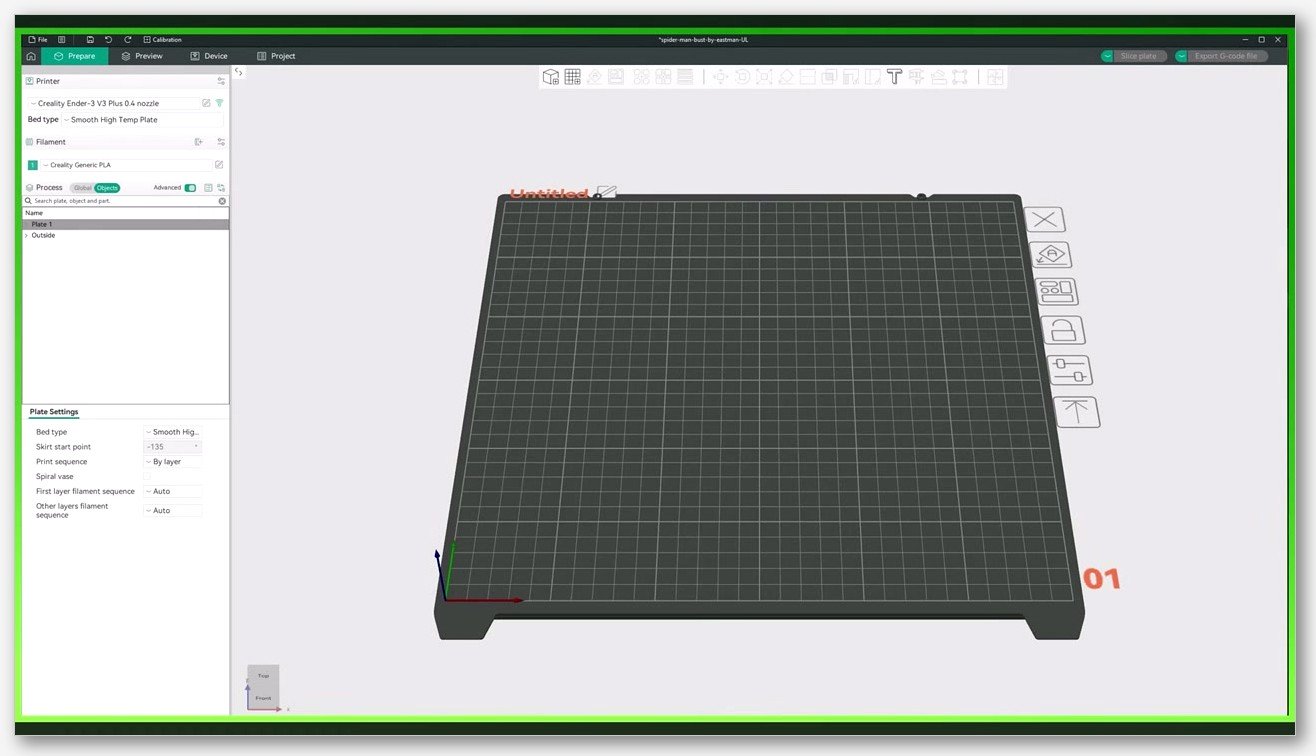
System vs user presets: the read-only rule
If you read nothing else here, read this. The biggest source of “settings not saving” complaints isn’t a bug. OrcaSlicer inherits a three-tier preset model from PrusaSlicer (which inherited it from Slic3r), and one tier is bundled, read-only, and vendor-provided. You cannot write to it. Ever.
The DeepWiki presets page spells it out: “System presets: Read-only, vendor-provided, Always visible if compatible” and “User presets: Always visible”. The underlying source flags every preset with an is_system boolean in Preset.hpp, and the save path branches on it. If is_system is true, Orca won’t let you overwrite. Instead, the moment you modify any value and click the floppy disk save icon, it opens a name dialog and stores your edit as a fresh user preset in user/<number>/ on disk.
The Obico profile management guide describes the same flow: click the “Save current filament” button, then “Save as new user preset”. If you’ve ever hit cancel on that prompt because you “just wanted to change one number,” you’ve encountered the bug that isn’t a bug. Your edit lived only in memory and dies the moment Orca closes.
For a deeper read on how the three tiers fit together, including which level overrides which when settings conflict, I’d point you at our companion piece on the three-tier preset model explained. The short version: Process sits at the top, Filament sits above Process in the merge order for any per-filament keys, and Printer sits underneath as the base.
The save procedure that actually works
Here’s the flow I use now, after losing the same Voron profile twice in a week. It’s boring on purpose.
- Change the value you want to change in the right-hand settings panel.
- Look at the preset name in the dropdown. You should see a small modified indicator next to it.
- Click the floppy disk save icon next to the preset name (it’s the small disk-shaped button right next to the dropdown).
- When the name dialog appears, type a clear, version-tagged name. I use things like
PETG-235-v3so I can tell my iterations apart later. - Confirm. The preset now appears in the dropdown as a user preset.
- Exit Orca completely. Relaunch. Verify the preset is still in the dropdown before you do any more work.
Step 6 sounds paranoid and it is. It’s the workaround for Issue #7009, where on certain custom-printer setups the save flow has been observed to drop the new preset and instead store the modifications as “unsaved changes” against the parent. Reopen catches it before you spend another hour on a profile that wasn’t actually written.
The “unsaved changes” dialog and Transfer vs Discard
Sooner or later you’ll hit a second dialog, and this one trips up everybody, including the person who filed Issue #4422. It pops when you try to switch to a different preset while the current one has uncommitted modifications. The text reads:
“Would you like to keep these changed settings (new value) after switching presets?”
The two buttons are labeled Transfer and Discard. The reporter of #4422 says they’re confusing and suggests “Use New” and “Keep Old” would be clearer. The issue is closed without a label change, so you have to memorize them.
Transfer carries your in-flight modifications over to the destination preset. Discard abandons them. If you don’t know which to pick, hit Discard and re-edit on the destination preset deliberately. Transfer can quietly stack changes onto a preset you didn’t mean to modify, and you’ll spend ten minutes later wondering why your PLA profile suddenly has a 60mm/s outer wall speed that belongs to your PETG settings.
This dialog also fires any time you switch printers and the compatible-filament list changes.
Switching printers wipes filament and process picks: Issue #2705
This is the one that ate my Voron tuning. Issue #2705, titled “Switching Machine Preset Changes Filament and Process Presets,” documents the exact reproduction:
- “Create and save a custom machine preset”
- “Start a new project”
- “Create a custom process preset”
- “Select multiple color filament presets”
- “Switch to a different machine preset”
What you observe, quoted from the issue: “When you select a different machine preset, the process preset and the filament presets will change, erasing any part level multi-color selections.”
The report was filed against v1.8.0-rc2 on Windows 10, labeled bug, and the related PR #4930 is closed. The behavior still happens because it’s not strictly a bug, it’s compatibility re-evaluation. The new printer has its own list of compatible filaments and processes (via compatible_printers_condition), and yours either match or they don’t.
My workaround: before switching printers, save the filament and process presets you care about as user presets explicitly, then edit their compatibility conditions so both printers qualify. Two cheapest options: add the new printer’s name to the printer profile notes (Chreutz documented this in Discussion #7257), or widen the compatible_printers_condition regex in the JSON. The second is more reliable but means hand-editing config files.
Compatibility conditions and the disappearing preset trap
The “my preset disappeared from the dropdown” complaint deserves its own section because the cause is so consistently misdiagnosed. The preset usually hasn’t been deleted. It’s been filtered out.
OrcaSlicer presets carry compatibility conditions written as small expressions. Per the DeepWiki configuration page:
- Filament to Printer: uses
compatible_printers_condition(for exampleprinter_model=~/.*Ender.*/) or explicitcompatible_printerslists. - Filament to Print: uses
compatible_prints_condition(for examplelayer_height <= 0.3). - Print to Printer: uses
compatible_printers_condition(for examplenozzle_diameter[0] == 0.4).
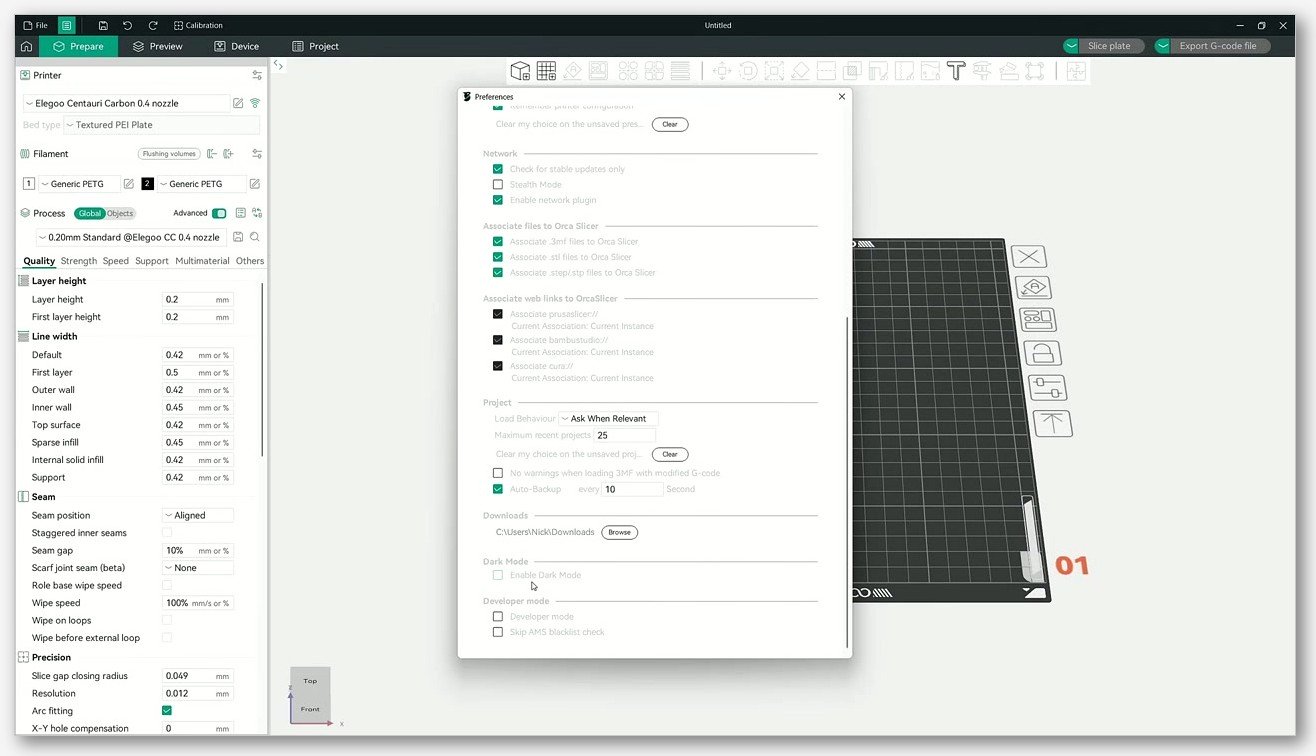
If the current printer doesn’t match the expression, the preset is hidden from the dropdown. The file is still on disk under user/<number>/, you just can’t see it. To verify, open Help → Show Configuration Folder, walk into the user folder, and inspect the JSON.
There’s also a real bug worth knowing about: Issue #12193. The reporter found that “OrcaSlicer saves the JSON file with the key name ‘compatible_prints’. Because of this typo (missing ‘er’), the preset becomes invalid.” The workaround is exactly what it sounds like: open the JSON, rename compatible_prints back to compatible_printers, save, restart Orca, and the preset reappears.
One more odd one. Discussion #7257 collects reports from slammers67 (“it seems that the user presets only show up every second time I Open orca”), arunshivaram on Mac v2.2.0 (“user preset printer configs load only if Orca is closed and re-opened”), and woody4165 also on Mac with system filament profiles. If your presets are flickering in and out across launches, you’re in this thread’s territory. A close-and-reopen cycle is the consistent workaround.
The known issues: #2278, #2705, and the historical #980
Three issues are worth knowing by number, because if you Google “orcaslicer settings not saving” they’ll come up and you’ll save yourself reading a 40-comment thread.
Issue #2278 argues that user presets should be independent of system presets, with the headline complaint: “You can’t create any printer unless you base it on some other printer type.” The reporter pushes the principle that “Removing a System Preset should have absolutely no effect on User Presets.” The issue is closed as “not planned” and labeled stale. Practical consequence for you: if a vendor system preset disappears from the bundled profiles in a future Orca update (vendor profile lineups shift), the user presets that inherit from it can vanish from the dropdown alongside it. The mitigation is to back up user/<number>/ before every update.
Issue #2705 we covered above. The reproduction is verbatim from the v1.8.0-rc2 report on Windows 10 and the behavior persists in current builds because it’s compatibility filtering, not data loss.
Issue #980 is the historical one. Filed May 6, 2023 against 1.6.2-beta on Windows 10 Pro x64, the reporter saw “previously saved presets revert to their old configurations” after a restart. Some presets reverted, some didn’t, deleted presets came back. It’s closed and labeled stale. Don’t claim this still reproduces on current builds without testing. If you’re on 2.x and seeing it, jump to the AppData workaround in Discussion #1395 below.
Two modern reports illustrate how often this gets misdiagnosed. Issue #5759 on v2.1.0 (“Random settings don’t save. Line width, wall order, skirt loops, buncha random stuff”) closed as not planned after the reporter declined logs. Issue #6545 on v2.1.1 with an Elegoo Neptune 4 Plus describes Bambu filament defaulting to ABS on the Elegoo, which is a textbook compatibility-condition filter showing up as “won’t let me use it.”
Discussion #1395 is where the real workaround lives. FPVSO reported in mid-2023 that “all my settings / progress will not reload even if I try to save it”, and enewbold chimed in with “I like my first layer height to be 0.3, but every time I open Orca Slicer it has gone back to 0.2.” FPVSO’s eventual fix was extreme (“I ended up reformatting my computer and now it saves no problems”), but the theory pinpointed the cause: “if you had any previous versions of OrcaSlicer this could happen.” Another commenter spelled it out: “i cleard my AppData maps of all traces of my older versions of Orca, Something in there is screwing with the newest version.” Developer fr3ak2402 confirmed a patch was in flight.
The recipe, if you genuinely have presets reverting on a current build:
- Close Orca completely.
- Navigate to your config folder (paths in the storage section below).
- Copy the
user/<number>/subfolder to a safe location as a backup. - Rename the entire
OrcaSlicerconfig folder (don’t delete it yet) so Orca can’t find it on next launch. - Relaunch. Orca will create a fresh config folder.
- Restore your
user/<number>/presets into the new folder. - Restart Orca and verify everything is loading and persisting.
It’s a nuclear option and you absolutely need that backup before you start. If you’d rather not roll the dice manually, read our walkthrough on how to back up your user presets before updating first.
The Flatpak app ID migration trap in v2.3.2
If you’re on Linux and use the Flatpak build, there’s a brand new gotcha that explains a lot of “all my presets disappeared” reports from May 2026 onwards. The v2.3.2 release changed the Flatpak application ID from io.github.softfever.OrcaSlicer to com.orcaslicer.OrcaSlicer. The new install command is flatpak install flathub com.orcaslicer.OrcaSlicer.
The release notes mention “migration code” tied to PR #12879. What that migration actually copies, and whether it handles every user-preset folder cleanly across every setup, is not something I’d bet a tuned profile on without verifying. The release-note language is the only confirmation I’ve seen, and I haven’t tested every edge case myself. Treat it as “probably works, verify before relying on it.”
So if you updated to v2.3.2 via Flatpak and your presets look gone, don’t panic. Check the old app ID config folder first:
- Old:
~/.var/app/io.github.softfever.OrcaSlicer/config/OrcaSlicer/ - New:
~/.var/app/com.orcaslicer.OrcaSlicer/config/OrcaSlicer/
If your presets are sitting in the old path and the new one is empty, just copy the user/<number>/ folder across manually. Close Orca first, copy, relaunch, verify.
Where presets actually live on disk
You’ll need these paths for backups, manual recovery, and for any of the workarounds above. They’re documented in Discussion #1594, and I’m quoting verbatim from there.
- Windows:
%APPDATA%\OrcaSlicer\(full path:C:\Users\your_name\AppData\Roaming\OrcaSlicer). - macOS:
~/Library/Application Support/OrcaSlicer/. - Linux (native):
~/.config/OrcaSlicer. - Linux (Flatpak, v2.3.2+):
~/.var/app/com.orcaslicer.OrcaSlicer/config/OrcaSlicer/.
Inside that root, you’ll find two subfolders that matter:
system/contains read-only vendor JSON bundles. Don’t edit these. Edits would either be lost on update or trigger the read-only save flow we covered above.user/<number>/contains your editable user presets per account. The number maps per local account on the machine, so it’s not alwaysuser/1/. Walk into it and you’ll see your custom filament, process, and printer JSON files.
The fastest way to get to the right folder is Help → Show Configuration Folder, which Manfredo1952 surfaced in Discussion #530. It opens the right path for your OS automatically, so you don’t have to remember whether it’s AppData Roaming or AppData Local.
One more thing to know: presets you save inside a project file (the .3mf) are stored at \Metadata\project_settings.config inside the 3MF. They travel with the file, which is great when you share a project but confusing if you expect them to show up in your global preset dropdowns. They don’t.
Backups, recovery, and why there’s no Reset button
Two practical takeaways before we wrap. First, back up your user presets. Second, there is no “Reset to defaults” menu, and the only reset path is to manually delete or rename your config folder.
For backups, OrcaSlicer ships two routes. The easy one is File → Export → Preset Configs, which saves a printer plus all the filament and process presets that belong to it in a .orca_printer bundle. Per the wiki: “Export Printer and all the filament and process presets that belongs to the printer in a .orca_printer format.” There’s also a multi-filament bundle called .orca_filaments (plural, and the wiki refers to it via a typo as “filamnets”). Process presets export individually as .zip archives. There is no .orca_process bundle format despite what some forum posts say.
To restore, use File → Import → Preset Configs and select the bundle file.
The manual route is straightforward. Open Help → Show Configuration Folder, then copy the entire user/<number>/ subfolder to a safe location. That’s it. For a deeper walkthrough including profile pruning and bundle naming conventions, see the full import and export workflow on this site.
Now the absence of a Reset button. People search for “Help → Reset Configuration” or “Reset to defaults” all the time. Those menus do not exist. Discussion #5781 spells out the situation clearly. User vgdh’s advice for Windows: “just delete it’s data folder %appdata%/orcaslicer/”. Maintainer SoftFever for Mac: “On Mac, it’s in Application Support folder: ~/Library/Application Support”. User srvrguy extends it for Mac with both “Directory ~/Library/Application Support/OrcaSlicer/” and “File ~/Library/Preferences/com.softfever3d.orca-slicer.plist”.
If you genuinely need to reset, the recipe is the same as the AppData-clear workaround above:
- Close Orca.
- Back up
user/<number>/to somewhere safe, even if you think you don’t care, because you will care later. - Delete or rename the OrcaSlicer config folder.
- Relaunch. Orca rebuilds defaults from the bundled
system/profiles. - Restore selectively from your backup if there were presets worth keeping.
Read that step 2 again. I’ve watched too many people skip it. If you’re worried about other things going wrong with launch state in addition to preset persistence, you may also want our broader OrcaSlicer troubleshooting hub.
FAQ
Will updating OrcaSlicer wipe my user presets?
In normal cases, no. User presets live in user/<number>/ and updates touch the system/ folder. The two exceptions to watch are Flatpak v2.3.2 (the app ID changed, see the migration section above) and Issue #2278’s edge case where user presets inheriting from a removed vendor system preset can stop appearing in the dropdown. Both are recoverable with the backup-first habit.
If I delete a vendor system preset, does my user preset that inherits from it also vanish?
It can. Issue #2278 documents this exact dependency and is closed as not planned, so don’t expect a fix. Back up user/<number>/ before any update or vendor profile change.
Where do project-bound settings live?
Inside the .3mf file at \Metadata\project_settings.config. They travel with the project and don’t get added to your global preset dropdowns automatically.
I save a new user preset and it shows up. Then I restart Orca and it’s gone. Is this Issue #7009?
Possibly. The reproduction in #7009 is exactly that: modify, save with a new name, close, reopen, the user preset is gone and the parent shows unsaved changes. The workaround is to restart Orca immediately after saving and verify before doing more work. If the issue persists, try the AppData-clear recipe from Discussion #1395.
What about the .orca_process file I saw in a forum post?
The wiki doesn’t document it. The two bundle formats are .orca_printer and .orca_filaments. Process presets export as .zip. If someone hands you an .orca_process file, treat it as unverified and back up before importing.
Does Process override Filament in OrcaSlicer’s merge order?
No, it’s the other way around for the per-filament keys. Filament sits above Process in the merge order. If you want the full picture of which tier wins which conflict, see the three-tier preset model explained.
Can I create a custom filament profile that survives Orca updates and printer switches?
Yes, by saving it as a user preset and either listing both printers in compatible_printers or widening the compatible_printers_condition. Our guide on how to create a custom filament profile that survives updates walks through the safest approach end to end.
The short version, for your bookmark bar
One thing to take away: the read-only system preset is the cause of most “settings not saving” reports. The save flow always goes through a name dialog, and a missed dialog is a discarded edit. The next most common cause is compatibility filtering after a printer switch (Issue #2705), fixable by saving user presets first and widening their compatibility conditions. The JSON typo bug in Issue #12193 you fix by editing the file. And the only true save-persistence bug, from the Discussion #1395 leftover-AppData family, gets fixed by clearing prior-version state with a backup-first manual recipe.
If you’re on Flatpak after v2.3.2 and your presets vanished, the old app ID folder is almost certainly still under ~/.var/app/io.github.softfever.OrcaSlicer/, waiting to be copied across to com.orcaslicer.OrcaSlicer. Always download Orca itself from the canonical OrcaSlicer GitHub releases page, never a typosquat. Keep the backup habit going. The next preset you save is one folder copy away from being safe.
Related OrcaSlicer guides
- OrcaSlicer Troubleshooting: Master Index of Every Common Fix
- OrcaSlicer Layer Shifts: Causes, Diagnostics, Fixes (2026)
- OrcaSlicer Under-Extrusion: Diagnosis & Real Fixes (2026)
- OrcaSlicer Over-Extrusion, Blobs & Zits: How to Fix Them (2026)
- OrcaSlicer Cornering & Junction Deviation Calibration (2026)