
I lost an entire Friday evening to a single 240 MB STL of an articulated dragon a buddy sent me. I dropped it onto the plate in OrcaSlicer 2.3.1, hit slice, and watched the progress bar limp past 60 percent before stalling at 75 for what felt like forever. When I checked back after dinner, the slicer had eaten 14 GB of RAM, the fans were screaming, and my mouse cursor was lagging. I killed the process, swore at my desk, and reopened the same file in PrusaSlicer just to confirm I wasn’t crazy. PrusaSlicer chewed through it in about 40 seconds.
I’m not telling you that story to bash OrcaSlicer. I use it daily, it’s still my main slicer, and the calibration tooling alone is worth the friction. But I am telling you that if you’re reading this because OrcaSlicer just took 11 minutes to slice something it should have done in 30 seconds, you’re not imagining it, you’re not doing anything wrong, and there are concrete things that actually move the needle. Some of them are settings. Some are machine-side. A few are documented bugs that you can’t fix and just need to know about so you stop wasting hours blaming yourself.
This is the long, honest version of “how to make OrcaSlicer slice faster on big models.” I’ll point you at the GitHub issues that match your symptom, the verbatim setting names that matter, the fixes that work today, and the things people on Reddit insist will help that genuinely won’t. No fake benchmarks, no “10x speedup” promises. Just what I’ve actually done to recover my own evenings.
Why OrcaSlicer slows to a crawl on big models
Before I tell you what to change, I want to give you a working mental model of where the time actually goes. I see a lot of people online tweaking exotic settings (arc fitting, ironing patterns, infill anchors) hoping for a slicing-speed boost, when the real time sink is somewhere else entirely. Once you can roughly tell which phase is eating your minutes, you can target the fix.
The four phases of a slice and where time actually goes
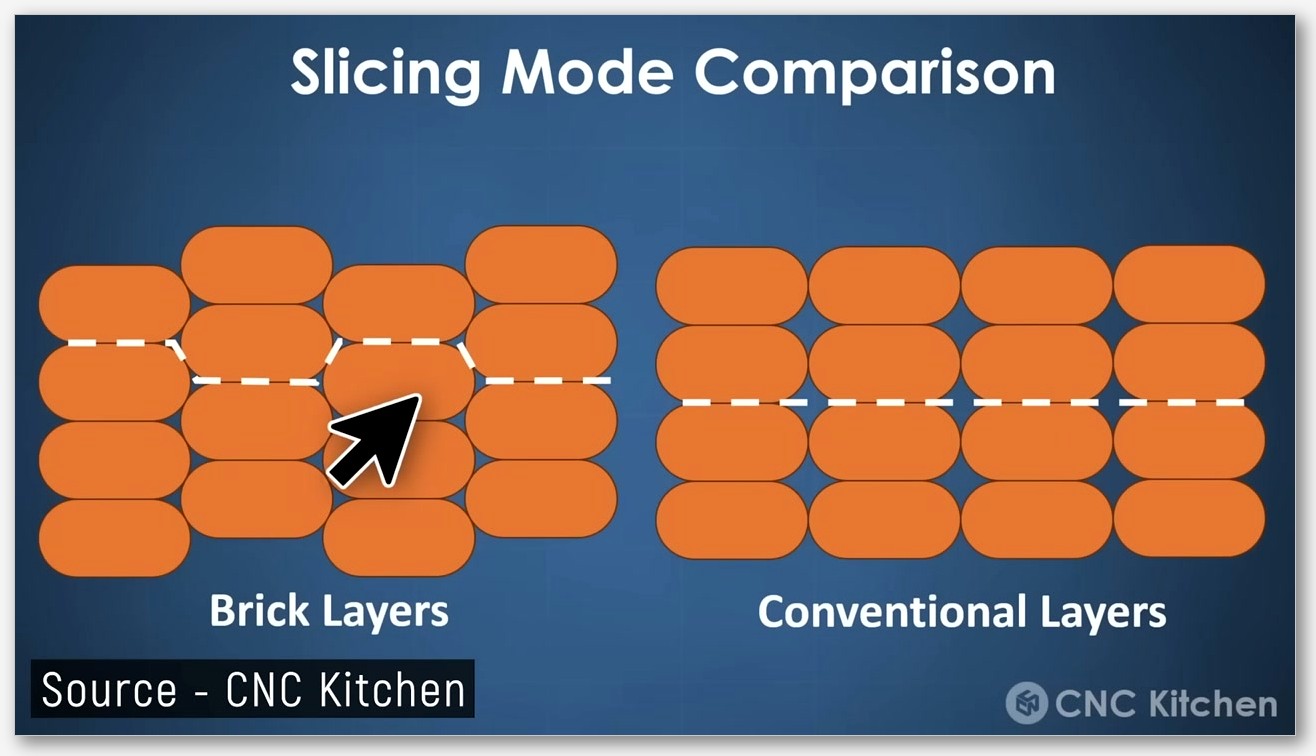
OrcaSlicer’s slice job, simplified, runs four heavy phases back to back. First, it slices the triangle mesh into 2D layers (this is where high triangle counts hurt). Second, it generates perimeters and walls per layer, where Arachne does extra dynamic-width math that Classic doesn’t. Third, it does support generation, which on the Organic style is genuinely expensive, especially in 2.3 (more on that below). Fourth, it generates infill and the actual G-code paths, where Resolution and arc fitting come into play.
If your slice freezes or stalls in the first 25 percent, you’re almost always looking at a triangle-count or mesh problem. If it stalls between 30 and 70 percent, supports or walls are usually the culprit. If it hangs near the end, it’s typically infill or G-code generation choking on density and pattern. I keep an eye on the progress bar and Task Manager together now, because that combo tells me which lever to pull.
Single-threaded reality, what’s parallel and what isn’t
Here’s the honest part nobody likes hearing. OrcaSlicer’s slicing core is largely single-threaded for many phases. Some sub-tasks parallelize across cores, but the critical path through a slice job spends a lot of wall-clock time on a single thread. That’s why, when you watch Task Manager during a long slice, you’ll often see one core pinned to 100 percent while the other 23 cores on your fancy threadripper sit at 4 percent each. That’s not a misconfiguration on your end. It’s just where the code is right now.
This is also why “Slice All” across multiple plates runs sequentially today. There’s an open feature request, issue #11991, asking for parallel multi-plate slicing, with the OP pointing out that “slicing distinct plates is a perfect candidate for parallelization because Plate A’s G-code generation has zero dependency on Plate B.” It’s open, no ETA, and until then your only option is a manual workaround (covered later).
GPU acceleration is a preview thing, not a slice-speed thing
I’ve watched people spend a hundred bucks upgrading their GPU because they read somewhere that OrcaSlicer benefits from it. Don’t. The GPU in OrcaSlicer is used for the 3D viewport (rotating the model, the layer-preview slider, that kind of thing), not for the slicing math itself. A faster GPU will make the preview tab smoother, especially on big plates with lots of objects. It will not shave seconds off the actual slice operation. If your slicing speed is the bottleneck, money is better spent on a faster CPU with strong single-thread performance, or just more RAM.
Diagnose first, figure out which kind of slow you have
I learned this the hard way. The settings that fix “frozen at 75 percent” are completely different from the settings that fix “stalls partway through every re-slice.” Pattern-match your symptom first, then go to the relevant section. Otherwise you’ll change ten things, the slice will still be slow, and you’ll have no idea which of those ten was actually relevant.
Does it freeze at a specific percentage?
If your slice climbs to 75 percent, sits there for a long time, and eventually either crashes or gets killed by your OS, you’re almost certainly hitting memory exhaustion. There’s a named precedent for this: GitHub issue #9094, opened 26 March 2025 against OrcaSlicer 2.3.0. The reporter was on Arch Linux with 31.3 GiB of RAM, and the symptom was exactly that: “halts at 75% during slicing and consumes memory until the operating system terminates the process.” That issue was closed, linked to PR #9115 as the fix, so first thing to check is whether you’re on a build that includes that PR. If you’re on 2.3.0, update.
If you’re already on 2.3.2 and still seeing the 75-percent freeze, it’s probably a different memory pressure issue specific to your model. The most common cause I see is a multi-million-triangle mesh with organic supports turned on. We’ll get to fixing that. For broader symptoms (slice never completes, prints stop mid-job, etc.) I’ve collected related cases in the print stops mid-print troubleshooting writeup.
Does CPU usage sit at 20 percent instead of 90-plus?
If you watch Task Manager during the slice and your CPU is at 15 to 25 percent instead of pinning a core, that’s a scheduling-or-state problem, not a missing-horsepower problem. Two known scenarios.
One: you’ve already sliced the model once, then changed layer height (or another major setting) and re-sliced. Issue #9397 documents exactly this. The reporter’s initial slice took about 47 seconds; subsequent slices after settings changes took “2+ minutes or longer,” with CPU utilization dropping from 90-100 percent to about 20 percent. The OP’s workaround, which I’ve confirmed on my own machine, is the simplest fix in this whole article: save the project, close OrcaSlicer entirely, reopen it. Then re-slice. The reporter wrote that “reloading the project restores normal performance.” It does.
Two: you’re on a 12th or 13th gen Intel CPU with E-cores enabled and you’re slicing a complex model. Issue #8227 covers this case explicitly: “Orca Slicer will consistently trigger errors and crash when slicing complex models (>500000 triangles) with efficiency cores enabled.” We’ll cover the exact mitigations in the machine-side section, but if you’re on Windows with an Intel hybrid CPU and your slice keeps crashing on big files, this is your issue.
Did slicing get worse after upgrading from 2.2 to 2.3?
This one stings, because the regression is real and there’s no fix coming. Issue #9064 documents organic tree supports getting dramatically slower between 2.2 and 2.3. The reporter’s exact numbers, from their own test files: on a laptop, “OrcaSlicer 2.2 | 3.8 seconds” versus “OrcaSlicer 2.3 | 1 minute 48 seconds.” On a desktop, “2.2 Release: ~2 seconds” versus “2.3-beta through 2.3 Final: ~32-33 seconds.” For comparison, the same file in PrusaSlicer 2.91 sliced in 1.8 seconds. The issue was closed as not planned. The hardware was an Intel i5-1235U laptop with 16 GB RAM and a Ryzen 7 3700X desktop with 32 GB RAM, so this isn’t a low-spec problem.
Caveat I have to repeat: those numbers are from one user’s test files. Don’t assume your model will scale the same way. But if you upgraded from 2.2 to 2.3 and your tree-support-heavy slices got dramatically slower, you’re not imagining it, and switching from Organic to Slim or Hybrid tree style is the workaround we’ll cover.
Is the UI lag just on Linux plus NVIDIA plus Wayland?
If you’re on Linux with an NVIDIA GPU running a Wayland session, and the slowness shows up as input lag (typing in fields, dragging the model around) rather than slice-time, you’re in the territory of issue #8415. The reporter, on Arch with KDE/Wayland and an RTX 3090, described “Extreme lag when trying to move model on plate” with “1-10 second delays” and “Typing scale percentage values experiences 3-10 second latency.” That’s not a slicing-core problem, it’s a UI-layer compositor interaction. I’d try logging into an X11 session as a quick A/B test. If the lag vanishes on X11, you’ve confirmed the cause. AppImage versus Flatpak is also worth trying, since Flatpak adds a sandbox layer.
Quick triage table
Here’s how I mentally route a complaint when somebody pings me:
- Stalls at 75 percent, RAM climbs forever: memory issue, see issue #9094.
- Slow only after re-slice with changed settings: state issue, save-close-reopen, see issue #9397.
- Crashes on big models on Intel 12th/13th gen Windows: E-core scheduling, see issue #8227.
- Tree-support models slower than 2.2: organic regression, switch tree style, see issue #9064.
- UI input lag on Linux NVIDIA: compositor issue, try X11, see issue #8415.
- App takes ~90 seconds to open and shows blank screen on 2.3.2: see issue #13239 below.
- None of the above: probably triangle count plus Resolution. Skip to the settings section.
If you want a wider safety net for slicer issues that aren’t strictly speed-related, the general OrcaSlicer troubleshooting hub covers crashes, plugin issues, and printer-link problems too.
Settings you can change today inside OrcaSlicer
This is the section most people came here for. Five settings, in rough order of impact for high-poly or complex models. I’ll quote the wiki definitions verbatim where they exist, because paraphrased setting descriptions are how myths start.
Drop the tree-support style from Organic to Hybrid or Slim
If you’re using tree supports on a 2.3.x build and you don’t strictly need the Organic style, switch to Hybrid or Slim. The Organic stack got a major code update in PR #8212 (merged 26 February 2025), which the description calls “the latest changes from BBS, including vertical support painting. Huge PR, lots of tests are needed.” Whether or not that specific PR caused the slowdown documented in #9064 is something I can’t claim, since the issue authors didn’t pin a specific commit. What I can tell you is that the regression is real and the issue was closed as not planned, so the workaround is on you.
The setting is in Process settings under the Support section, and the wiki documents the relevant tree-support knobs verbatim: “Tip Diameter” (described as “Branch tip diameter for organic supports”), “Branch Distance” (“This setting determines the distance between neighboring tree support nodes”), “Branch Density” (“Adjusts the density of the support structure used to generate the tips of the branches. A higher value results in better overhangs but the supports are harder to remove”), “Branch Diameter,” “Branch Diameter Angle,” “Branch Angle,” and “Preferred Branch Angle.” If you must keep Organic, look hard at Branch Density and Branch Distance. Higher density and shorter distance both mean more nodes, which means more compute time per slice.
 tree supports deep dive, including which style I personally pick for minis versus mechanical parts.
Switch the Wall generator from Arachne to Classic for high-detail models
OrcaSlicer ships with two wall generators. The wiki defines them precisely. Classic is “a simple and reliable method used in many slicers. It creates as many walls as possible (limited by Wall Loops) by extruding along the model’s perimeter using the defined Line Width.” Arachne “dynamically adjusts extrusion width to follow the shape of the model more closely. This allows better handling of thin features and smooth transitions between wall counts.”
Arachne is genuinely better for thin features and produces smoother results on organic shapes, which is why it’s the default. But it does more math per layer than Classic, and on a high-poly model that math adds up. If your priority is slice speed and you’re not specifically chasing the thin-feature handling Arachne offers, switching to Classic is a valid trade. I won’t quote a percentage because no primary benchmark exists, but you will feel it on a long slice.
 OrcaSlicer settings master guide.
Two related Precision settings worth naming so you don’t confuse them. Slice gap closing radius (`slice_closing_radius`) is described in the wiki as “Cracks smaller than 2x gap closing radius are being filled during the triangle mesh slicing.” It’s about repairing tiny mesh gaps, not about speed. Arc fitting (`enable_arc_fitting`) is described as “Enable this feature to replace many short straight moves (G1 segments) with fewer circular arc commands,” with the explicit note that “Arc fitting mainly changes how the toolpath is encoded in G-code. It can be beneficial in some workflows, but it is not a feature to improve quality.” Arc fitting affects G-code size, not slice time, so don’t expect it to speed up slicing.
Pull back adaptive (variable) layer height
Adaptive layer height (the wiki calls it Variable Layer Height) is a great quality feature. It does, however, add slicing-time cost because the slicer has to compute per-region heights instead of using a fixed value across the whole model. The wiki describes the feature as “dynamic adjustment of layer heights throughout the print, optimizing both print quality and speed,” with the Quality preset that “prioritizes finer details by using smaller layer heights in intricate areas, resulting in higher print quality but longer print times” and the Speed preset that “focuses on faster printing by utilizing larger layer heights in less detailed areas, reducing print time but potentially sacrificing some detail.”
Notice that the speed-vs-quality trade in those quotes is about print time, not slice time. The slice itself gets slower no matter which preset you pick, because computing the per-region layer plan is extra work. There’s also a hard limitation worth knowing: organic tree supports are not yet compatible with variable layer height. So if you’re running both, you’re fighting the slicer.
If you’re committed to using adaptive layer height on a complex model, the Smooth radius parameter (described as “a Gaussian filter that smooths the transition between different layer heights. A larger radius results in a smoother transition”) will affect the look of the result, not the time it takes. For a more focused walkthrough of adaptive layer height settings, see the adaptive layer height writeup.
Use Simplify Model on high-triangle imports
If you imported a 200 MB STL of a sculpted bust and you don’t actually need 4-million-triangle fidelity at a 0.4 mm nozzle, OrcaSlicer ships with a built-in mesh decimator. Right-click the object on the Prepare tab, choose Simplify Model, and you get a dialog with two controls. The wiki names them verbatim: Decimate Ratio (“Adjust the ratio between the original model’s polygon count and that of the simplified model”) and Detail Level (“Control the level of detail in the simplified model by choosing from five preset options”).
A Decimate Ratio of 0.5 yields about half the original polygon count, which roughly halves the work in the mesh-slicing phase for that model. I usually start at 0.5 on anything over 100 MB and visually compare the result to the original. For most printable models, you simply cannot see the difference at common layer heights, but the slicer can.
Reduce the model itself before it ever hits the slicer
The fastest slice is the one you don’t have to do. A lot of “OrcaSlicer is slow” complaints are really “I gave OrcaSlicer way more geometry than my print resolution can use” complaints. Some of the biggest wins are upstream of the slicer entirely.
Decimate Ratio and Detail Level inside Simplify Model
I covered the in-app dialog above, but it’s worth saying again because it’s the lowest-effort biggest win for organic high-poly imports. The five Detail Level presets give you a quick way to A/B compare without sliding the ratio bar yourself. If you’re paranoid about losing detail, save the simplified mesh as a copy and overlay them in your viewport. Nine times out of ten, at typical print scale, you can’t see the difference.
External tools (Meshmixer, Blender’s decimate modifier, MeshLab) give you more control if you want it. But for most cases, the built-in Simplify Model is enough, and the workflow is faster.
Splitting a multi-part STL into separate plates
If you’ve got a multi-part assembly bundled into a single STL, OrcaSlicer can split it (right-click, Split, To Objects or To Parts), but more often than not, what you want is to split the print across multiple plates and slice them separately. This is partly about slice time (a smaller plate slices faster) and partly about the multi-plate slicing limitation we already covered (Slice All runs sequentially, see issue #11991).
If you’ve got, say, six parts that fit comfortably on one plate but you keep slicing the whole bed each time you tweak one part, consider splitting your project into separate .3mf files per plate. You’ll lose the convenience of a single project, but each individual slice is much faster, and you can rerun only the plate you actually changed.
Skip “Print sequence by object” unless you need it
Print sequence by object is the feature where the printer finishes one object completely before starting the next, instead of layer-by-layer across the whole bed. It’s necessary for some workflows (avoiding stringing across small parts, printing in batches with different filaments swapped manually), but it adds slicing complexity because the slicer has to compute non-overlapping print zones per object and check the toolhead’s collision envelope against already-printed parts.
If you turned it on once and forgot, switch it back to default unless you specifically need by-object behavior. It’s a small win on most models, but it adds up on big multi-object plates.
Machine-side fixes that actually matter
Now we’re out of the slicer and into the host system. These fixes apply when the slicer itself is configured fine but your machine is fighting it.
Intel 12th and 13th gen E-core mitigation (Windows only)
If you’re on Windows with an Intel hybrid CPU (12th or 13th gen, the ones with P-cores and E-cores), you can hit the bug documented in issue #8227. The exact wording from the issue: “Orca Slicer will consistently trigger errors and crash when slicing complex models (>500000 triangles) with efficiency cores enabled.” The reported exception code was c0000005 (Access Violation). The reporter was on an i9 13800K with 128 GB DDR4 and an RTX 4090 on Windows 11 Pro 23H2, so this isn’t a “your hardware is too weak” situation.
The issue lists two reported workarounds verbatim: “Disabling e-cores in the BIOS” and “Setting a permanent affinity for Orca Slicer to avoid the e-cores.” The issue is closed as not planned, which means the OrcaSlicer maintainers don’t intend to ship a fix, so applying one of these workarounds yourself is the path forward. I personally use the affinity approach because I don’t want to permanently kill my E-cores for everything else on the machine. In Task Manager, find the OrcaSlicer process under Details, right-click, choose Set Affinity, and uncheck the E-core entries. You’ll have to redo this every time you launch OrcaSlicer unless you script it or use a third-party affinity manager.
Important caveat the issue makes explicit: this applies to Windows on Intel hybrid CPUs only. Don’t apply this thinking on AMD Ryzen, Mac, or Linux, those platforms have different scheduling models and this isn’t your bug.
RAM headroom and the 75 percent freeze pattern
The “stalls at 75 percent and consumes RAM until the OS kills it” pattern is documented in issue #9094, against 2.3.0. PR #9115 was the linked fix, so first thing to confirm is that you’re on a build that includes it. After that, the practical advice is the boring kind: give the slicer headroom. Close the tabs in your browser, close the second IDE you’re not using, close Discord. On a 16 GB machine, slicing a 200 MB-plus model with two browsers and Spotify open is asking for trouble.
I won’t quote a “minimum recommended RAM” because the OrcaSlicer README doesn’t publish one and any number I pick would be made up. What I can say from my own use: on 16 GB, large multi-million-triangle models with organic supports will push you toward swap, and once you swap, you’ve already lost. On 32 GB, I rarely see RAM as the bottleneck on any model I’ve tried.
Close CAD before slicing
This sounds obvious. People still don’t do it. Issue #3899 reported “When the slicer is open, my computer starts lagging like a hell, specially when CAD software + Orca Slicer are running together.” That issue’s still open with a “Need more information” label, but the pattern is real and easy to verify yourself: Fusion 360 and OrcaSlicer both want serious chunks of RAM and CPU, and they don’t share well. If you’re iterating on a CAD model and slicing as you go, close CAD before each slice or at least save and minimize it. The few seconds you spend reopening CAD afterwards are way less than the minutes you’ll lose to a contended slice.
GPU driver and dedicated-GPU selection (for the preview tab)
This one’s only for the preview tab, but if your laptop has both an integrated GPU and a dedicated GPU and OrcaSlicer keeps falling back to the integrated chip, the preview tab will feel sluggish even if your slice times are fine. On Windows, force OrcaSlicer to use the dedicated GPU through Settings, System, Display, Graphics, and adding OrcaSlicer to the high-performance list. On NVIDIA Optimus laptops, you can also do this in the NVIDIA Control Panel.
Driver updates also matter. Issue #8415 on Linux specifically called out NVIDIA driver 570.86.16 as the version where the Wayland UI lag showed up. If you’re on Linux with NVIDIA and you’re hitting input lag, try a different driver version, or switch to an X11 session as a quick test.
When the bug isn’t yours, known OrcaSlicer 2.3.x slow-slicing issues
Sometimes the slicer is just buggy and your time is better spent applying a workaround than tweaking settings. Here’s the rundown of the documented 2.3.x slow-slice issues, with current status and what to do about each.
Issue #9064, organic-support regression in 2.3
The biggest documented one, opened 24 March 2025, closed as not planned. Organic tree supports got dramatically slower from 2.2 to 2.3. The reporter’s own numbers, on his hardware: 2.2 finished in seconds, 2.3 took multiple minutes for the same file with the same settings. The issue is at https://github.com/OrcaSlicer/OrcaSlicer/issues/9064. Workaround: switch tree style to Slim or Hybrid. If you must use Organic, accept the longer slice times or stay on 2.2. There is no fix coming.
Issue #9397, re-slice slowdown after layer-height change
Opened 18 April 2025, affecting 2.3.0 and 2.3.1-dev. Initial slice was about 47 seconds, subsequent slices after settings changes “2+ minutes or longer,” with CPU dropping from 90-100 percent down to about 20 percent. Closed and linked to PR #7177. Workaround: save project, close OrcaSlicer, reopen, re-slice. The OP’s exact phrasing was that “reloading the project restores normal performance.” Issue is at https://github.com/OrcaSlicer/OrcaSlicer/issues/9397.
Issue #13239, 90-second open time in 2.3.2
This is the canonical “OrcaSlicer takes forever just to open” reference for 2.3.2. Opened 16 April 2026 against 2.3.2 on Windows 11 (25H2), i7-13700K, 32 GB DDR5, RTX 4090. The symptom: “approximately 90 seconds to launch, and the home/project screen displays no content once opened.” Status: open, no fix yet. The reporter found a workaround that’s almost too dumb to believe but does work: “changing the language temporarily resolves the issue until the application restarts.” Switch the UI language to something else, switch it back, and the home screen renders. Issue is at https://github.com/OrcaSlicer/OrcaSlicer/issues/13239.
Issue #11991, Slice All is sequential (open feature request)
Opened 17 January 2026, still open. The OP’s reasoning is solid: “slicing distinct plates is a perfect candidate for parallelization because Plate A’s G-code generation has zero dependency on Plate B.” Until this lands, multi-plate users have one workaround: split the project into separate .3mf files per plate, open multiple OrcaSlicer instances, and slice in parallel manually. It’s clunky but it works on a multi-core box. Issue is at https://github.com/OrcaSlicer/OrcaSlicer/issues/11991.
Workflow tactics that compound
These are habits, not settings. Each one saves you a small amount of time per slice. Done together over a project’s lifetime, they save you hours.
Save, close, reopen between major setting changes
Already covered in the diagnosis section, but worth repeating as a habit. If you’ve changed layer height, switched wall generator, or toggled Organic supports, save the project, close OrcaSlicer, and reopen before re-slicing. Issue #9397 documents the state-corruption pattern this avoids. It costs you 15 seconds and saves you several minutes per affected re-slice.
Slice plates one at a time, in separate instances
If you have a multi-plate project, especially one with a heavy plate and several lighter plates, don’t rely on Slice All. Split the project, run two or three OrcaSlicer windows side by side, and slice each plate independently. On a multi-core CPU, you’ll often see real wall-clock savings because the OS is now scheduling separate processes that can each pin a different P-core, even though within each process the slice itself is largely single-threaded.
Switch UI language to English if you see runaway preview-tab CPU use
Niche but documented. Discussion #4315 from March 2024 reported that “the slowdown correlates with localization settings. English and Italian localizations performed normally, while Russian and Ukrainian translations triggered high resource consumption, particularly in the slice preview mode.” This is a forum-thread observation, not a confirmed and patched bug, so frame it as a diagnostic: if you’re using a non-English UI and your preview tab CPU is wild, switch to English temporarily and see if it normalizes. If yes, you’ve found your cause. If no, the localization isn’t your problem.
What OrcaSlicer 2.3.x release notes actually changed
I want to head off a common assumption: that the next OrcaSlicer release will magically make your slicing faster. It won’t, at least not based on what the 2.3.x release notes have shipped so far. I went and checked all three.
2.3.0, no documented slicing-speed improvement
The 2.3.0 release notes contain no verbatim mention of slicing-speed, parallel processing, multithreaded improvements, tree-support performance, Arachne speedups, RAM optimizations, AutoSlice, or preview-rendering improvements. The 2.3.0 notes focus on profile backups, brim generation, bug fixes, file extensions, infill defaults, translations, and printer-profile updates. Treat that as direct evidence: 2.3.0 didn’t ship a slicing-speed improvement.
2.3.1, no documented slicing-speed improvement
The 2.3.1 release notes also have no verbatim performance or speed entries. Same story: feature additions, fixes, profile updates, no general “slicing got faster” item.
2.3.2, AutoSlice, cancellable beam interlocking, no general speed bump
The 2.3.2 release notes shipped a few things worth knowing. There’s one related responsiveness item: “Allow cancellation during beam interlocking generation,” meaning at least one phase that used to lock the UI is now interruptible. The user-facing 2.3.2 changes focus on a 3MF path-traversal security fix, a dynamic title bar, accordion tabs, configurable Wipe Tower Type (the “Type 2” wipe tower variant), Linux/Flatpak fixes, Multi-Line Infill, Flow Rate per feature, Brim with Elephant Foot Compensation, Auto-Slice on changes, and Instances replacing classic clones. None of those are general slicing speedups.
So if you’re stuck on 2.3.0 hoping that updating will solve your slow slicing, it probably won’t. Update for the security fix and the bug fixes, but don’t expect a speed transformation.
Realistic expectations and what NOT to chase
Some “tips” I see floating around online are flat wrong. Killing the time you’d spend chasing them is itself a kind of speedup.
There is no “GPU slicing”
I covered this above but it bears repeating, because every few weeks somebody asks me whether their RTX 4090 will speed up slicing. The GPU drives the preview viewport. The slicing math runs on the CPU. No amount of GPU upgrade, driver tuning, or “enable hardware acceleration” toggle will move slice time. If anyone tells you otherwise, ask for a primary source. There isn’t one.
There is no “performance” tab to flip
OrcaSlicer 2.3.x has four tabs: Prepare, Preview, Device, Project. There is no Performance tab, no Optimization tab, and no hidden master switch for “fast mode.” If a guide tells you to find one, that guide is wrong. The actual speed-relevant settings live inside the Process settings panel under Quality, Support, and Speed sections, not under a magic top-level tab.
There is no benchmark proving OrcaSlicer beats PrusaSlicer by X percent
“OrcaSlicer is 30 to 50 percent faster than PrusaSlicer” is a claim that floats around in third-party blog summaries. I went looking for the primary source. There isn’t one in any GitHub release note or wiki page. In some user-reported cases, OrcaSlicer is actually slower. Issue #6348 documents Ubuntu users seeing “OrcaSlicer: 8 seconds for test model” versus “PrusaSlicer: 1-2 seconds for same model,” with large plates “sometimes required over one minute in OrcaSlicer.” Closed as not planned. So the honest answer is: it depends on the model, the platform, and the settings. Don’t pick OrcaSlicer for raw slice speed alone, pick it for the calibration tools, the per-printer profile coverage, and the active feature development.
FAQ
Why does OrcaSlicer 2.3 take 30-plus seconds when 2.2 took 2 seconds for the same file with organic supports?
Because of the regression documented in issue #9064. The reporter’s own numbers showed roughly that scale of slowdown for organic tree supports between 2.2 and 2.3. The issue was closed as not planned, so a fix isn’t coming. Workaround: switch tree-support style to Slim or Hybrid, or stay on 2.2 for organic-heavy projects.
Is it safe to disable Intel E-cores in BIOS just for slicing?
It is technically safe, but it’s a global change that affects everything else on the machine. Disabling E-cores will reduce your overall multi-threaded throughput in apps that use them well (video encoders, parallel builds). I’d try setting CPU affinity per OrcaSlicer process first, since that’s per-app and reversible. If you’re slicing constantly and your workload doesn’t otherwise benefit from E-cores, BIOS-disable is fine. Both options are listed verbatim as workarounds in issue #8227.
Will more RAM make slicing faster?
Only if RAM is your bottleneck. If your slicer is paging to disk, more RAM helps a lot. If you have plenty of headroom and your CPU is pinned at 100 percent on a single core, adding more RAM does nothing. Watch Task Manager during a slice. If RAM is climbing toward your total and you’re seeing disk activity light up, you need more RAM. If RAM is steady at 8 GB used out of 32 and one CPU core is pegged, RAM isn’t the issue.
Does upgrading from 2.3.0 to 2.3.2 help with slow slicing?
Not for general slicing speed. None of the 2.3.x release notes (2.3.0, 2.3.1, 2.3.2) mention generic slicing-speed improvements. 2.3.2 does add cancellable beam interlocking and PR #9115 was the linked fix for the 75-percent memory-leak issue, so update for those, but don’t expect your big slice to magically get faster after the version bump.
Can I run OrcaSlicer on a laptop with 8 GB RAM?
You can run it. Whether you can comfortably slice a 200 MB STL with organic tree supports on it, no. The OrcaSlicer README doesn’t publish official minimum specs, so any number I’d give you is a guess. From my own experience, 8 GB is fine for small mechanical parts and basic prints, painful for high-poly miniatures, and a recipe for swap and freezes on multi-plate projects.
Does the GPU affect slicing speed?
No, only preview rendering. Slice time is bound by your CPU’s single-thread performance and your RAM. Buy CPU and RAM, not GPU, if your goal is faster slicing.
Why does my slice get to 75 percent then crash my machine?
Most commonly, memory exhaustion. Issue #9094 documented exactly this pattern on 2.3.0. PR #9115 was the linked fix. First, confirm you’re on a build that includes that PR by updating to current 2.3.2 or later. If you still see it, your model is probably too large for your available RAM. Reduce the triangle count with Simplify Model, switch tree-support style off Organic, and free up RAM by closing other apps before slicing.
Why does OrcaSlicer take 90 seconds just to open?
If you’re on 2.3.2, you’re probably hitting issue #13239, which is open with no fix yet. The OP’s workaround is to change the UI language temporarily, which restores the home screen until the next restart. Awkward but it works.
If you only fix one thing tonight, fix the tree-support style: drop Organic to Hybrid or Slim on your next big slice and see if your wall-clock time gets back to something reasonable. Combine that with a Simplify Model pass at 0.5 ratio on any STL over 100 MB, and you’ve handled the two biggest categories of slow-slicing complaint without changing a single line of advanced settings. The rest of this article is for the days when those two don’t get you all the way there. For broader troubleshooting that spans more than slicing speed (crashes, plugin failures, printer-link breakage), the general troubleshooting hub I linked earlier is where I’d start. And when you’re ready for a fresh build of OrcaSlicer with the latest fixes, grab it from the official OrcaSlicer GitHub releases page.
Related OrcaSlicer guides
- OrcaSlicer for Beginners: Your First Print in 15 Minutes
- OrcaSlicer Won’t Find My Printer on the Network: Mac and Windows Fixes
- OrcaSlicer Webcam and Live View Setup for Remote Monitoring
- How to Send G-code Wirelessly From OrcaSlicer: Per-Printer Walkthrough
- OrcaSlicer Project Files (.3mf): How to Save and Share (2026 Guide)