
My first multi-color print on a Bambu AMS was a four-color Pokeball that came off the plate looking like a tie-dye experiment. The wipe tower was nearly as tall as the model, half my purge was wasted on a transition I didn’t actually need, and I’d spent twenty minutes trying to figure out why OrcaSlicer kept showing slot 2 as “Generic PLA” when I’d loaded Bambu Matte. That was my crash course in how the AMS actually talks to OrcaSlicer, and where the conversation tends to break down.
I’m writing this guide on May 13, 2026, and the AMS family is now four distinct units instead of one. Mixing them up is the single fastest way to buy the wrong hardware or generate a print that fails on the first filament swap. If you’ve been Googling “orcaslicer bambu ams” and getting a mess of conflicting advice from 2023 forum posts, this is the current map: what each AMS variant does, how to pair it with OrcaSlicer in either cloud or LAN mode, how to actually configure slots, how to tune the wipe tower so you stop wasting half your spool on purge, and the quirks (TPU, abrasives, RFID, the Bambu Connect middleware drama) that nobody warns you about until you’ve already wasted a roll.
This is a third-party guide. We’re not the official Bambu site, and we don’t host the slicer. If you need the binary, grab it from SoftFever’s GitHub releases. Everything below is what I’ve learned running OrcaSlicer with an X1C plus standard AMS, a P1S with an AMS 2 Pro, and an A1 mini with an AMS Lite. I’ll flag what’s verified, what’s known-broken, and what the official docs are deliberately vague about.
Table of contents
- The four AMS units in 2026 (compatibility matrix)
- Connecting your Bambu AMS to OrcaSlicer
- Slot configuration and filament sync
- Multi-color workflow: painting, wipe tower, purge tuning
- Limitations and gotchas (TPU, abrasives, humidity, spool size)
- AMS firmware quirks and troubleshooting
- Bambu-specific OrcaSlicer features worth knowing
- FAQ
- Final CTA
The four AMS units in 2026: don’t conflate them
Before I touch OrcaSlicer settings, I have to draw a line under what Bambu actually sells right now, because the comment sections of every AMS video are still full of people insisting the AMS Lite works on their P1S. It doesn’t. There are four distinct units, plus a hub accessory, and they’re not interchangeable.
AMS (original)
The unit Bambu launched with the X1 in 2022. Four slots, enclosed plastic enclosure, passive desiccant tray that you swap when the indicator changes color. Spool spec is width 50 to 68 mm and outer diameter 197 to 202 mm. RFID reads any Bambu-branded spool automatically. It’s compatible with the X1, X1C, X1E, P1S, P1P (after the early-2024 firmware update), and the H-series. It is not compatible with the A1 or A1 mini.
AMS Lite
The open-air four-spool unit that ships with the A1 series. No enclosure, no humidity control, no desiccant. Spool spec is width 40 to 68 mm and inner core 53 to 58 mm. And here’s the part people keep missing: AMS Lite is locked to the A1 and A1 mini. It physically uses a different connector and a different firmware path. It does not work on the X1C, P1S, P1P, X1E, or anything in the H-series. If you’re shopping for an AMS for your X1C, you don’t want this one.
One AMS Lite per A1-series printer gets you four colors. The A1-series AMS Hub lets you stack more, but with a catch I’ll cover below.
AMS HT (high-temperature, 2025)
The 2025 single-spool unit aimed at engineering filaments. It’s not a four-slot box; it’s one spool with active heating up to 85°C for drying, a brushless servo feeding motor, and ceramic filament inlets (Bambu lists them around Vickers 1200) so it doesn’t chew itself apart on abrasive carbon-fiber or glass-fiber blends. Each AMS HT needs its own 220 V external power brick because it draws too much for the printer to feed it directly.
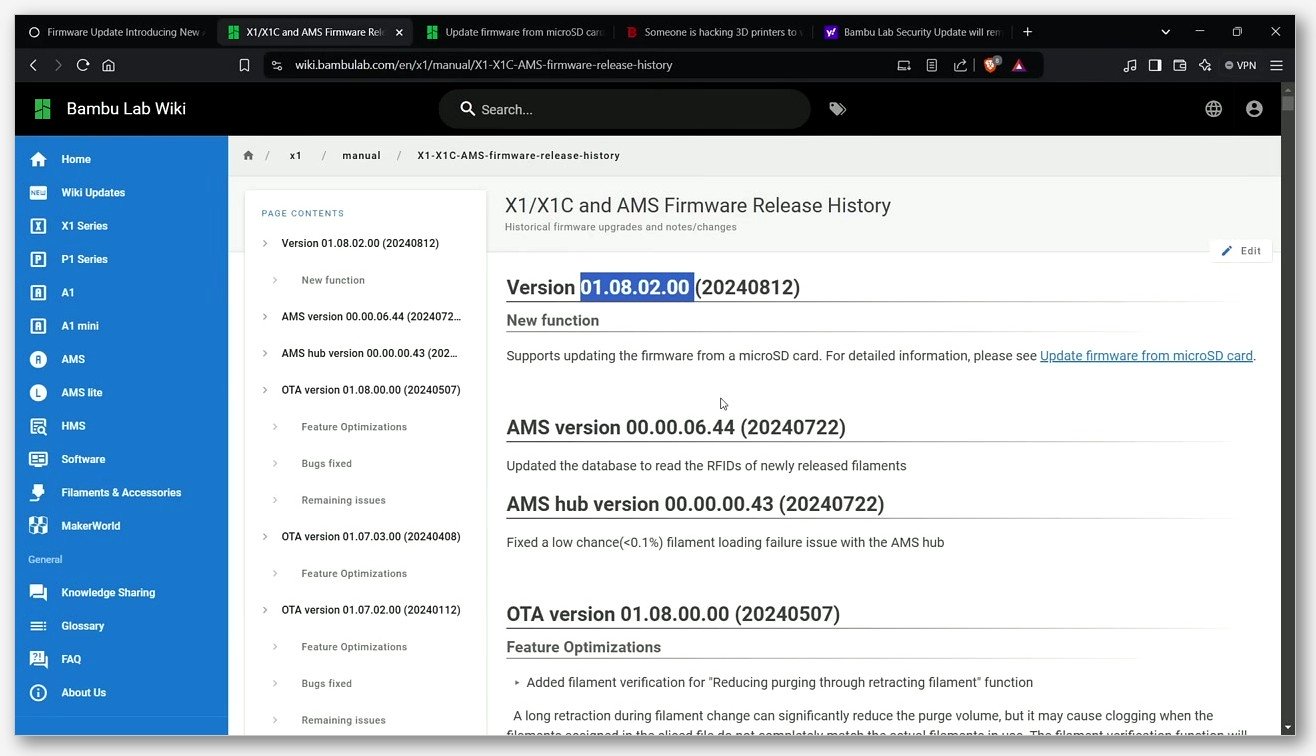
Compatibility rolled out via OTA during 2025: X1 and P1 series got it earlier in the year, A1 and A1 mini got support later in 2025. I’m being deliberately vague on exact firmware numbers because Bambu’s release notes shifted twice during the year and I’d rather you check your printer’s update page than trust a number I copy-pasted three months ago.
AMS 2 Pro
The four-slot unit that launched alongside the H2D. It looks like the original AMS but adds active drying (heater plus air circulation built in) and upgraded feeding motors that are quieter and noticeably faster on slot changes. It’s compatible with X1C, X1E, P1P, P1S, H2D, H2S, H2C, X2D, P2S, and (via the late-2025 OTA) the A1 and A1 mini. One caveat I want to be honest about: the drying function on the X1E was still listed as “under testing” in Bambu’s docs late last year, so if you’re on an X1E, verify in your current firmware before assuming drying works.
AMS Hub (and the A1-series hub)
There are two separate hub SKUs: the standard AMS Hub for X1, P1, and H-series, and the AMS Hub A1 Series for A1 and A1 mini. Either hub lets you chain up to four AMS units onto one printer, which gets you a maximum of 16 logical filament slots.
On the X1/P1/H hub you can mix any combination of AMS, AMS 2 Pro, and AMS HT. On the A1-series hub you can also mix AMS, AMS 2 Pro, and AMS HT. What you cannot do on either hub: add an AMS Lite. AMS Lite is firmware-isolated and won’t enumerate alongside the other variants.
Compatibility matrix (quick reference)
| Unit | Slots | X1 / X1C / X1E | P1S / P1P | A1 / A1 mini | H-series | Active drying |
|---|---|---|---|---|---|---|
| AMS (original) | 4 | Yes | Yes | No | Yes | No (passive desiccant) |
| AMS Lite | 4 | No | No | Yes (only here) | No | No (open-air) |
| AMS HT | 1 | Yes (OTA 2025) | Yes (OTA 2025) | Yes (OTA 2025) | Yes | Yes, up to 85°C |
| AMS 2 Pro | 4 | Yes (X1E: verify) | Yes | Yes (OTA late 2025) | Yes | Yes |
For the full official picture, the Bambu multi-model compatibility guide is the source of truth and is updated more often than any third-party page. If you’re picking which printer + AMS combo to start with, I’ve written more on the slicer side of each printer in our X1C and P1S guide and the A1 series guide.
Connecting your Bambu AMS to OrcaSlicer
This is where most of the support threads come from, and honestly, it’s not OrcaSlicer’s fault. It’s the post-2025 Bambu Connect situation. Let me explain what happened and then walk through both pairing paths.
The Bambu Connect middleware (yes, it matters)
In January 2025, Bambu rolled out a new authorization-and-authentication layer for X1-series firmware. The official blog post (still live at blog.bambulab.com) explains it as a security measure against unauthorized access to printer hardware. The practical effect for OrcaSlicer users is that anything that touches the printer remotely (sending a job, querying AMS slots, controlling cameras) now passes through a piece of middleware called Bambu Connect. The independent OrcaSlicer-BambuLab fork that briefly re-enabled the bypassed features got hit with a legal threat and was shuttered, which Tom’s Hardware covered at the time.
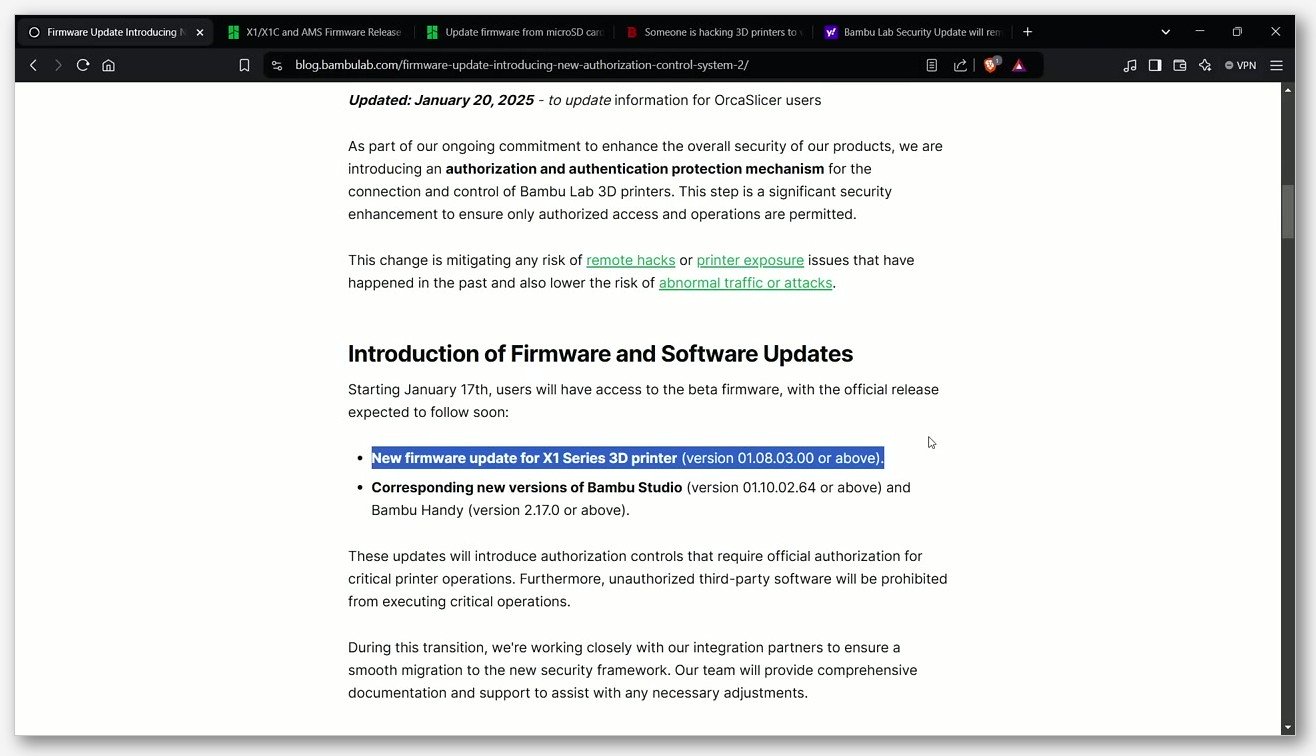
What this means in practice: in cloud mode, OrcaSlicer can still send prints to your printer through Bambu Connect, and the AMS panel still populates. But some interactions are now read-only or gated. The good news is that LAN-only mode bypasses most of this, at the cost of having to manually re-enter the access code and IP when things change.
Path A: Bambu Cloud pairing
This is the path most people land on by accident, and it’s the easiest for a first-time setup. You sign into your Bambu account inside OrcaSlicer (the top-right account icon), and any printer bound to that account shows up in the Device tab automatically. There’s no IP or access code to copy.
The setup flow:
- Open OrcaSlicer, click the account icon, sign in to your Bambu Cloud account.
- Make sure your printer is online and bound to the same account (you can verify on the printer’s LCD under Settings → Account).
- In OrcaSlicer’s Device tab, your printer should appear in the dropdown. Pick it.
- You should see a camera feed (on X1/H-series), nozzle and bed temps, and an AMS panel with one colored chip per loaded slot.
If you don’t see the AMS panel populating, give it about ten seconds. OrcaSlicer’s first request to the AMS is asynchronous and the panel can briefly say “no AMS detected” before the cloud round-trip completes. If it’s still empty after a minute, the most common cause is Stealth Mode being enabled on the printer (Settings → General → Stealth Mode). Turn it off.
Path B: LAN-only mode
This is the path I personally run. No cloud round-trip, faster response in the Device tab, works without internet, and it sidesteps most of the Bambu Connect gating. The downside is that you’ll re-enter the access code if your printer’s IP changes or if you reboot it after enabling LAN-only freshly.
To enable LAN-only on the printer:
- On the printer’s LCD: Settings → General → LAN Only Mode → enable.
- The printer generates an 8-character LAN access code. Write it down. It’s also accessible later from Settings → General → Network info.
- Note the printer’s local IP from the same Network info screen.
Then in OrcaSlicer:
- Device tab → “Add printer” → pick your Bambu model from the list.
- Enter the printer’s local IP and the 8-character access code.
- OrcaSlicer should immediately pull live AMS info: each loaded slot shows filament type, color swatch, and (for Bambu-branded spools) the remaining length from the RFID tag.
If you get an “access code rejected” error and you’re sure you typed the code correctly, the printer probably needs a power-cycle after enabling LAN-only mode for the first time. Issue #6169 on the OrcaSlicer repo has a long thread of users hitting this same wall; the fix is almost always a reboot.
SD-card fallback
When LAN’s flaky (some routers misbehave on multicast and the printer goes invisible), I fall back to SD card. Slice in OrcaSlicer, export the G-code (not the 3MF send-to-printer flow, the explicit Export G-code option), drop it on a MicroSD, insert into the printer, start from the printer’s LCD. The catch: the G-code references AMS slot indices by number, so your slot assignments in OrcaSlicer must already match what’s physically loaded. There’s no recovery if slot 2 in the file is supposed to be matte black but you’ve loaded matte white there. Always sync filaments before exporting.
Verifying everything is talking
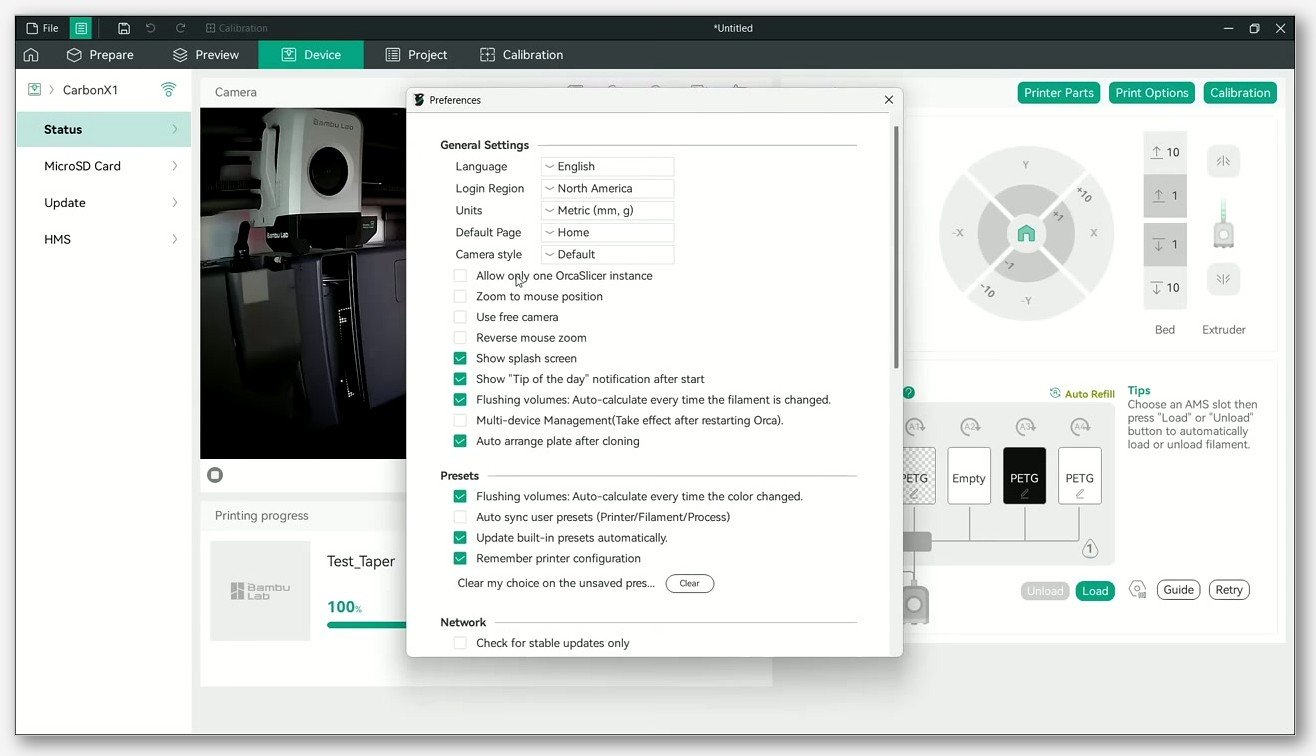
Once you’re connected, the Device tab should show: live camera feed (X1C and H-series only), bed and nozzle temperatures, and the AMS panel on the right with colored chips for each slot. If you click a chip and hit Load or Unload, the printer should physically respond within a couple of seconds. That’s your end-to-end confirmation that the link works in both directions.
Slot configuration and filament sync
This is the section where OrcaSlicer’s UI is mostly fine but the AMS-side behavior is where you lose hair. I’ve watched people slice a four-color print, hit Send, and wonder why the printer started on slot 1 with white when their slicer was clearly showing red as the first filament. Nine times out of ten the slot map didn’t sync.
The filament panel
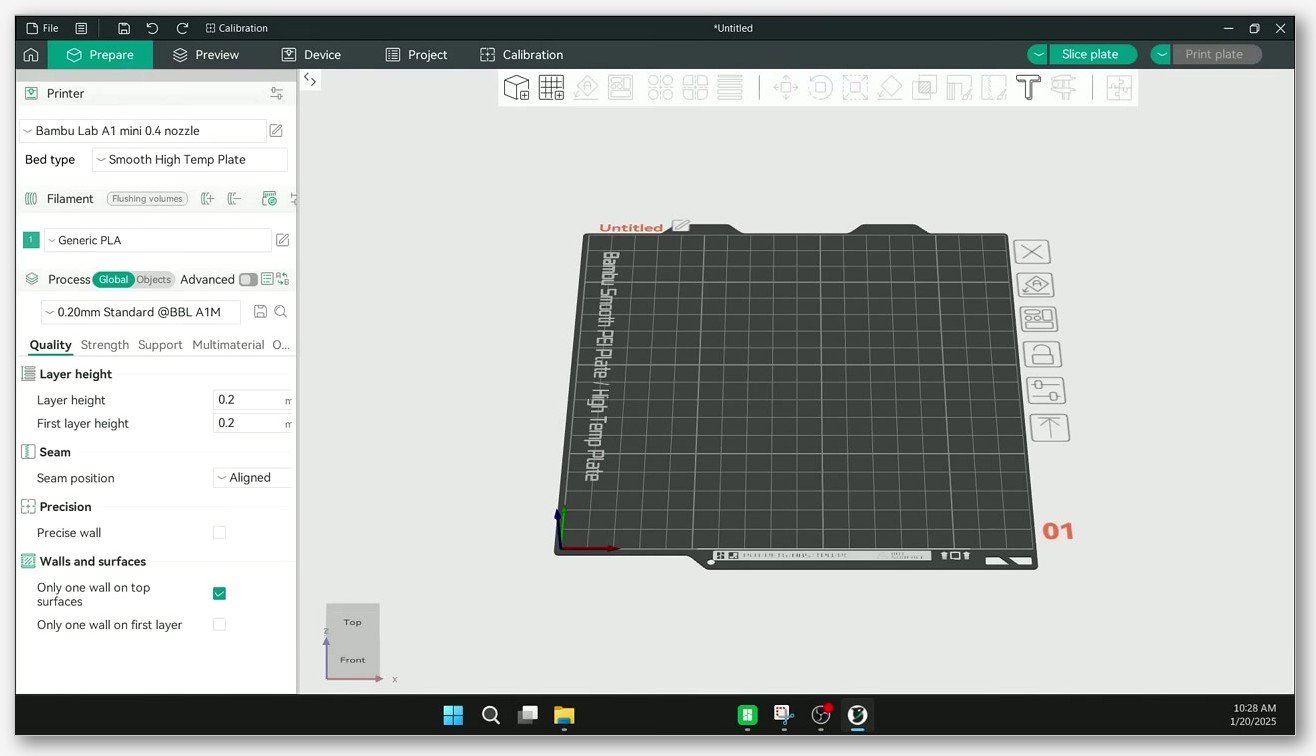
On the left side of OrcaSlicer’s Prepare tab, above the slice plate, there’s a vertical strip of colored swatches. Each one is a logical filament index (Filament 1, Filament 2, etc.), and at slice time they map to physical AMS slots. Right-click any swatch and you can change the filament profile (e.g., Bambu PLA Basic Black) and the color.
Sync filament list from AMS
The small icon next to the filament panel (looks like a circular arrow with a tag) is the “Sync filament list from AMS” button. Click it, and OrcaSlicer queries the connected AMS, then auto-populates the swatches with whatever Bambu detected: material type, color, and (for RFID spools) remaining length.
This is the single most useful AMS button in OrcaSlicer, and it’s also the one that fails silently when something’s off. If you click it and nothing changes, three things to check:
- Is the printer actually paired? Device tab should show populated AMS slots, not “Add printer.”
- Is the AMS in idle state? If it’s mid-load or mid-unload, sync is a no-op.
- Are you running custom filament profiles you saved locally? OrcaSlicer can fail to map a generic Bambu RFID payload onto your custom profile and just skip the slot. Workaround: assign a Bambu generic that matches material type, then override the temperature for your specific filament in the slicer.
RFID auto-detection and the custom-filament bug
Bambu-branded spools have RFID tags in the spool cardboard. When you load one, the AMS reads it and reports material, color, and remaining length to the printer firmware. OrcaSlicer pulls all three via Sync.
Generic spools (Polymaker, Sunlu, eSun, whatever you’ve got) have no RFID, so the AMS shows the slot but lists material as “unknown.” You set it manually on the printer LCD or via OrcaSlicer’s sync.
The annoying bug I have to mention: OrcaSlicer issue #3874, custom filament profiles created in OrcaSlicer don’t always persist to the AMS slot. The slot reverts to the closest Bambu generic profile after a sync. The workaround that’s actually held up for me: in your filament profile, base it on a Bambu generic of the same material type (e.g., inherit from “Bambu PLA Basic”), then override only the temperatures and flow that you’ve calibrated. The slot will hold the generic identity, OrcaSlicer will apply your overrides at slice time.
External Spool Holder (slot Ext / slot 5)
This one isn’t optional. There are materials that genuinely don’t belong in the AMS, and Bambu makes an external spool holder specifically for them. In OrcaSlicer, the external spool is logically slot “Ext” (or sometimes labeled slot 5). When you load filament via the printer’s external entry, you can target it from the slicer.
What I run on the external holder, by category:
- Flexible TPU. Any TPU that isn’t Bambu’s “TPU for AMS” 95A. The internal hub rollers buckle softer TPU.
- Abrasive filaments. Carbon-fiber, glass-fiber, glow-in-the-dark, wood-fill (especially long fiber lengths). The AMS gear set isn’t hardened.
- Silk PLA. Sometimes the RFID-less spools and the slick surface confuse the buffer arm sensor.
- Oversize or vintage spools. Width over 68 mm or outer diameter over 202 mm just won’t fit the AMS.
For more on how external feeding interacts with multi-material projects, our multi-material guide goes deeper on the slot mapping side.
Multi-color workflow with AMS
OK, so the AMS is paired and the slots are populated. Now the actual painting and slicing. There are three workflows worth knowing, and they’re not mutually exclusive.
Per-object filament assignment
The simplest case: each object on the plate is a solid color, but objects differ. Like printing a bag of chess pieces with white pawns and black knights from the same plate. Import the STLs, drop them on the plate, select an object, right-click, “Change filament,” pick filament index 1 through N. Each index maps to one AMS slot at slice time.
This is also the workflow I use for prototyping color combinations. Drop a duplicate, assign it to a different filament, slice the plate, see how the colors look next to each other in preview before committing real material.
Color painting
This is where AMS earns its keep. The Color Painting tool (paint-brush icon in the top toolbar of the Prepare tab) lets you paint regions of a single model with different filament indices. Two modes:
- Triangle Paint. Per-facet painting. Pick a filament color, click or brush facets. Smart Fill paints connected facets within an angle threshold, which is excellent for boundaries between flat regions.
- Height Range. Paint by Z slice. Useful for “I want the bottom 5mm in black and the top 10mm in red.” You drag the slider, hit apply.
The bucket fill (Fill mode) is the one I reach for first because it’ll grab an entire surface that’s bounded by edges over your sharpness threshold. Set the threshold around 30 degrees for most figurines.
I’ve got a more detailed walkthrough of the painting tool over in our dedicated OrcaSlicer color painting guide if you want to go deeper on the brush mechanics.
Filament map dialog at slice time
When you hit Slice with multiple filaments active, OrcaSlicer pops a filament-mapping dialog if the slicer’s filament list and the AMS slot contents don’t match perfectly. It pairs by material type first, then nearest color. You can drag-and-drop in the dialog to remap which OrcaSlicer filament index pulls from which AMS slot.
Practical use case: I keep my “Filament 1” slot in OrcaSlicer as PLA Basic Black because that’s my most common base color, but on this specific print I want black to come from AMS slot 3 (where I currently have it loaded) instead of slot 1 (currently white). Drag-drop in the dialog, done. No need to physically move spools.
Wipe (prime) tower
When you slice anything with more than one filament, OrcaSlicer auto-enables the wipe tower. This is the little tower of purged material that gets built next to your model so the nozzle can flush old color before laying down new. Without it, you’d get smeared transitions where filament 1 contaminated the first 20mm of filament 2.
Process → Multimaterial has the tower settings. The ones I actually tune:
- Width. Default is too wide for small-color-volume prints. For a print with a handful of color changes, I drop to around 35mm.
- Brim. If the tower’s tall and skinny, give it a 5mm brim or it’ll tip.
- Sparse layers. Enable this. It skips tower layers where no filament change happens, saving substantial material on tall objects with few color changes.
- Stabilization cone. For towers over 100mm tall, enable the cone. Prevents wobble that ruins purge consistency.
The other two switches worth knowing about live further down in the multimaterial settings: “Flush into infill” and “Flush into objects.” These redirect a chunk of the purge volume into hidden geometry (sparse infill cavities, or non-critical object surfaces) instead of building the tower taller. On Bambu printers this works well because the AMS swap timing is consistent enough that the slicer can predict the purge volume reliably. Free purge waste reduction, basically.
I’ve got a full tower tuning piece at orcaslicer-wipe-prime-tower covering brim, sparse, and stabilization tradeoffs.
Flush volume matrix (the purge tuning that actually moves the needle)
This is where I save the most filament. Open Filament → Flush volumes. You get a grid showing flush volume in cubic millimeters for every color transition: row is “from” filament, column is “to” filament. Default values are conservative because Bambu wants you to never see ghosting.
The reality is that defaults waste material. From my own A/B testing on PLA on an X1C:
- Dark to light (black to white): needs the most purge. Default around 700 mm³, I run 450 to 500 mm³ with no visible bleed on the second layer.
- Light to dark (white to black): needs the least. Default around 400 to 500 mm³, I run 150 to 220 mm³.
- Same family (different shades of one color): often safe down to 100 to 150 mm³.
If you don’t want to tune the whole matrix by hand, the Multiplier slider at the top of the dialog scales the entire grid. Start at 0.7, slice a multi-color test, check the second layer of the new color for ghosting. If it’s clean, drop to 0.6. If you see streaks, bump up.
For an extra credibility move, OrcaSlicer can pull values from a flush calibration run on the printer. Run the Filament Flush Calibration tool from the printer’s LCD, then in OrcaSlicer right-click the matrix and pick “Import from device.” Values come in tuned for your specific filament pair.
The combination of (a) a tuned matrix, (b) flush-into-infill enabled, and (c) sparse tower layers easily cuts my multi-color purge waste by half compared to default settings. Half a roll on a 12-hour multi-color print is real money.
Limitations and gotchas you’ll hit eventually
This section is the one I wish I’d read before I ruined a roll of TPU and watched my AMS gears wear flat on a glass-fiber print. The AMS is a brilliant tool. It’s also a tool with hard limits, and Bambu’s marketing is allergic to mentioning them.
Flexible TPU does not feed reliably through any AMS
Let me be specific because this is the most-asked question I see. Bambu sells one product called “TPU for AMS” at shore 95A. That specific filament is officially supported in the standard AMS only. It is not officially supported in the AMS Lite, and there are known bugs with running TPU through an AMS 2 Pro drying cycle.
For anything softer than 95A (any of the popular TPU 85A or 90A blends from third-party brands), the official answer is: don’t run it through the AMS, use the external spool holder. The hub geometry inside the AMS uses tight bends that buckle softer TPU. You’ll get a clog or, worse, a tangle inside the AMS that requires partial disassembly to clear.
If you’re doing genuine TPU work, our manual filament change guide covers M600-style mid-print swaps that pair well with the external bypass for flex materials.
Abrasive filaments wear AMS gears
Carbon-fiber PLA, glass-fiber PETG, glow-in-the-dark, wood-fill: these all wear the AMS feed gears over time. Bambu’s official wording is “limit time in AMS” for the standard AMS and “do not use” for the AMS Lite (which has non-hardened gears). The AMS HT was designed specifically for this category, with ceramic inlets and hardened drivetrain components, so if you’re doing sustained engineering-filament work, that’s the unit you want.
If you’re on an X1C with a standard AMS and you only occasionally print CF or GF parts, you can get away with running it through the AMS, but pair it with a hardened nozzle (the 0.4mm hardened steel is fine for most CF/GF blends) and don’t leave the spool sitting in the AMS for weeks between prints. The dust accumulates inside the feed path and that’s what kills the gears, not the brief moment of feeding.
AMS Lite has no humidity control
Open-air design. Looks great, prints well, but in a humid climate it offers zero protection. PLA tolerates this fine. PETG, nylon, PA-CF, ABS+CF, anything moisture-sensitive: don’t leave it loaded overnight in an AMS Lite. Rotate spools in and out of a dry box. If humidity in your room exceeds 50%, you’ll see surface defects on PETG within 24 hours of exposure.
Spool size limits
Standard AMS: spool width 50 to 68 mm, outer diameter 197 to 202 mm. AMS Lite: width 40 to 68 mm, inner core diameter 53 to 58 mm. Cardboard spools (Polymaker has a bunch) generate dust that the AMS will work into the buffer arm sensor over time. If you’re going to use cardboard, rewind to a plastic spool before loading, or use a cardboard-to-plastic adapter ring. Bambu sells these. Third parties on Printables have models if you don’t want to buy.
The 16-color firmware ceiling
Even with a hub and four AMS units chained, Bambu’s firmware enforces a 16-logical-filament ceiling. You can physically have 20 spools attached if you’re clever about it, but the slicer and printer can only address 16. For 99% of users this is irrelevant. For the one user trying to print a full Pantone reference plate, sorry.
You cannot mix AMS Lite with anything else
I’m repeating this because it comes up constantly. AMS Lite is firmware-isolated. You cannot run an AMS Lite and a standard AMS on the same printer simultaneously. You cannot put an AMS Lite on a hub with AMS 2 Pro units. The A1-series AMS Hub supports AMS, AMS 2 Pro, and AMS HT mixed together, but not AMS Lite.
The Bambu Connect middleware (one more time)
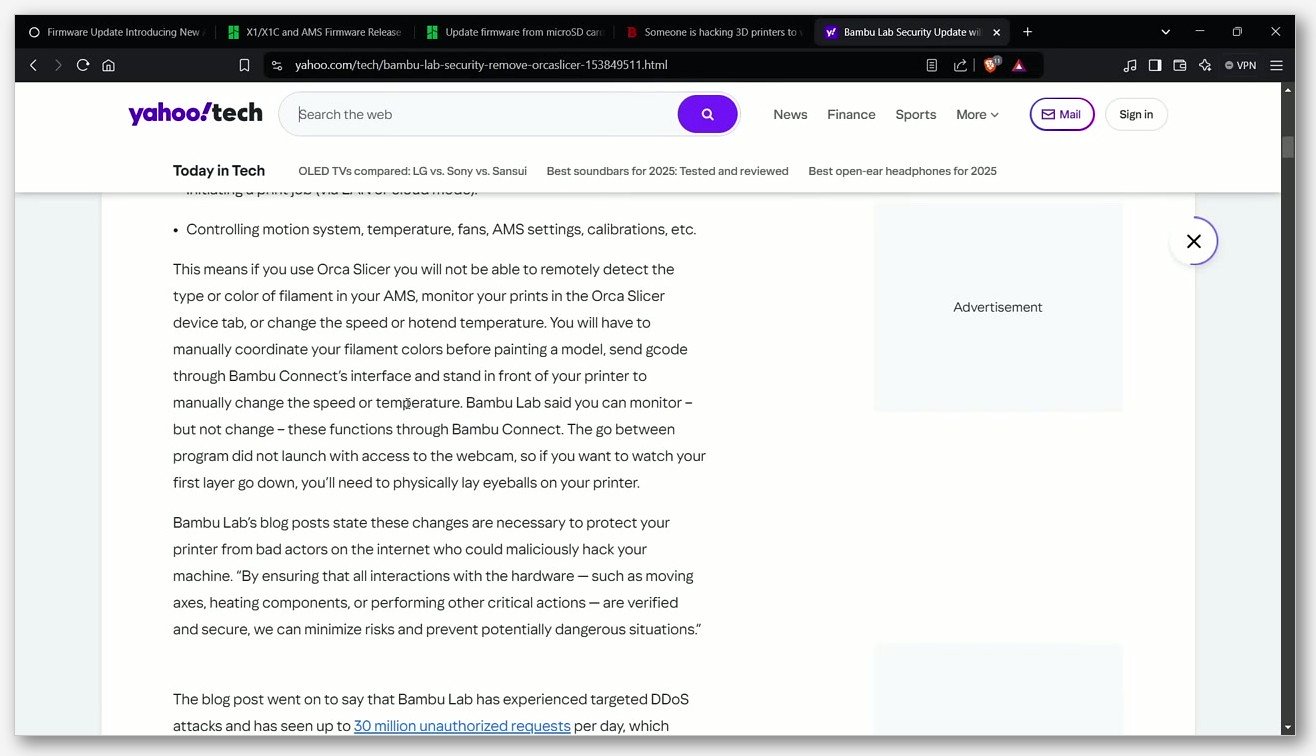
In cloud mode, some OrcaSlicer features (camera streaming, certain remote controls) pass through Bambu Connect and may show as gated or read-only. Switching to LAN-only mode bypasses most of this. If you’re picking a path and you don’t need the convenience of cloud-anywhere access, LAN-only is the cleaner experience.
AMS firmware quirks and troubleshooting
I’ve collected the support issues that I see most often, with the actual fixes. Most of these are not OrcaSlicer bugs; they’re AMS-side issues that surface in OrcaSlicer because that’s where you notice them.
Motor stalls (HMS 0700-0100-0002-0002 and friends)
The first-generation AMS has a set of HMS codes that all point to roughly the same root cause: the assist motor is overloaded, usually because of PTFE tube resistance. Things to check, in order:
- PTFE tube between AMS and toolhead. Check for sharp kinks, especially at the entry to the buffer.
- Inner PTFE liner inside the AMS itself. After about 6 months of heavy use, this can wear and the inner diameter narrows. Bambu sells replacement liners cheap.
- Spool tangle. The cheapest possible cause and the most embarrassing one to discover after a full diagnostic. Pop the AMS lid, eyeball the spool, look for crossed loops.
Buffer arm false-triggers
Symptom: AMS keeps retracting filament mid-print. The buffer arm sensor thinks the print head is pulling, but it isn’t. Two causes I’ve personally hit:
- Buffer arm spring stuck. Lift the buffer lid, manually flex the arm, watch it return to rest. If it sticks at any point, the spring’s bent or there’s debris in the pivot.
- Total PTFE chain too long. If you’ve got an AMS Hub with multiple AMS units chained, total PTFE length from any spool to the toolhead should stay under about 3.5 meters cumulative. Longer than that, friction overwhelms the buffer logic.
RFID tag failures
AMS spins briefly when you load a Bambu spool, then nothing. The RFID label is probably scratched, dirty, or the cable to the Hall sensor is unseated. Wipe the label with isopropyl, re-spin the spool by hand. If it still doesn’t read, set the filament manually on the printer LCD. Slot will work fine for printing; you just won’t get the auto-detect.
Humidity readings stuck high after fresh desiccant
Common one. You swap the desiccant, close the AMS, the reading is still 60% RH twenty minutes later, you panic. Wait 30 to 60 minutes for the sensor to stabilize after the AMS has been opened. Opening the lid drops the closed-loop sensor temporarily and it takes a while to re-equilibrate. If it’s still above 50% after an hour, then suspect a sensor cable.
AMS 2 Pro and AMS HT can’t get below about 19% RH
This isn’t a defect; it’s a hardware limit discussed on the Bambu forums. The heater isn’t aggressive enough to push humidity below the ambient floor in most rooms. 19% is fine for PLA, PETG, ABS, ASA. For nylon you may want a separate dedicated dryer.
OrcaSlicer-specific AMS bugs
- AMS info empty right after launch. Open the Device tab, give it about 10 seconds to populate. If still empty: Ctrl+P, make sure Stealth Mode is off.
- Custom filament reverts to generic in AMS slot. Issue #3874 (mentioned earlier). Workaround: inherit from a Bambu generic, override what you need.
- AMS slot mis-assignment with empty slots. Issue #6795 covers a case where an empty slot before a filament throws off the auto-mapping. If you hit this, manually assign in the slice-time filament-mapping dialog.
Bambu-specific OrcaSlicer features worth knowing
OrcaSlicer has a handful of features that are specifically for Bambu AMS workflows and that don’t apply to other printers. Quick tour.
Sync filament list from AMS
Covered above. Pulls live slot contents into the slicer’s filament list. The reverse direction (push slicer filaments to the AMS) is limited; only material type and color sync cleanly back to the printer.
Color sync from printer
Once paired, the color swatches in OrcaSlicer match the actual loaded spool colors via RFID. The slice preview therefore matches what’ll come off the printer, instead of showing a generic default red where you actually have salmon pink.
Spool remaining length
Pulled from the RFID tag and displayed in the Device tab. OrcaSlicer’s filament-required check uses this to warn you if your current slot doesn’t have enough filament left to finish the slice. Saves the “ran out at 80%” moment.
Auto filament mapping at slice time
The dialog that pops up if your slicer filament list doesn’t perfectly match AMS contents. Matches by material type plus nearest color. Drag-drop to override.
Auto-purge volumes from calibration
After running a filament flush calibration on the printer, OrcaSlicer can pull those tuned values into the flush matrix instead of using defaults. Right-click the matrix, “Import from device.”
Filament prediction warning
OrcaSlicer estimates grams per filament for a slice and warns you about any slot that doesn’t have enough remaining. Pairs well with the spool-remaining-length feature.
FAQ
Will an AMS Lite work on my X1C or P1S?
No. AMS Lite is locked to A1 and A1 mini. Different connector, different firmware. You want a standard AMS, AMS 2 Pro, or AMS HT for X1C and P1S. We’ve got a printer-specific take in our P1S and P1P guide if you’re cross-shopping.
Can I print TPU through an AMS?
Only Bambu’s own “TPU for AMS” (95A) is officially supported, and only in the standard AMS. Anything softer or any third-party TPU should run through the external spool holder. AMS Lite isn’t rated for TPU at all.
What’s the most colors I can run?
16, with an AMS Hub plus four AMS units (any mix of AMS, AMS 2 Pro, and AMS HT on the X1/P1/H hub, or the same mix on the A1-series hub). AMS Lite caps you at 4 because it can’t be hubbed with other units.
Does the AMS dry filament?
The original AMS uses passive desiccant (you swap the pellets when the indicator changes). AMS 2 Pro and AMS HT add active heating with circulation. AMS Lite has no humidity control. None of them get below about 19% RH, which is fine for most filaments.
Should I use LAN mode or cloud mode?
If you want zero-friction multi-device access, cloud. If you want maximum responsiveness, want to bypass most of the Bambu Connect middleware, and don’t mind re-entering an access code occasionally, LAN. I personally run LAN.
Why does OrcaSlicer keep reverting my custom filament profile in the AMS slot?
That’s issue #3874. Workaround is to base your custom profile on a Bambu generic of the same material type and override only the parameters that matter (temperatures, flow). The slot identity stays as the generic, but your slice uses your tuned values.
How do I reduce wipe tower waste?
Three levers, in order of impact: tune the flush volume matrix (drop to a multiplier of 0.6 or 0.7 and test), enable “Flush into infill” and “Flush into objects” in the multimaterial process settings, and enable sparse layers on the tower so it only builds where filament changes happen. Combined, those typically cut purge waste roughly in half.
Can I print without the AMS even if it’s connected?
Yes. Set the filament source for a slice to “External Spool” (or just don’t use a Bambu filament profile), and the printer will pull from the external holder ignoring the AMS entirely. You don’t need to physically disconnect anything.
The OrcaSlicer Device tab shows “no AMS detected” but the printer says AMS is fine. What now?
Three things, in order: wait 10 to 15 seconds for the async query to complete; check Stealth Mode is off on the printer (Ctrl+P → Network); confirm you’re paired through the right path (Cloud account or LAN code) by toggling and re-pairing. About 80% of these resolve at step one.
Wrapping up
The AMS is the most useful accessory Bambu’s ever shipped, and OrcaSlicer drives it well once you understand which AMS variant you have, how to pair it, and where the gotchas sit. The biggest mistakes I see in support threads all trace back to the same handful of misunderstandings: assuming AMS Lite is universal, trying to feed flexible TPU through the hub, leaving humidity-sensitive filament loaded in an open-air AMS Lite, and never tuning the flush matrix.
If you’re starting fresh, pair in LAN-only mode, sync your filaments from the AMS, run one quick flush calibration on the printer, and import those values into the matrix. That’s about 30 minutes of setup that pays back across every multi-color print after.
For deeper dives on the multi-material side of OrcaSlicer (color painting, wipe tower tuning, mid-print filament changes), we’ve got more in the multi-color cluster on this site. And if you don’t already have OrcaSlicer installed, grab the latest from SoftFever’s GitHub releases page. We’re a content site, not a download mirror, and the GitHub releases page is the only place I trust for clean builds.
If you hit something I didn’t cover, the Bambu forum threads I linked through the article are the next best place to look. Happy printing.
Related OrcaSlicer guides
- OrcaSlicer for Bambu Lab X1C, X1E and P1S: Setup, Profiles & Calibration
- OrcaSlicer for Bambu Lab H2D: Setup, IDEX Modes and AMS
- OrcaSlicer for Bambu Lab A1 & A1 Mini: Setup, AMS Lite, Calibration
- OrcaSlicer for Bambu Lab P1S / P1P – Complete Setup Guide (2026)
- SimplyPrint vs Obico vs OctoEverywhere: OrcaSlicer 2026