
I spent a Saturday afternoon last spring chasing a ghost on my Voron 2.4. Mainsail loaded fine in the browser, the printer was happy, the toolhead homed without complaint. OrcaSlicer just kept refusing to connect. The Test button stared back with a polite “Connection failed” message, and I’d already double-checked the IP three times.
Turns out I’d pasted Mainsail’s URL into the Hostname field. That’s the small mistake almost every Klipper newcomer makes once, because OrcaSlicer’s connection dialog has two URL-shaped fields that look interchangeable but absolutely are not. One talks to Moonraker’s API. The other just embeds the web UI. Mix them up and nothing works.
This guide walks through every field and gotcha I’ve personally hit across a Voron 2.4, a rooted Creality K1, a Sovol SV08, and a stock MainsailOS Pi 4. If you came from the main OrcaSlicer troubleshooting guide or searched “orcaslicer klipper not connecting,” you’re in the right place. We’ll cover Mainsail, Fluidd, the rooted K1 weirdness, the K1C 2025 firmware that broke port 80, and why MK4 owners keep ending up here even though PrusaLink isn’t Klipper.
What you need before you start
Three things. First, your printer needs Mainsail or Fluidd already running, since OrcaSlicer doesn’t install anything on the printer side, it just talks to Moonraker over HTTP. Second, the printer’s IP address. Third, OrcaSlicer 2.3.x on your laptop, because the network agent was refactored in 2.3.2 and earlier versions had quirky behaviour with multi-printer Moonraker setups. If you’re not sure which version you’re on, grab the latest from the download page.
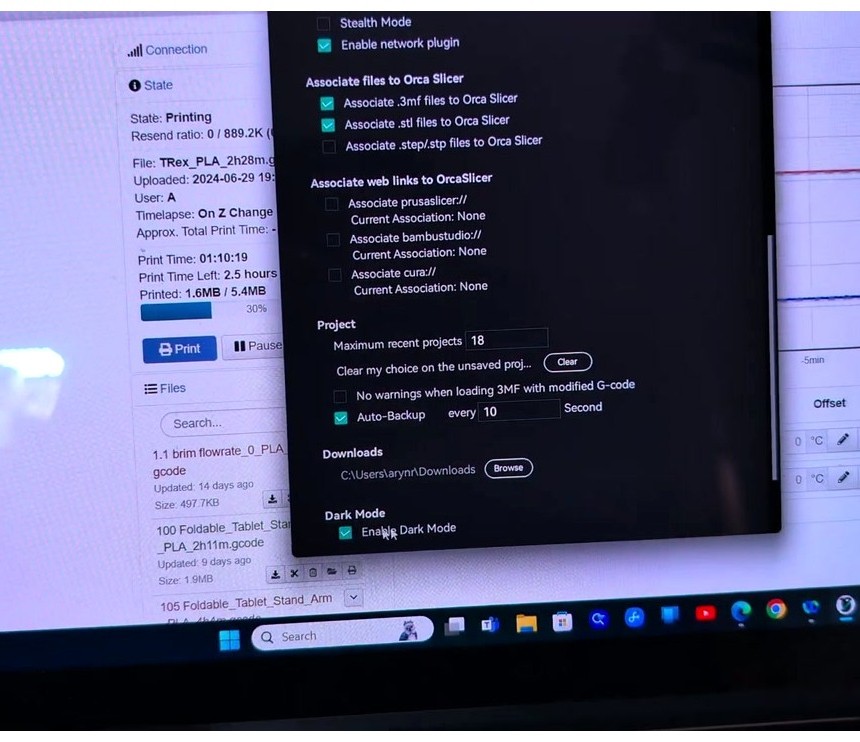
OrcaSlicer’s network plugin also needs to be enabled. It’s on by default in fresh installs, but I’ve seen it disabled on machines that came from PrusaSlicer profiles. Open Preferences and confirm “Enable network plugin” is ticked.
Find the IP however you prefer. Easiest path on a Klipper printer: open Mainsail and click the Machine tab, the IP shows up under Network. On a stock Creality K1 or KE it’s on the touchscreen under Settings, Network, Wi-Fi. On a Voron or DIY Pi build, SSH in and run hostname -I. Set a static DHCP reservation in the router so the IP doesn’t drift between reboots, because dynamic leases are the number-one reason “it worked yesterday” prints fail the next morning.
One last check: confirm your printer actually runs Klipper plus Moonraker plus a Mainsail or Fluidd web UI. PrusaLink on the MK4 looks superficially similar (it’s an HTTP API, it lets you upload G-code), but it’s a different protocol with its own host type. We’ll cover that below. Bambu printers in LAN mode are also their own thing, see the Bambu LAN mode guide.
The 90-second version
If you’re on a stock MainsailOS or FluiddPi install on a home LAN, here’s the fast path. It works for probably 80% of readers, and if it doesn’t, the rest of this guide explains why.
- In OrcaSlicer, click the printer name dropdown at the top-left, then click the small Wi-Fi/globe icon next to it. The Physical Printer dialog opens.
- Set Host Type to Octo/Klipper.
- Paste the printer’s IP into the Hostname field. Just the IP, no
http://, no port. - Paste
http://plus the same IP into the Device UI field, e.g.http://192.168.1.45. - Leave the API Key field blank.
- Click Test. Green banner means you’re done. Click OK to save.
That’s the recipe. If Test went green, jump to the after connection works section to set up your G-code flavor and macros. If it didn’t, keep reading, because the rest of the article explains every way this can fail and how to recover.
Hostname vs Device UI: the distinction most tutorials miss
This is what tripped me up on the Voron, and it trips up almost everyone with a non-standard setup. OrcaSlicer’s Physical Printer dialog has two URL fields that do completely different jobs.
The Hostname, IP or URL field is the address OrcaSlicer uses to talk to the Moonraker HTTP API on port 7125 by default. When you click “Send to printer,” Orca POSTs your G-code to http://hostname:7125/server/files/upload. When you click Test, it hits /printer/info on Moonraker. If this field points anywhere that isn’t Moonraker, the connection fails.
The Device UI field is the URL Orca’s Device tab embeds in a webview. That’s whatever browser URL loads Mainsail or Fluidd. On stock MainsailOS, that’s http://IP on port 80. On a rooted Creality K1, Fluidd lives at http://IP:4408 and Mainsail at http://IP:4409.
OrcaSlicer’s dropdown only has one entry called “Octo/Klipper,” not separate ones for Mainsail and Fluidd, because Moonraker exposes an OctoPrint compatibility shim that lets the same code path handle both ecosystems. GitHub discussion #1169 goes deep on this, but the short version: Hostname goes to Moonraker, Device UI goes to your browser, and on most stock setups they’re the same IP with different (or no) port.
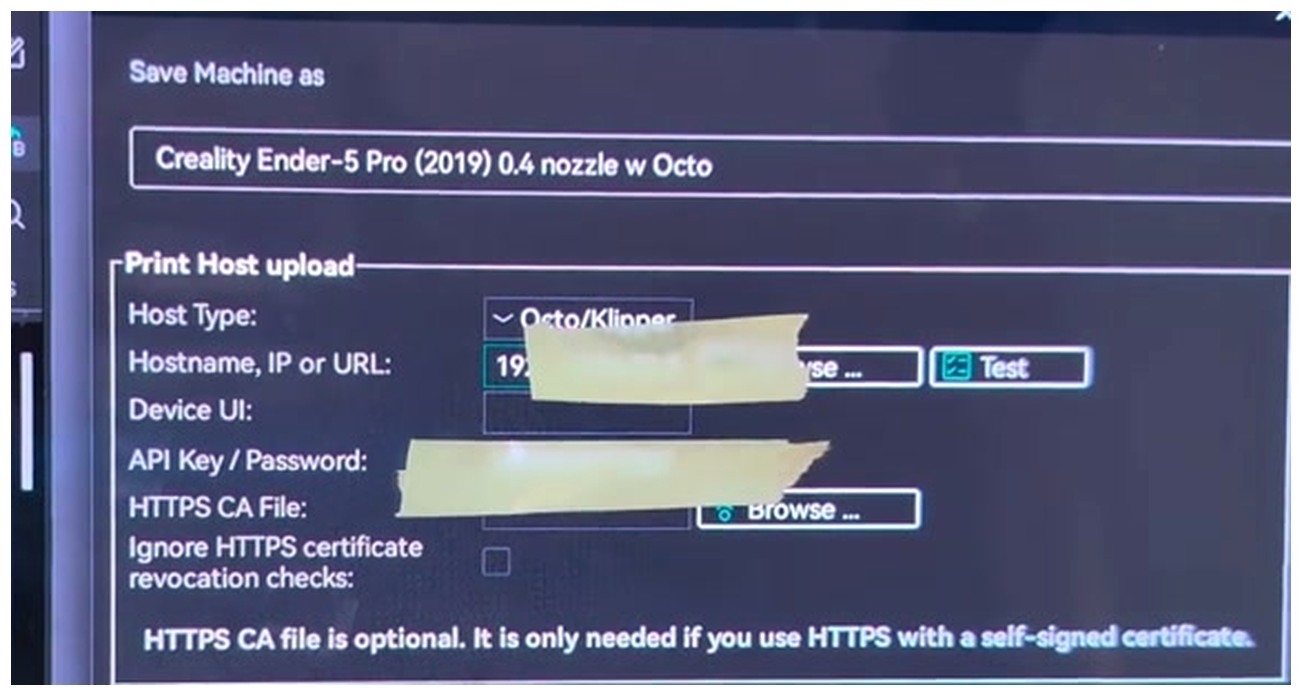
If you have multiple Klipper instances on the same hostname (Docker, single SBC running multiple Klipper instances on different ports), use IP:port in Hostname but only IP in Device UI, because of issue #2507. Orca routes uploads by hostname, and shared hostnames with only port differing can route uploads to the wrong machine.
Step-by-step walkthrough
Every click in order. I’m assuming OrcaSlicer 2.3.x is open with a Klipper-flavored printer profile selected from the top-left dropdown. If your printer isn’t in the built-in list, pick “Generic Klipper” and customise later.
Open the connection dialog
Top-left, next to the printer name, click the small Wi-Fi/globe icon. The Physical Printer dialog opens. (If the icon’s missing, your network plugin is disabled, head back to Preferences.)
Set the Host Type
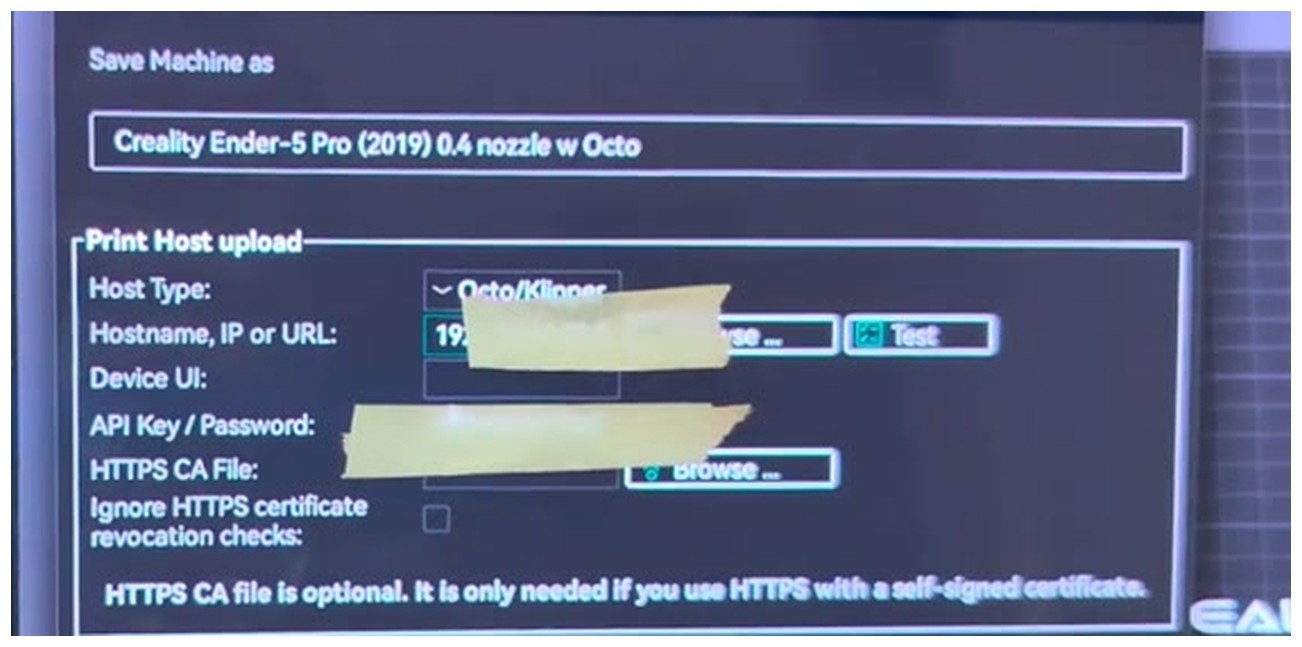
The dropdown lists about a dozen options: PrusaLink, OctoPrint, SimplyPrint, AstroBox, Repetier, Flashforge, Duet, FlashAir, MKS, CrealityPrint, Obico, Octo/Klipper. Pick Octo/Klipper. This one option covers every Mainsail and Fluidd setup since they all speak Moonraker.
Fill in Hostname
Paste the printer’s IP. Just 192.168.1.45, no http:// prefix. If Moonraker is on a non-default port (Docker, rooted K1), use IP:port. mDNS hostnames like mainsail.local work in theory, but Flatpak builds on Linux can’t resolve them due to issue #9311, so I use raw IPs.
API Key field
Leave it blank on a home LAN with stock MainsailOS or FluiddPi. The default trusted_clients block covers RFC1918 ranges, so your laptop is already trusted. If force_logins is enabled, trusted_clients is locked down, or your laptop is on a different subnet, you need a key, see the authentication section.
Device UI
The full browser URL of Mainsail or Fluidd. On stock MainsailOS it’s http://192.168.1.45 with no port. On a rooted K1 it’s http://192.168.1.45:4408 for Fluidd or http://192.168.1.45:4409 for Mainsail.
HTTPS / Ignore SSL errors
Tick this only if Mainsail is behind a reverse proxy with a self-signed certificate. Most home setups don’t need it.
Test and save
Click Test. A green “connection ok” banner means OrcaSlicer reached /printer/info on Moonraker. Click OK to save.
Slice and send
After slicing, the bottom-right action bar shows a Print button with a dropdown arrow. Click the arrow for “Send to printer” (upload only) or “Send and start printing” (upload plus start). The file lands in Moonraker’s gcodes folder.
Watch the print
Click the Device tab. The embedded Mainsail or Fluidd UI loads. Live temps, layer counter, and webcam (if configured) all stream over Moonraker’s websocket, just inside Orca. The Device tab is a webview wrapper around the Device UI URL, so anything you can do in your browser works here.
Authentication: trusted_clients vs API key
Moonraker supports four auth modes: trusted-client (IP allowlist), API key via the X-Api-Key header, JWT login tokens, and oneshot tokens. OrcaSlicer uses one of the first two.
For most home users, trusted_clients is the right choice. It’s how stock MainsailOS and FluiddPi ship (bare Moonraker installs start with an empty trusted_clients block, so the RFC1918 ranges below come from the stock images, not Moonraker itself). The default [authorization] block in moonraker.conf looks like this:
[authorization]
cors_domains:
  *.lan
  *.local
  *://app.fluidd.xyz
  *://my.mainsail.xyz
trusted_clients:
  10.0.0.0/8
  127.0.0.0/8
  169.254.0.0/16
  172.16.0.0/12
  192.168.0.0/16
  FE80::/10
  ::1/128
That covers every private IP space. Your laptop sits in 192.168.x.x, the request gets through, no key needed. This is why so many people connect on the first try and assume the API key field is decorative.
You need an API key when force_logins: True is set, trusted_clients has been narrowed to exclude your laptop, you’re on a different VLAN, or you’re connecting through a reverse proxy that strips the client IP.
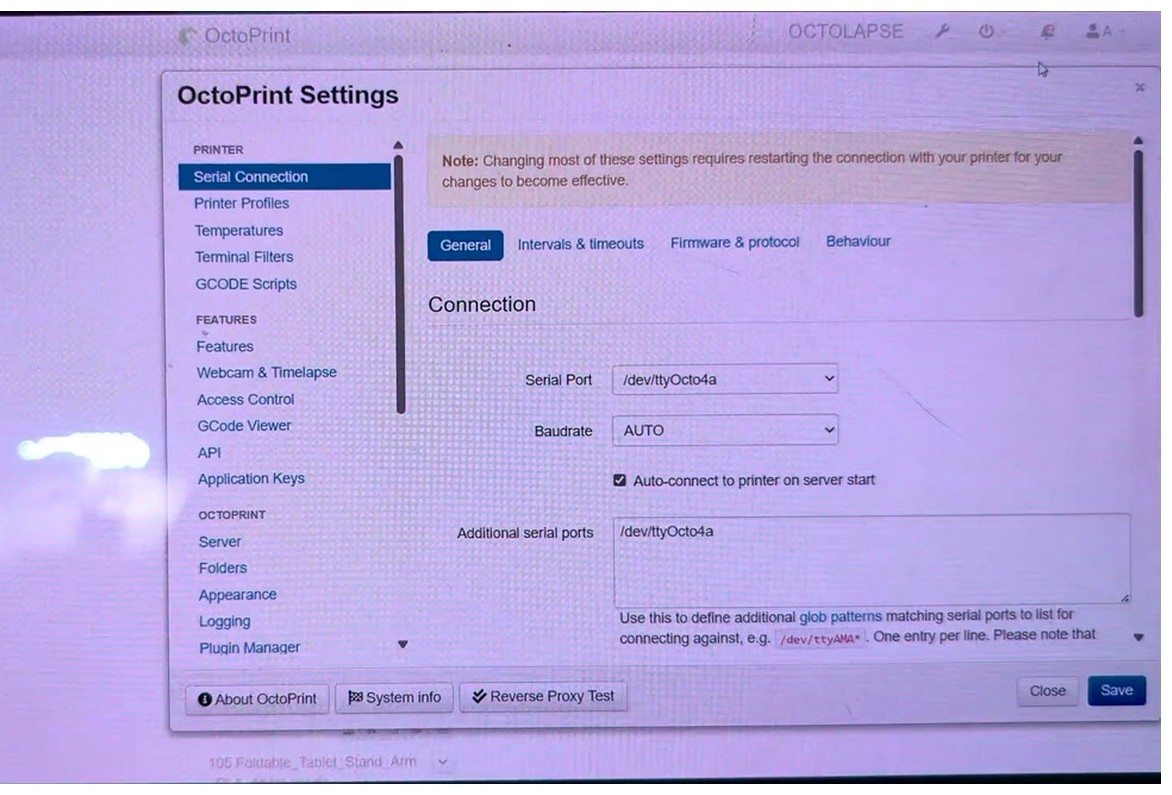
In Mainsail it’s Settings, Interface, with an “API Key” button. In Fluidd it’s Configuration, API Key panel. Or curl it: curl http://printer-ip:7125/access/api_key. Paste the string into OrcaSlicer’s API Key / Password field and click Test again.
Don’t share screenshots with the API key visible. The yellow tape in the earlier image isn’t decorative, that’s me redacting the real key from the source video. Once a key leaks, anyone on the network (or the internet if you’ve port-forwarded) can push G-code to your printer.
To lock things down further, edit ~/printer_data/config/moonraker.conf, narrow trusted_clients to your specific laptop IP, and set force_logins: True. Restart with sudo systemctl restart moonraker and watch ~/printer_data/logs/moonraker.log for “Forbidden” lines while you test.
Per-printer port cheat sheet
Different printers ship Klipper differently, and the ports vary. This is the table I keep pinned for my own reference.
| Printer / setup | Moonraker port | Web UI | Notes |
|---|---|---|---|
| Stock Pi / MainsailOS / Voron | 7125 | Mainsail on port 80 | Hostname: IP. Device UI: http://IP. |
| Stock Pi / FluiddPi | 7125 | Fluidd on port 80 | Same as above, both UIs share the recipe. |
| Rooted Creality K1 / K1 Max / KE (Helper Script) | 7125 | Fluidd 4408, Mainsail 4409 | Hostname: IP:7125 works, raw IP also works since 7125 is default. Device UI: http://IP:4408 or http://IP:4409. |
| Stock Creality K1 (older firmware) | 7125 | Creality web UI on port 80 | Upload works. Device tab shows Creality’s thin UI. |
| Stock K1C 2025 firmware | (blocked) | 404 on port 80 | Creality removed the web UI. Use Host Type “CrealityPrint” for upload-only, leave Device UI blank or expect a 404. |
| Sovol SV07 / SV08 (stock) | 7125 | Mainsail or Fluidd on port 80 | Standard recipe. SV08 has a Device tab crash bug, see known bugs. |
| BTT Pad7 / BTT Pi | 7125 | Mainsail on port 80 | Same as a Pi. KIAUH-installed builds are identical. |
| Prusa MK4 / MK4S / MINI+ (stock Buddy) | (none) | PrusaLink on port 80 | Use Host Type “PrusaLink”, not Octo/Klipper. See next section. |
The K1C 2025 case generates the most support threads lately. Creality stripped the web UI, so port 80 returns 404. For a real Mainsail experience on a stock K1C, you either downgrade firmware, root with the Helper Script, or self-host Fluidd on a separate Pi pointing at the K1’s Moonraker. For most users I recommend Host Type “CrealityPrint” until Creality restores the UI or you root. Fuller writeup in the K1 / K1 Max profile guide.
PrusaLink is not Klipper
I get messages from MK4 owners wondering why “Octo/Klipper” doesn’t work. Short answer: your printer doesn’t run Klipper. Prusa’s Buddy firmware on the MK4, MK4S, MINI+, and XL exposes PrusaLink, its own HTTP API.
For stock Prusa printers, set Host Type to PrusaLink, not Octo/Klipper. Enter the IP plus the password from the printer’s About screen. No Moonraker, no trusted_clients, no port 7125. The PrusaLink password is the equivalent of the Moonraker API key.
If you’ve flashed a community Klipper port to your MK4 (some people prefer Klipper’s input shaping and pressure advance), the standard Octo/Klipper recipe applies. But if you don’t know whether you’ve done it, you haven’t.
OctoPrint is also separate, even though Orca’s dropdown bundles it with Klipper. If you’re running OctoPrint on Marlin (Ender 3 plus OctoPrint on a Pi), the recipe is similar but the API key flow differs. The OctoPrint setup guide covers that path.
Common errors and quick fixes
Failures I’ve personally hit, in rough order of frequency.
“Connection refused” on Test. Moonraker isn’t running, or wrong port. SSH in and run sudo systemctl status moonraker. If active, your IP or port is wrong. If not, restart with sudo systemctl restart moonraker.
“Forbidden” or HTTP 403. Your laptop IP isn’t in trusted_clients, or force_logins: True is set with no API key. Either add your subnet to trusted_clients, or paste the API key. Restart Moonraker after editing.
Timeout or hang on Test. Firewall blocking 7125. Check UFW on the Pi (sudo ufw allow 7125/tcp), Windows Defender on the laptop, and your router’s AP isolation setting.
“Could not resolve host printer.local.” mDNS isn’t working. Common with Flatpak Orca on Linux (issue #9311) or Windows without Bonjour. Use the raw IP, that’s why I recommend a static DHCP reservation up front.
Upload finishes but the printer doesn’t start heating. Your Start G-code calls PRINT_START or START_PRINT and the macro isn’t defined in printer.cfg. Define both names (alias one to the other). Issue #4360 tracks this.
“Unknown command: EXCLUDE_OBJECT.” Your printer.cfg is missing the [exclude_object] section. Add it, restart Klipper.
Device tab is blank or shows 404. Your Device UI URL is wrong, or your printer doesn’t have a web UI on that port. The K1C 2025 case lives here.
Live temps frozen. Embedded Mainsail/Fluidd lost its websocket. Usually a CORS issue with reverse proxies. Add the proxy origin to cors_domains, or skip the proxy.
Thumbnails missing in Mainsail. G-code flavor isn’t set to Klipper, or the thumbnail string isn’t configured. Set G-code flavor to Klipper and thumbnails to 32x32/PNG, 400x300/PNG.
Many of these errors look identical between OctoPrint and Klipper because they share the network agent. The OctoPrint troubleshooting guide has overlap worth scanning.
Known OrcaSlicer bugs to watch for
OrcaSlicer 2.3.x is solid for Klipper, but a handful of bugs are worth knowing about so you don’t waste hours on them.
Issue #13101: M486 generated even when flavor is Klipper. Open as of writing. Some configurations leak M486 commands into the output even though G-code flavor is set to Klipper, because the EXCLUDE_OBJECT_DEFINE blocks aren’t always emitted correctly. It doesn’t break printing, but it does spam your console with “Unknown command” warnings if you don’t have [exclude_object] configured. Workaround: add [exclude_object] to printer.cfg, which you should be doing anyway.
Issue #2507: Multi-printer uploads route to wrong machine. Closed as not-planned, but the behaviour persists. If you have two Klipper printers sharing a hostname with only the port differing, OrcaSlicer can route uploads to the first one. The workaround documented in discussion #1169 is to give each printer a distinct hostname, IP, or use IP:port in the Hostname field while keeping IP-only in the Device UI field.
Issue #9311: Failing to connect at hostname.local. Linux Flatpak users can’t resolve mDNS hostnames because of the sandbox. Open. Workaround: use raw IPs, or switch to the AppImage build.
Issue #10756 and #12287 and #7581: Device tab crashes. Mix of open, closed-stale, and duplicate. Clicking the Device tab on a Klipper printer crashes OrcaSlicer on Linux Flatpak builds, and on the Sovol SV08 specifically. The AppImage build doesn’t have the Linux crash. For SV08 owners, the workaround is to use a regular browser tab instead of the embedded Device tab. Upload still works fine, only the embedded UI is affected.
The pattern across the Linux issues is that the Flatpak sandbox conflicts with the embedded webview component. If you’re on Linux and hitting Klipper-specific Orca bugs, try the AppImage build first before reporting anything new.
After connection works, what to set up next
Connection alone doesn’t give you good prints. A few things to handle once you’ve got Test going green.
G-code flavor. In Printer Settings, Basic Information, set G-code flavor to Klipper. This unlocks native EXCLUDE_OBJECT support, correct M204/M205 acceleration handling, proper SET_PRESSURE_ADVANCE timing, and the right Junction Deviation calculations in OrcaSlicer 2.3.x’s time estimator. If you’ve imported a profile from PrusaSlicer, the flavor likely defaults to Marlin and you’ll get suboptimal output.
G-code thumbnails. Set the thumbnail string to 32x32/PNG, 400x300/PNG so Mainsail and Fluidd can show preview images in the file browser. This is a small thing that makes browsing your gcodes folder dramatically less painful.
Start and end macros. Define PRINT_START and PRINT_END (or START_PRINT and END_PRINT, or both) in printer.cfg. In OrcaSlicer’s Machine G-code, set Start G-code to a single line that calls the macro with parameters, like:
PRINT_START EXTRUDER=[nozzle_temperature_initial_layer] BED=[bed_temperature_initial_layer_single] CHAMBER=[chamber_temperature]Voron’s docs are explicit that the macro should handle all heating, otherwise OrcaSlicer’s default Start G-code adds a heat call before PRINT_START runs, and you end up double-heating. Same advice applies to RatRig, ZeroG, and most community Klipper profiles.
Pressure advance and input shaping. Once connected, you can run calibrations directly through OrcaSlicer’s Calibration menu. The pressure advance guide walks through PA tuning, and the general calibration guide covers input shaping, which OrcaSlicer 2.3.x detects as Klipper-specific and presents the right shaper options for. Klipper PA values are different from Marlin Linear Advance values, so if you’ve got a number from a Marlin profile, retune.
Layer info macros. Add SET_PRINT_STATS_INFO TOTAL_LAYER=[total_layer_count] to your Start G-code and SET_PRINT_STATS_INFO CURRENT_LAYER={layer_num} to “After layer change” so Mainsail’s layer counter actually updates during the print.
Frequently asked questions
Does OrcaSlicer support Klipper natively?
Yes. OrcaSlicer 2.3.x has a dedicated Klipper G-code flavor, native EXCLUDE_OBJECT output, Klipper-aware input shaping calibration, and a network agent that uploads directly to Moonraker. Klipper is treated as a first-class target alongside Marlin and Bambu firmware.
What G-code flavor should I use for Klipper in OrcaSlicer?
Set G-code flavor to “Klipper” in Printer Settings, Basic Information. Don’t leave it on Marlin or Smoothieware, you’ll lose native exclude-object support and get incorrect acceleration commands.
Why does OrcaSlicer say Forbidden when connecting to Moonraker?
Your laptop IP isn’t in Moonraker’s trusted_clients list, or force_logins is enabled and you didn’t enter an API key. Either add your subnet to trusted_clients in moonraker.conf, or paste the Moonraker API key in OrcaSlicer’s API Key field.
Do I need an API key for Mainsail or Fluidd?
Usually no. Stock MainsailOS and FluiddPi installs ship with a permissive trusted_clients block covering all RFC1918 private IPs, so any home LAN device connects without a key. You only need a key if force_logins is on, your network is locked down, or you’re connecting through a reverse proxy.
What port does Moonraker use with OrcaSlicer?
Default is 7125. Rooted Creality K1 setups also use 7125 for Moonraker, but expose Fluidd on 4408 and Mainsail on 4409. Stock K1C 2025 firmware blocks port 80, but Moonraker still runs on 7125 if the printer is up.
How do I connect OrcaSlicer to a Voron 2.4?
Same recipe as any Klipper printer. Host Type Octo/Klipper, paste the Pi’s IP into Hostname, paste http://IP into Device UI, leave the API key blank, click Test. The Voron-specific tweaks (PRINT_START macro, chamber heat-soak, no double-heating) all happen on the printer side via printer.cfg, OrcaSlicer just needs the connection.
Why is my OrcaSlicer Device tab blank or showing 404?
Your Device UI URL is wrong, or the printer doesn’t expose a web UI on that port. Check the per-printer cheat sheet above, especially if you’re on a rooted K1 (4408/4409) or a stock K1C 2025 (port 80 returns 404). On stock MainsailOS, the Device UI should be plain http://IP with no port.
Can OrcaSlicer connect to PrusaLink on the MK4?
Yes, but use Host Type “PrusaLink,” not Octo/Klipper. Enter the printer IP and the password from the printer’s About screen. PrusaLink isn’t Klipper, it’s Prusa’s own HTTP API on Buddy firmware.
Why don’t my thumbnails show up in Mainsail?
Your G-code flavor isn’t set to Klipper, or your thumbnail string is missing. Set G-code flavor to Klipper and add 32x32/PNG, 400x300/PNG in the G-code thumbnails field of Printer Settings.
How do I connect multiple Klipper printers to one OrcaSlicer install?
Each printer profile in OrcaSlicer keeps its own connection settings, so you set up each one in the Physical Printer dialog separately. If two printers share a hostname (multi-instance Klipper on one SBC), use IP:port in the Hostname field but only IP in the Device UI field, per discussion #1169, to dodge issue #2507‘s routing bug.
Does OrcaSlicer maintain its own websocket to Moonraker?
No. Live temps, layer counters, and webcam feeds in the Device tab come from the embedded Mainsail or Fluidd webview, which maintains its own websocket. OrcaSlicer the slicer only talks to Moonraker for upload, start, and connection-test calls.
Wrapping up
The single biggest mistake I see new Klipper users make with OrcaSlicer is pasting Mainsail’s URL into the Hostname field instead of the Device UI field, and then wondering why Test fails. Hostname goes to Moonraker’s API on port 7125. Device UI is just whatever URL you’d type to open Mainsail in a browser. Get those two right and 90% of connection issues evaporate.
The other 10% are firmware-specific: rooted K1 ports, stock K1C 2025 missing port 80, MK4 owners landing on this article when they actually need PrusaLink, Linux Flatpak users hitting mDNS and Device-tab crashes. Now you know to look at the cheat sheet, the bug list, and the per-printer notes before tearing apart your moonraker.conf.
If you hit something not covered here, the main OrcaSlicer troubleshooting guide aggregates fixes across every host type, and the OctoPrint troubleshooting guide has heavy overlap because Orca uses the same network agent for both. Once you’re connected, run pressure advance and input shaping calibrations to get the most out of Klipper, that’s where the firmware really earns its keep over Marlin.
Related OrcaSlicer guides
- OrcaSlicer for Beginners: Your First Print in 15 Minutes
- SimplyPrint vs Obico vs OctoEverywhere: OrcaSlicer 2026
- OrcaSlicer Won’t Find My Printer on the Network: Mac and Windows Fixes
- OrcaSlicer Webcam and Live View Setup for Remote Monitoring
- OrcaSlicer for Creality Ender 3 V3 SE, KE & Plus: Setup Guide