
I lost a year of dialed-in process presets the night I updated from 1.9.1 to a 2.0 beta because I was too excited about scarf seams to back anything up first. I’m not the only one: issue #4459 tells almost the same story, issue #8982 shows it again when a user uninstalled 2.3.0-rc on prompt during the 2.3.0 install, and as recently as Feb 24 2026 issue #12452 logged a 2.3.2 beta2 user opening the slicer to find every filament profile gone except one stranded “unsupported” entry.
So no, you’re not paranoid. Profile loss is rare, but it’s real and documented. In almost every reported case the profiles were still sitting on disk. Here’s the procedure I run every time now, on Windows, macOS, and Linux.
Table of contents
- Why profile loss happens during an update
- Where OrcaSlicer actually stores your profiles
- The in-app backup: File > Export > Preset Configs
- The manual backup: copy the user folder
- Updating on Windows, macOS, and Linux
- Restoring after an update went wrong
- Rolling back to the previous version
- Vendor preset re-sync after a major update
- FAQ
Why profile loss happens during an OrcaSlicer update
OrcaSlicer’s installer isn’t supposed to wipe your user data dir, and in most updates it doesn’t. But the tracker tells an honest story. Issue #1182 caught a 1.6.3 overwrite in May 2023. Issue #4679 in March 2024 is the one that worries me most: the user’s profiles were still in %appdata% after the update, the app just refused to load them. Issue #7679 describes a 2.2.0 portable build clobbering the installed 2.1.1 folder structure. All closed as “not planned”.
The pattern is consistent. Profiles are usually still on disk, but one of three things broke: the installer deleted a subfolder, an inheritance chain snapped (a parent profile got overwritten by a vendor refresh, so any child preset that inherits from it errors out, as the PeterVRC writeup explains), or, the sneakiest, the new build started writing to a different numbered user-id folder than the old one was reading from. Discussion #5033 nailed that last cause: “the new installation is using a different number than the old.”
Where OrcaSlicer actually stores your profiles
Every backup and restore path starts here. Discussion #1594 is the canonical source for where the user data dir lives on each OS. These are the paths verbatim:
- Windows:
%APPDATA%\OrcaSlicer\(resolves toC:\Users\your_name\AppData\Roaming\OrcaSlicer) - macOS:
~/Library/Application Support/OrcaSlicer/ - Linux (native):
~/.config/OrcaSlicer - Linux (Flatpak):
~/.var/app/io.github.softfever.OrcaSlicer/config/OrcaSlicer
If you don’t want to type any of that, open Help > Show Configuration Folder inside OrcaSlicer. That pops open File Explorer (or Finder, or your file manager) right at the correct path for whichever build you’re using. Discussion #530 calls this out as the no-typing way to find your data dir on any OS, and it’s the move I use every time.
Open that folder and you’ll see two subdirectories that matter. user/ is where your custom presets live, and inside it there’s a numbered subfolder per account. Discussion #5033 confirms it: “Within C:\Users\<username>\AppData\Roaming\OrcaSlicer\user there is a numbered folder that contains your user presets.” Those presets are stored as .json files. The sibling system/ folder holds vendor and system presets, and the bundled vendor source ships separately at C:\Program Files\OrcaSlicer\resources\profiles\, which is part of the installer, not your user data.
Quick honesty check: people online sometimes list presets/ or cache/ as top-level folders here. I haven’t found a primary source that names either, so I’m not going to claim they’re there. user/, system/, and the numbered subfolder are what’s confirmed.
The in-app backup: File > Export > Preset Configs
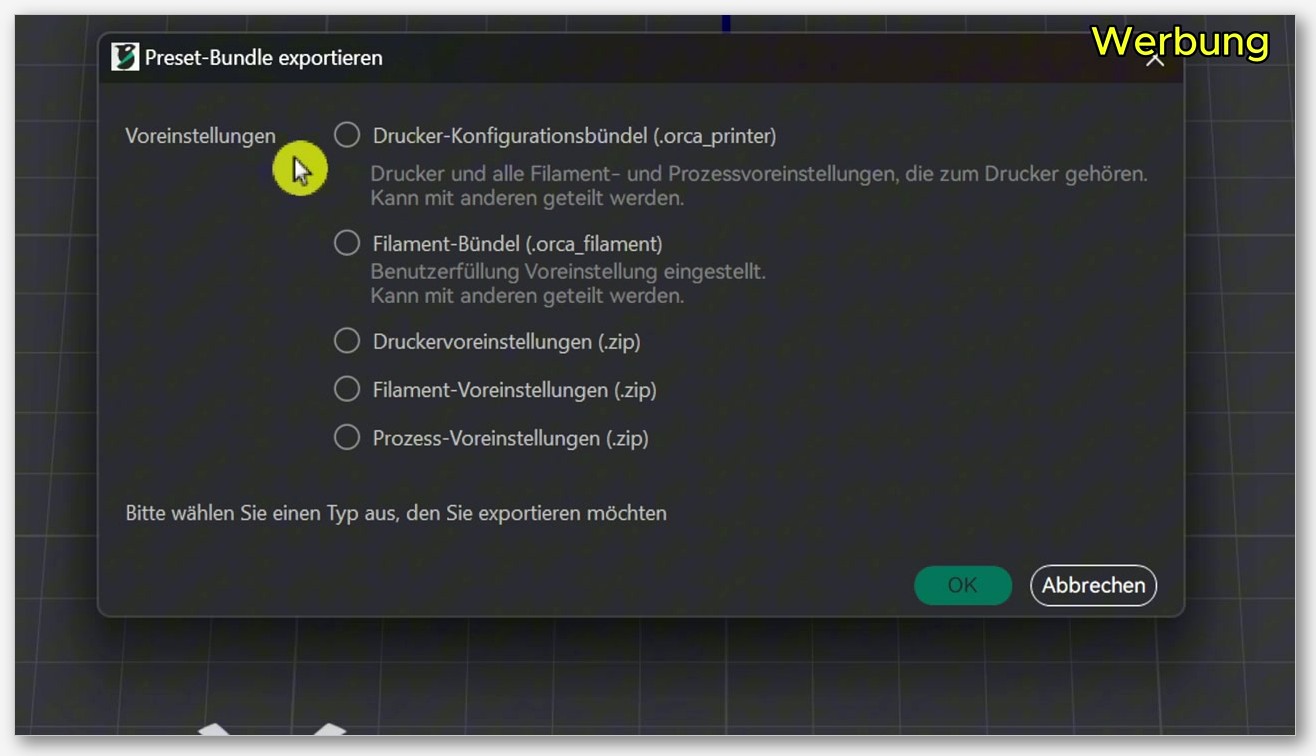
This is the first thing you do before any update. It’s not a full backup, but it’s the only fully GUI-driven export OrcaSlicer ships. From inside OrcaSlicer, click File > Export > Preset Configs. The official wiki page documents the five outputs:
- Printer bundle (
.orca_printer): exports a printer plus all the filament and process presets that belong to that printer. This is what you want if you’re sharing a fully tuned machine with someone, or if you only print on one machine. - Filament bundle (
.orca_filament): exports your filament presets as a single file. Note: the wiki page actually renders this extension as the plural form, but on disk and in practice the extension is singular. Use.orca_filamentwhen you’re naming things. - Printer presets zip: a flat zip of your user printer presets.
- Filament presets zip: a flat zip of your user filament presets.
- Process presets zip: a flat zip of your user process presets.
Here’s the catch nobody tells you. There is no “export everything in one click” button. Issue #3012 was opened to request exactly that, and it was closed as not planned. So if you’ve got five printers, you’re either running Export Preset Configs five times or falling back to the manual folder copy below. I do both.
The import path back is symmetrical: File > Import > Preset Configs, point at the bundle, done. The wiki phrases it as “the application will extract the presets contained in the bundle and make them available for use in projects.” For a deeper walkthrough see my import and export profiles guide.
The manual backup: copy the user folder
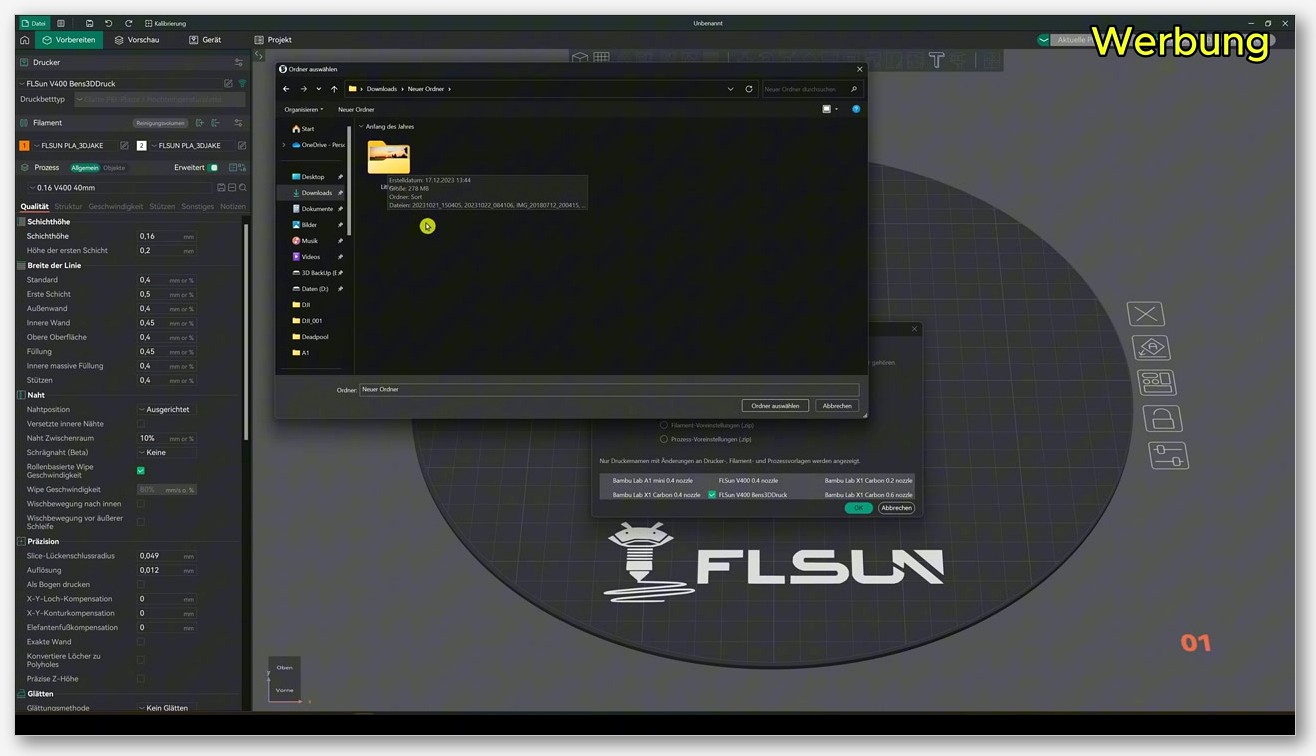
This is the one I actually trust. Close OrcaSlicer fully (check the system tray on Windows, quit it from the dock on macOS), then go to the config folder via Help > Show Configuration Folder while OrcaSlicer’s still open, or just navigate there yourself after you’ve closed it.
Copy the entire user/ subfolder somewhere safe. I name mine with a date and version, like user_backup_2026-05-15_pre_2.3.2.zip, and drop it on my NAS plus a USB stick. Because there’s no built-in “export all” per issue #3012, this is the only real “back up everything” option. It captures every numbered subfolder, every .json, every inheritance parent your custom profiles depend on. Glance at the numbered subfolder name while you’re there: take a screenshot if you don’t trust yourself to remember.
If you like belt and suspenders, there’s a third option from PR #6780 (Sep 2024): portable mode. If you create a folder called data_dir next to the OrcaSlicer executable, the app uses that as its data location instead of %APPDATA%. I keep a portable copy on a non-system partition for nightly testing so an update can never touch my main install’s profiles.
Updating on Windows, macOS, and Linux without losing presets
The update procedures themselves come straight from the SoftFever README. None of them are supposed to wipe your data dir. None of them are guaranteed not to. Always run the backup first.
Windows
Grab the Windows installer exe from the releases page and run it. The installer overwrites C:\Program Files\OrcaSlicer\ but is not supposed to delete %APPDATA%\OrcaSlicer\. If you’ve got winget, winget install --id=SoftFever.OrcaSlicer -e gets the same result. Microsoft Edge WebView2 and Visual C++ 2019 redistributables are on the releases page too if you need them. See the Windows install guide for a walkthrough, and the OrcaSlicer download page for current links.
The lesson from issue #8982 is worth internalising: if the installer prompts you to uninstall a previous release candidate or beta, your custom user data may not survive that uninstall step. Don’t accept blindly. Make sure your backup is on a different drive first.
macOS
Download the DMG (arm64 for Apple Silicon, x86_64 for Intel), drag OrcaSlicer.app into Applications, accept the overwrite. The drag-replace doesn’t touch ~/Library/Application Support/OrcaSlicer/, so your profiles ride along untouched. See my macOS install guide for the full sequence. If the app refuses to launch with a quarantine warning after the update, run xattr -dr com.apple.quarantine /Applications/OrcaSlicer.app in Terminal. That’s straight from the README and doesn’t touch your profiles.
Linux Flatpak and AppImage
Flatpak is the easiest update story by far. The Flatpak ID per the README is com.orcaslicer.OrcaSlicer, so the standard flatpak update com.orcaslicer.OrcaSlicer (or just flatpak update) applies. The Flatpak sandbox keeps your config separate from the binary, so updates don’t see your profiles.
AppImage is just a file. There’s no internal auto-updater, so updates are manual: download the new .AppImage, chmod +x it, delete or rename the old one. Your config at ~/.config/OrcaSlicer stays put.
Restoring after an update went wrong
If you’ve already updated and your profiles are gone, don’t panic and don’t reinstall yet. Three paths back, depending on what you backed up.
Path one: import from your exported bundle. If you ran File > Export > Preset Configs before updating, go to File > Import > Preset Configs, point it at each .orca_printer or .orca_filament file, and you’re back.
Path two: restore the user folder. Close OrcaSlicer fully, find the config folder, copy your backed-up user/ over the current one, restart.
Path three: fix the numbered-subfolder mismatch. If the new install created a different numbered subfolder under user/ than the old one (per discussion #5033), your profiles are still on disk in the old number, but the new build is reading from the new number and sees nothing. Open user/, find both numbered folders, copy the .json files from the old one into the new one, restart OrcaSlicer.
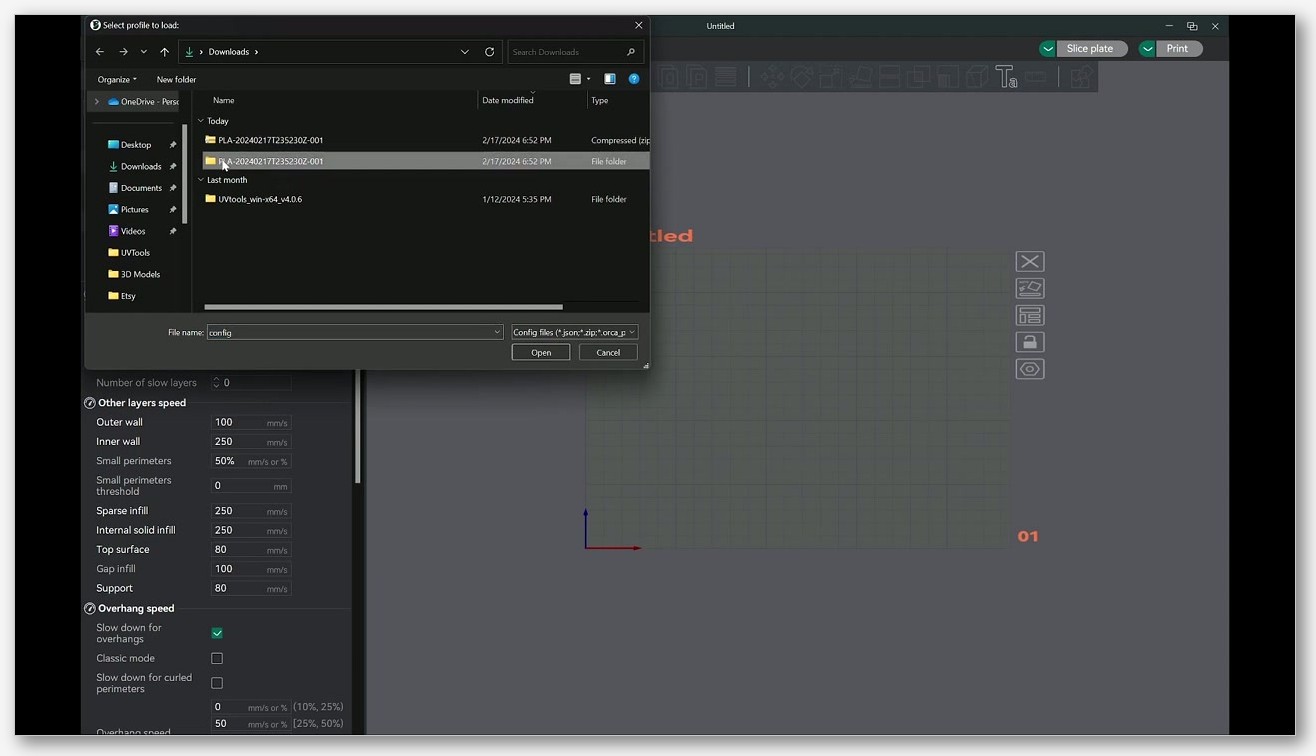
This is the exact scenario behind issue #4679. Once you understand it’s a folder-name mismatch, not data loss, the fix takes thirty seconds.
Rolling back to the previous version
Sometimes the new build is the problem, not your profiles. Rolling back is straightforward because every previous release is still on the SoftFever releases page. On Windows, download the older installer exe and run it over the top. On macOS, download the older DMG and drag-replace. On Linux AppImage, keep older .AppImage files in a versioned folder so you can switch by changing which one you launch. After a rollback, restore profiles from your backup.
Caveat for anyone running nightly alongside stable: both read from the same config directory unless you’ve split them with data_dir portable mode. That’s the gotcha behind issue #11504, and it’s why I keep nightly in a separate portable install. For the longer breakdown see my nightly vs stable writeup.
Vendor preset re-sync after a major update
When you update across a major version, the bundled vendor presets in system/ (and the source profiles in C:\Program Files\OrcaSlicer\resources\profiles\) get refreshed. That’s usually a good thing. OrcaSlicer ships 67 vendor brands in the Setup Wizard at the time of writing, and major updates often add more.
If you want the new vendor presets to show up cleanly, re-run the Setup Wizard from Configuration Wizard after the update. Honest caveat: I haven’t seen a primary source confirming whether re-running the wizard inside an updated install touches your user/ presets. Most reports suggest it doesn’t, but given the inheritance chain issue, I always re-export bundles before running the wizard.
FAQ
Does “Auto sync user presets” in Preferences back things up?
No. The cloud sync toggle syncs presets across devices via your account, but it isn’t a versioned backup and won’t help you roll back a failed update. Per issue #3012, OrcaSlicer doesn’t ship a built-in backup-everything feature.
Does uninstalling OrcaSlicer delete %APPDATA%\OrcaSlicer?
The installer overwrites C:\Program Files\OrcaSlicer\ but is not supposed to delete %APPDATA%\OrcaSlicer\. The lesson from issue #8982 is that an uninstall prompt during a fresh install can result in user data loss, so always back up first.
Where are my profiles on Flatpak?
Look in ~/.var/app/io.github.softfever.OrcaSlicer/config/OrcaSlicer. Same user/ and system/ layout inside.
My old profiles are still in the user folder but the app can’t see them. What happened?
You’ve hit the numbered-subfolder mismatch from discussion #5033. Open user/, find both numbered folders, copy the .json files from the old one into the new one, restart OrcaSlicer.
Is there a Configuration Snapshots feature like PrusaSlicer has?
No. PrusaSlicer has File > Configuration Snapshots; OrcaSlicer doesn’t have an equivalent. The closest workflow is Export Preset Configs plus a manual user/ folder copy, or portable mode via data_dir.
Wrapping up
Updates aren’t the enemy. Skipping the backup step is. Five minutes of File > Export > Preset Configs plus a copy-paste of user/ will save you from every failure mode in the tracker, including the sneaky numbered-subfolder one that took me an hour to figure out the first time. Grab the latest installer from official GitHub releases, back up first, update second, and you’ve got three paths back if anything breaks. If you’re weighing nightly vs stable too, my nightly vs stable comparison covers when each is worth running.
Related OrcaSlicer guides
- OrcaSlicer Settings Master Guide: Every Setting Explained (2026)
- OrcaSlicer for Voron 0.2 / 2.4 / Trident: Configuration Guide
- OrcaSlicer for Elegoo Centauri Carbon: Setup and Best Settings
- OrcaSlicer for Snapmaker Artisan, J1 and 2.0: Setup Guide
- SimplyPrint vs Obico vs OctoEverywhere: OrcaSlicer 2026